


Qarhami
Qarhami Tint

Approved GPS provider for Tint Off-Trip InsuranceThe GPS on Tint's list
built for Turo hosts.

Qarhami is an approved GPS provider for Tint Off-Trip Insurance. Tint gives each car 60 days to connect and share its data, or it moves to the non-telematics plan. In Qarhami, sharing with Tint is one checkbox on the vehicle record, ticked by default, and the same app runs your trips, guest access, co-hosts, alerts and maintenance.

On Tint's approved GPS list Tint sharing on by default Set per vehicle, reversible Hardwired Track or plug-in OBD
Why it matters

Tint gives every car 60 days to connect.

When a vehicle joins a Tint Off-Trip Insurance policy, its grace period starts. Connect it to an approved GPS provider and consent to share its data with Tint, and it qualifies for the telematics plan. Miss the window and Tint moves that car to the non-telematics plan, which Tint charges at a higher rate.

Tint

Connected late? Tint says a car that connects after its grace period moves back to the telematics plan, with prorated credits applied.

60 days
Grace period for each car, from the day it's added to your Tint policy
Per car
Each vehicle connects individually. Linking one doesn't connect the fleet
2 steps
Share the car in Qarhami, then consent in your Tint portal

Rules as published by Tint at support.tint.ai — Telematics Options and Requirements · What happens if I don't connect during my grace period. Plans, pricing, eligibility and the grace period are Tint's and can change. Qarhami is not an insurance agency, broker or carrier.

Step 1 · In the Qarhami app

From your dashboard to a car shared with Tint.

Nothing extra to install. It's the vehicle record you already keep, with the Tint checkbox at the bottom of the form. New cars start with it ticked, so this is the path for checking a car, or fixing one that isn't.

Live in the app
Shared with Tint 7 of 9
    Each vehicle keeps its own setting on its record.

    The box under it is a separate setting for a different insurer. Tint only needs the Tint box.

    Step 2 · In your Tint portal

    Then give Tint your consent.

    Tint's rule is plain: a car doesn't qualify for the telematics plan until you've consented to share its data with Tint — even with an approved device installed. Tint documents the steps in its help centre, and they're the same for every provider on its list.

    1. 1

      Log in

      Open Tint's self-service portal at login.tint.ai.

    2. 2

      Open Telematics

      Click Telematics in the left-hand menu.

    3. 3

      Select Qarhami

      Choose Qarhami from the list of providers.

    4. 4

      Connect

      Click Connect, then follow the prompts to authorise data sharing for your vehicles.

    5. 5

      Check Car Management

      Each vehicle shows whether it's connected to an approved GPS provider.

    Tint

    Steps as published by Tint in How can I share telematics data? The portal is Tint's, so if anything there looks different, Tint's article is the source of truth. A car set up on both sides but not showing as connected? Tint's troubleshooting steps, or Tint support at support@tint.ai · (909) 505-2338, 9 AM–5 PM CT.

    Open the Tint portal
    The connection

    One device runs your fleet and connects it to Tint.

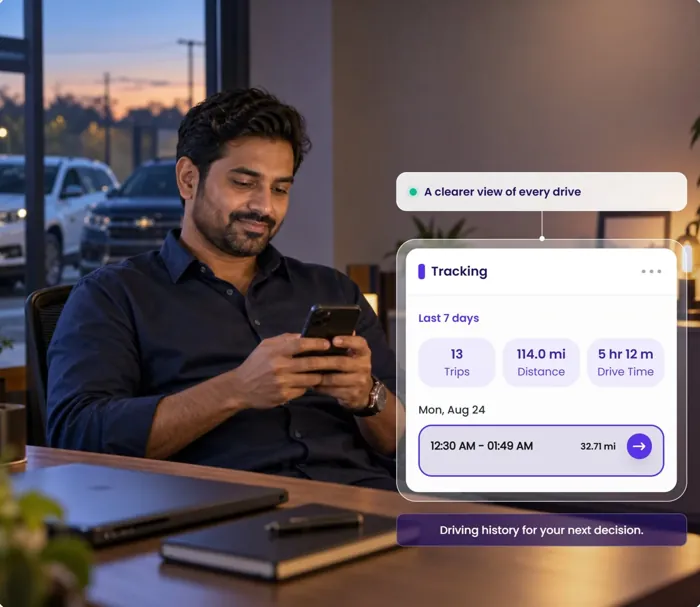
    No second tracker for the insurer. Qarhami already keeps each car's location, trips and odometer for you. With the Tint box ticked, that vehicle's telematics are shared with Tint too — only for the cars you choose.

    Qarhami Qarhami Fleet OS
    Tint Tint
    Tint Off-Trip Insurance Vehicle telematics
      Shared with Tint Insurance · on Illustrative record with sample values.
      Choosing from Tint's list

      Every provider on the list can connect a car to Tint. Ask what else it does.

      Tint's approved list is about getting your data to Tint, and every provider on it can do that. The difference is what the app does for you the rest of the week. Five questions worth putting to any of them — and how Qarhami answers.

      Trips · this week
      Upcoming · 2019 Merc C300Fri 10:00
      Ongoing · 2023 Nissan Kicks142 of 200 mi
      History · 22 Infiniti QX50Sun 18:31
      SourceTuro · linked to its car
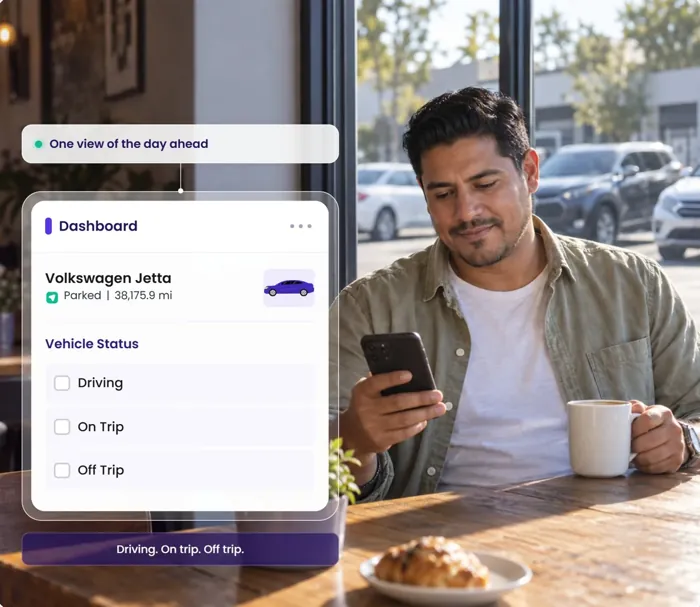
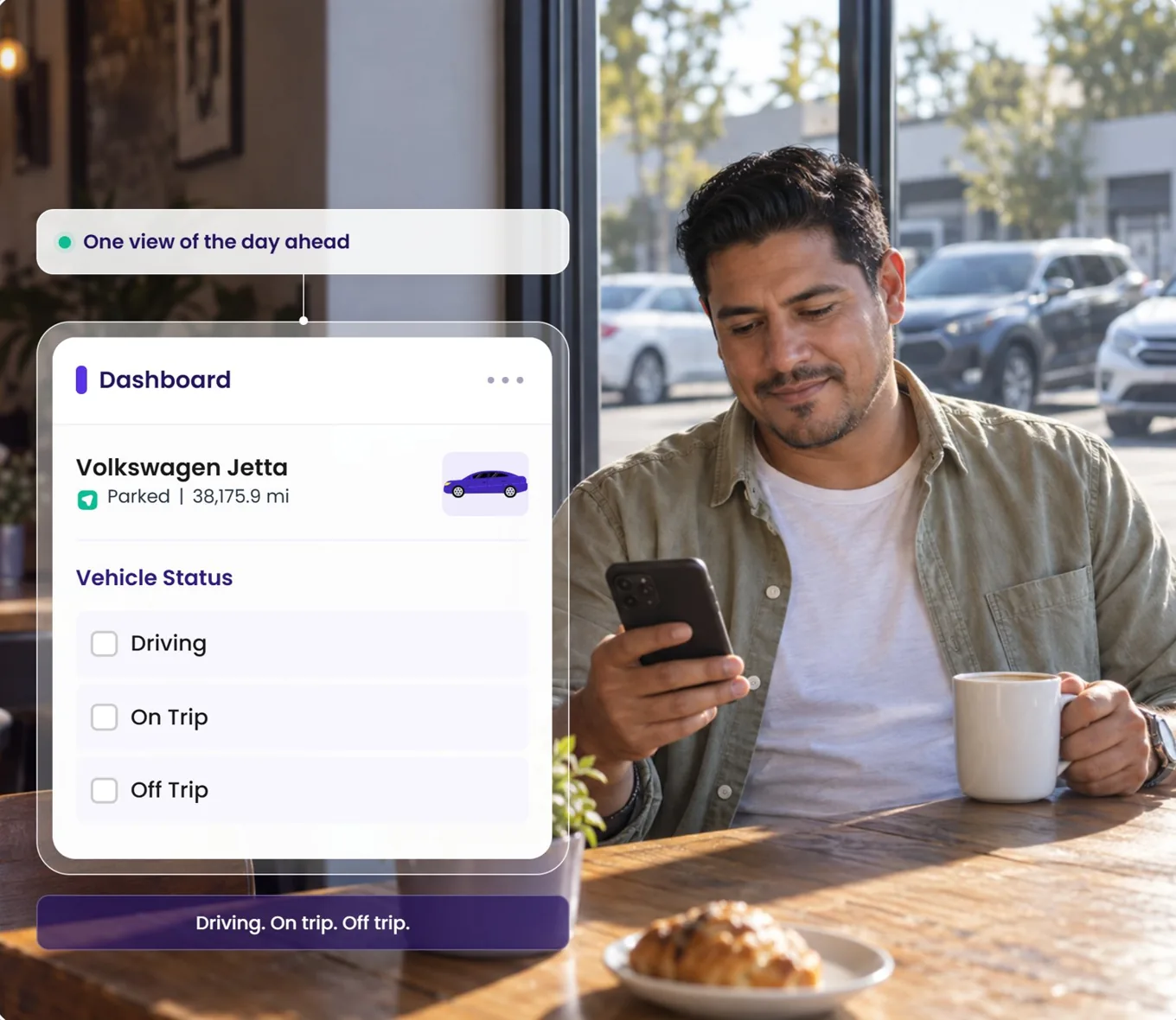
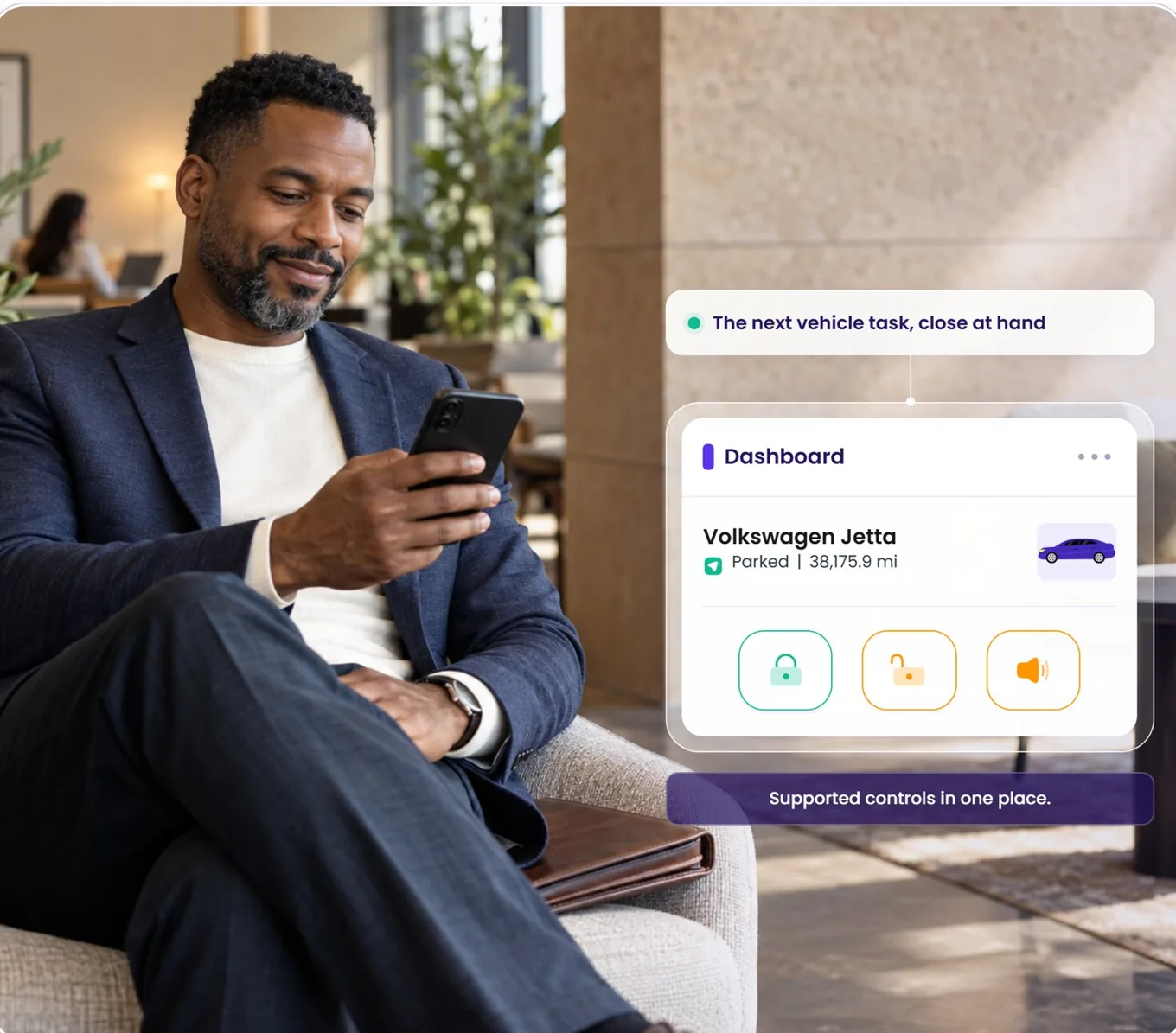
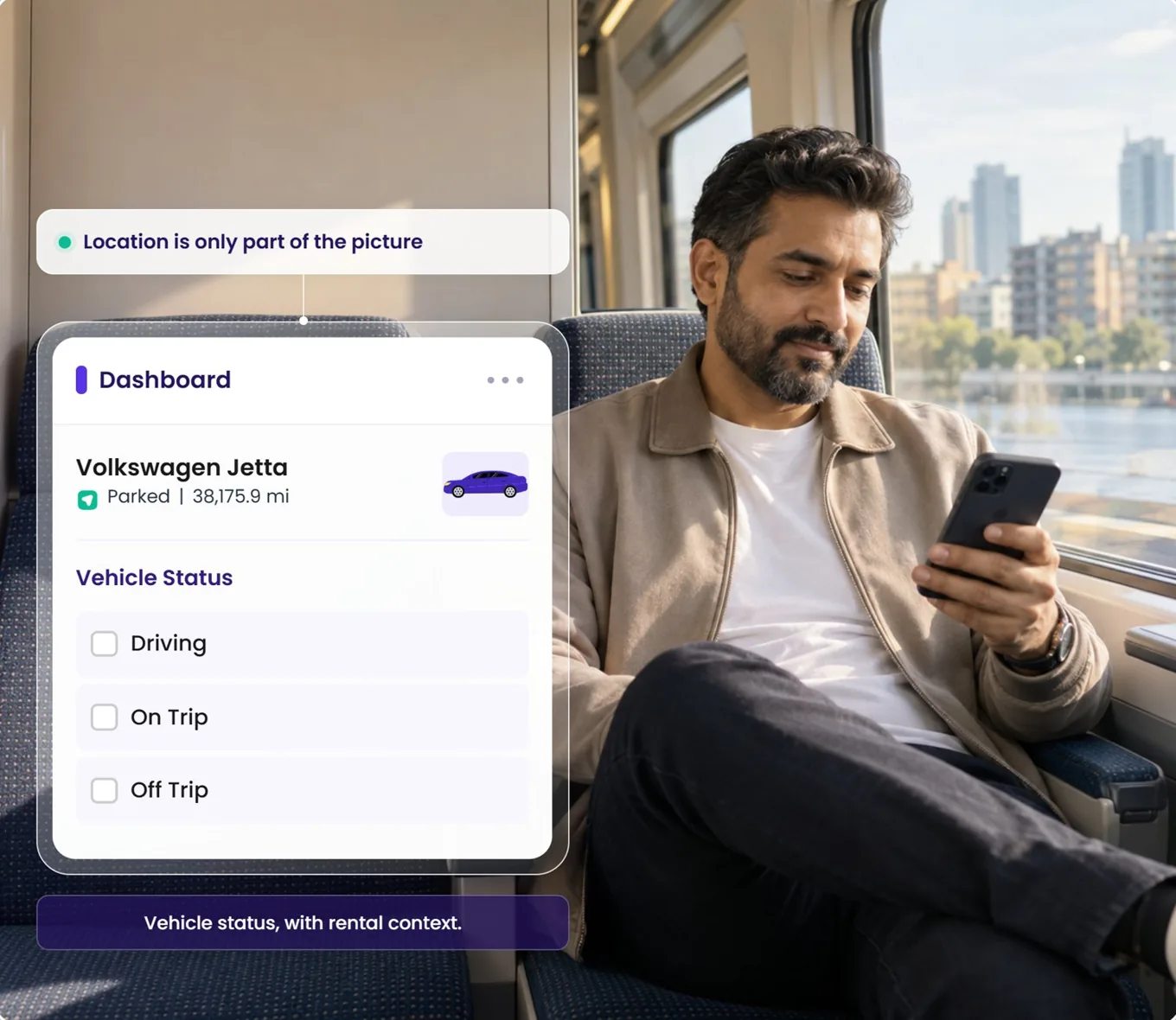
      Dashboard filtersDriving · On Trip · Off Trip
      Access linkReady to send
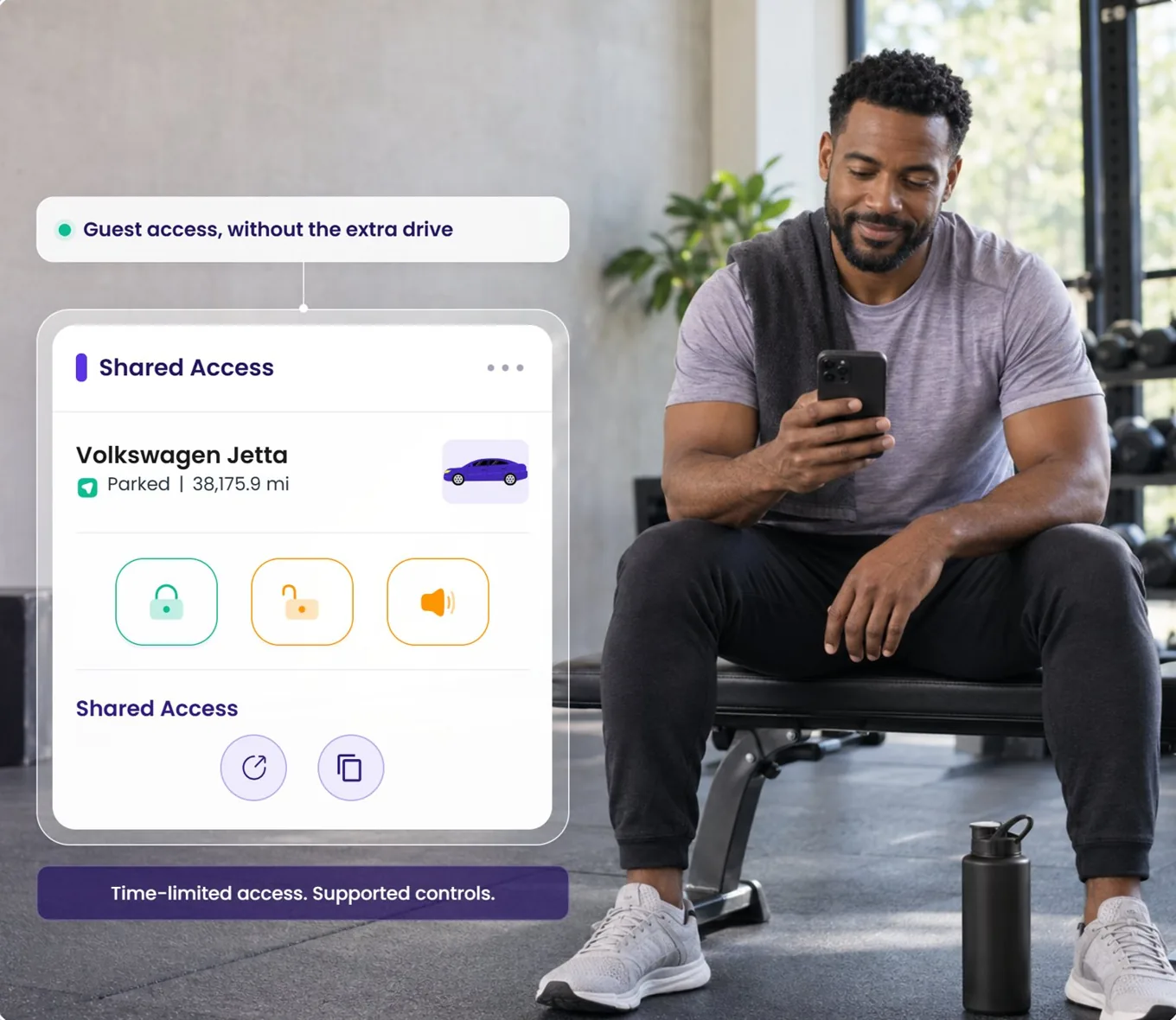
      StartsFri 10:00
      Ends, on its ownSun 18:00
      Lock / UnlockIn the window
      LocateIn the window
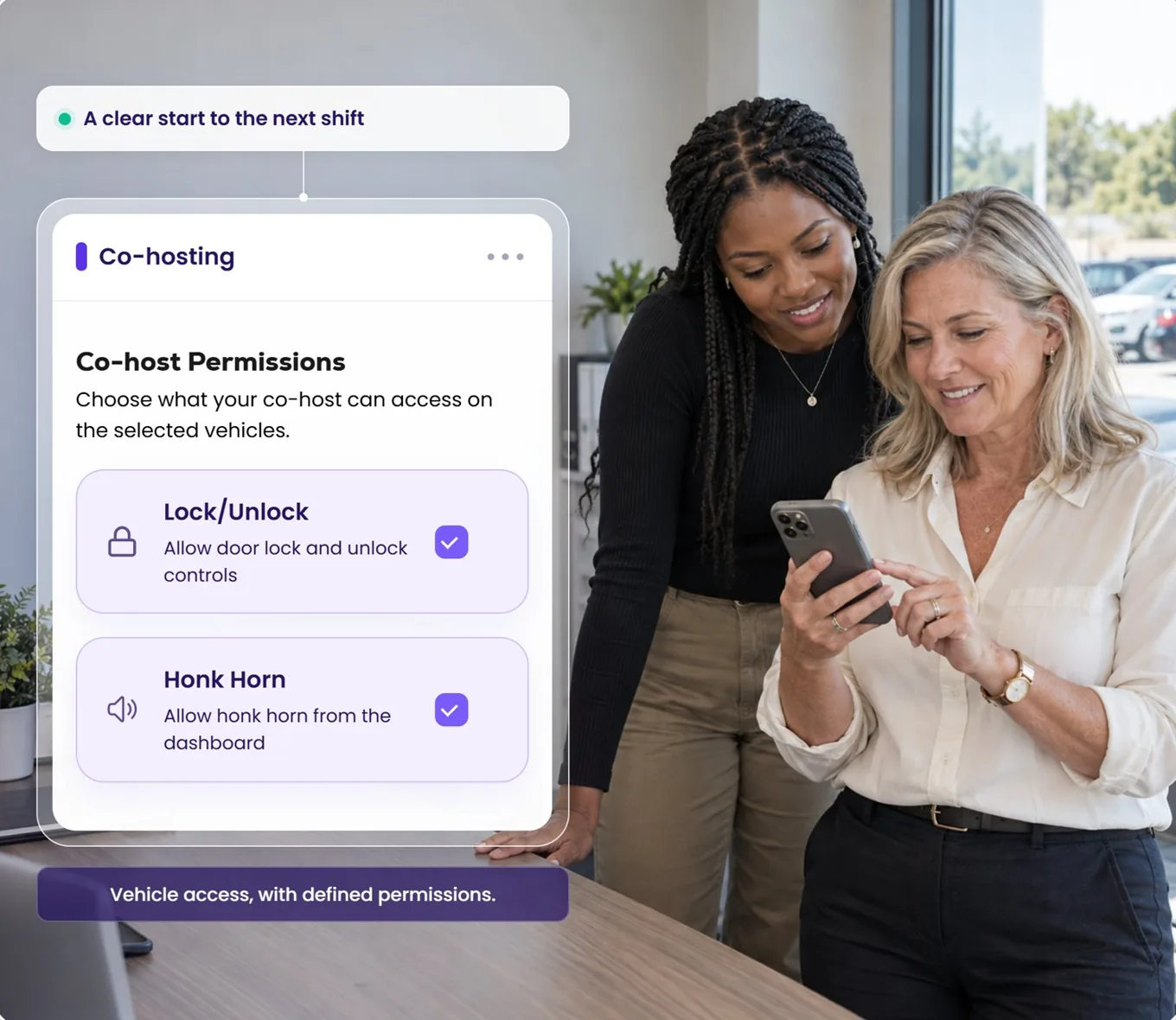
      Co-host · own login3 cars
      Lock / UnlockGranted
      Report / ResolveGranted
      Honk HornNot granted
      Show Trip EarningNot granted
      Tow AlertEmail · on
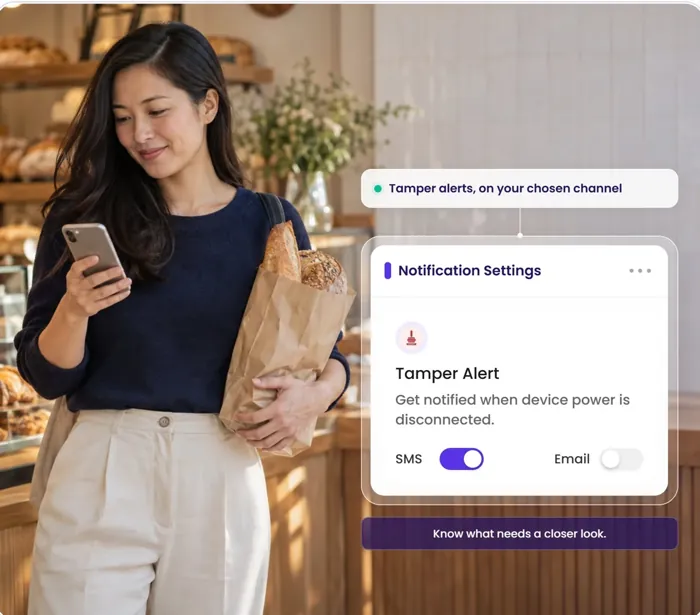
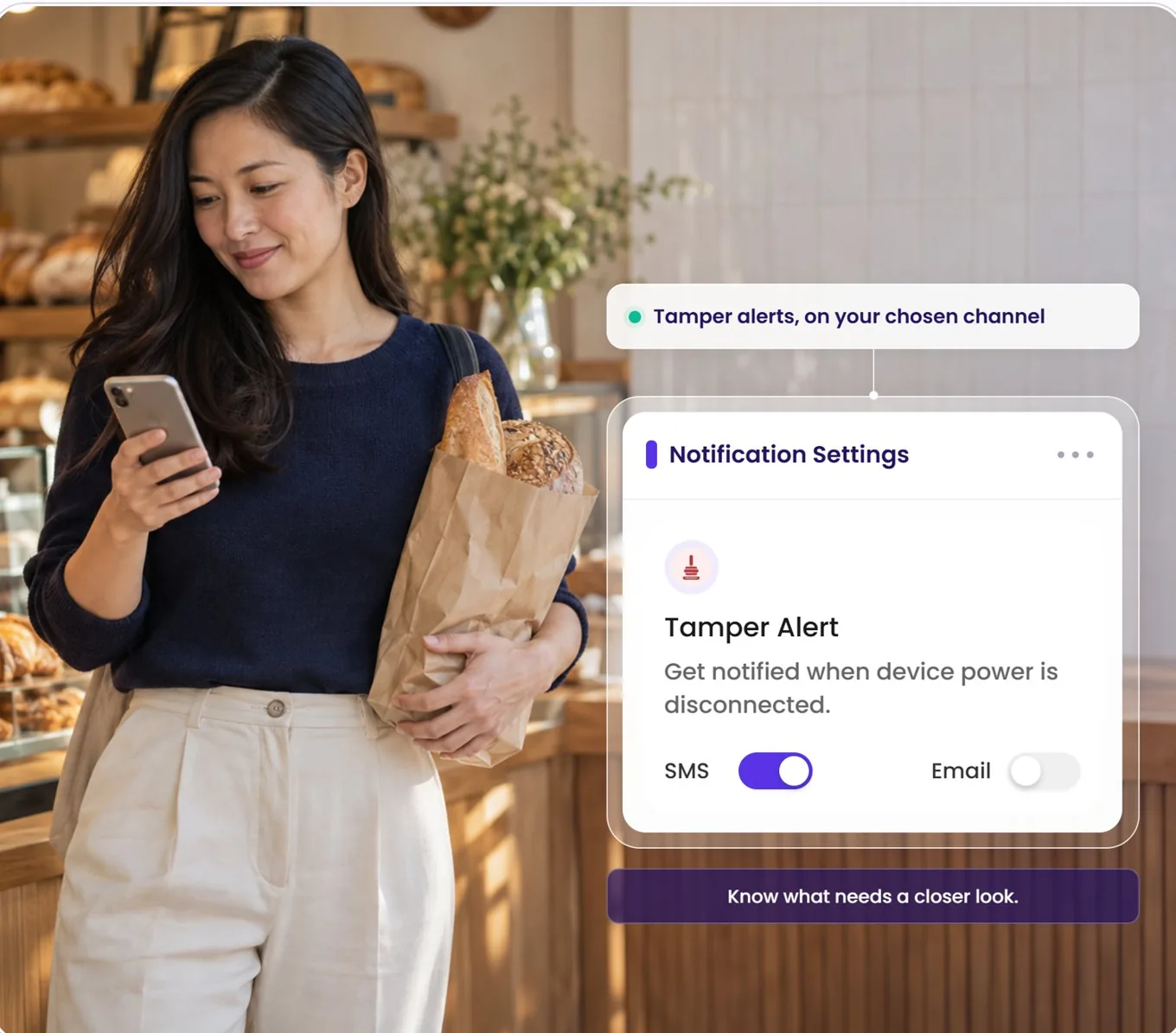
      Tamper AlertEmail · on
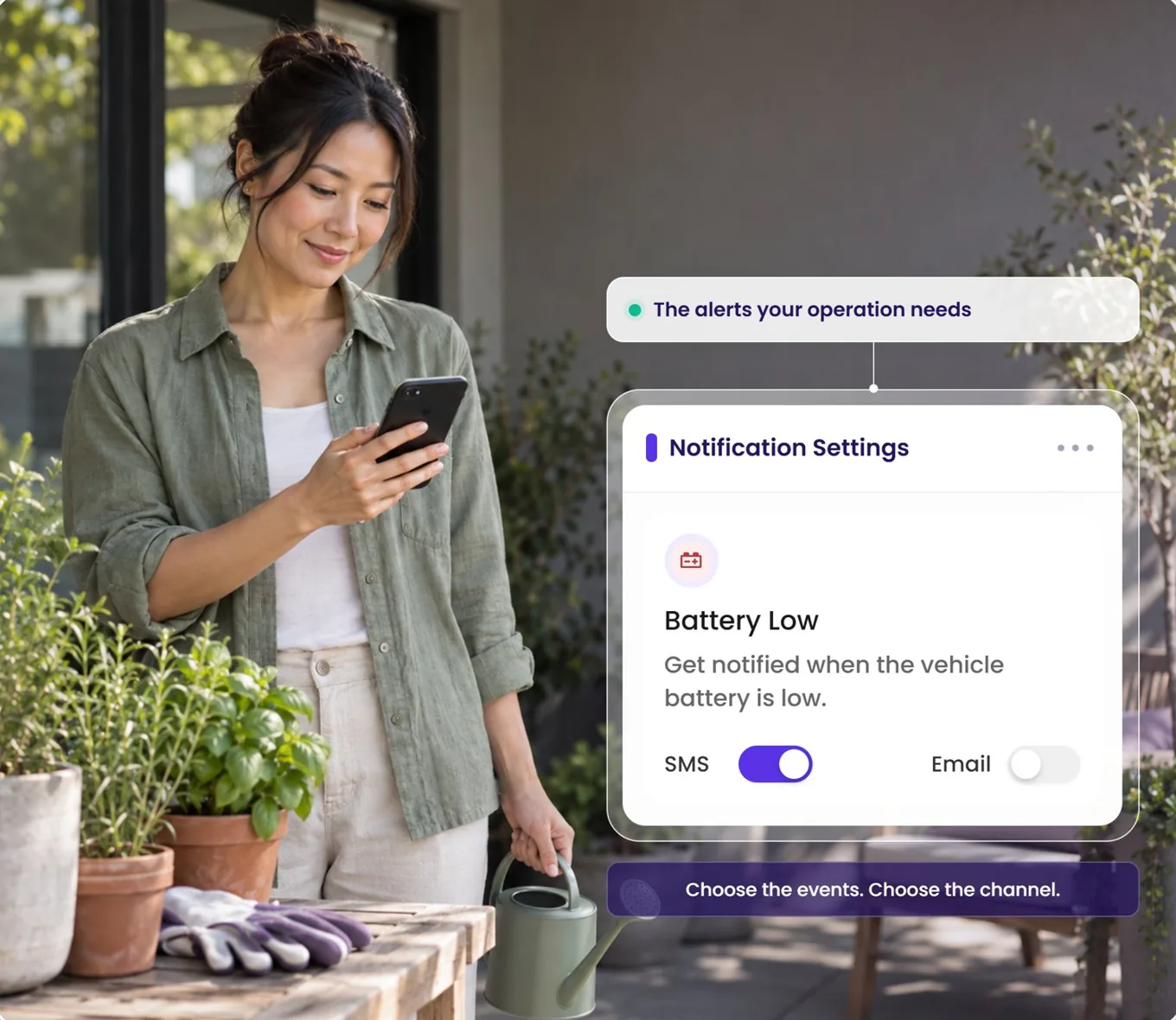
      Battery LowEmail · on
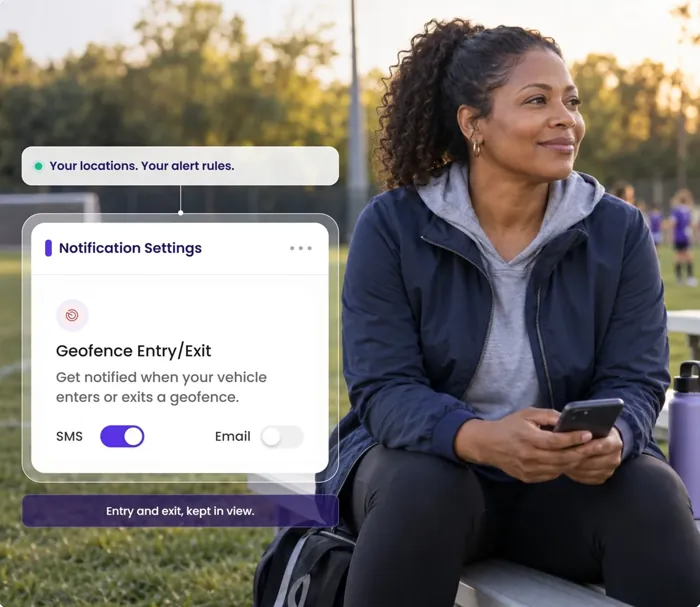
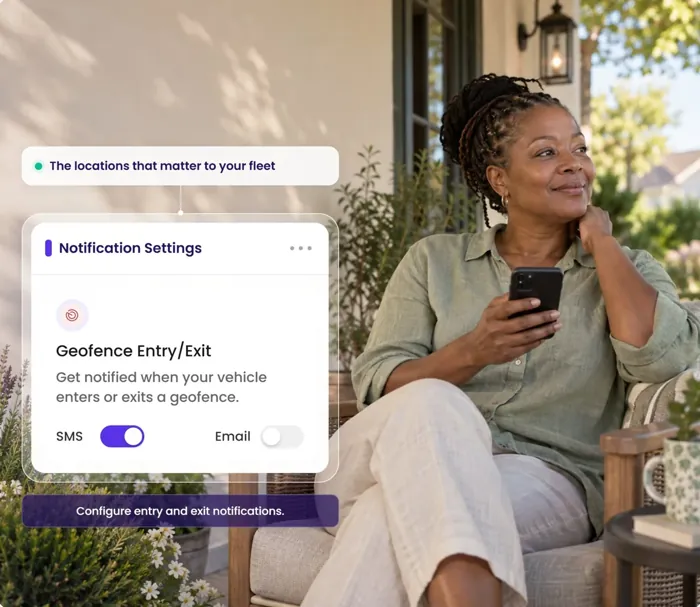
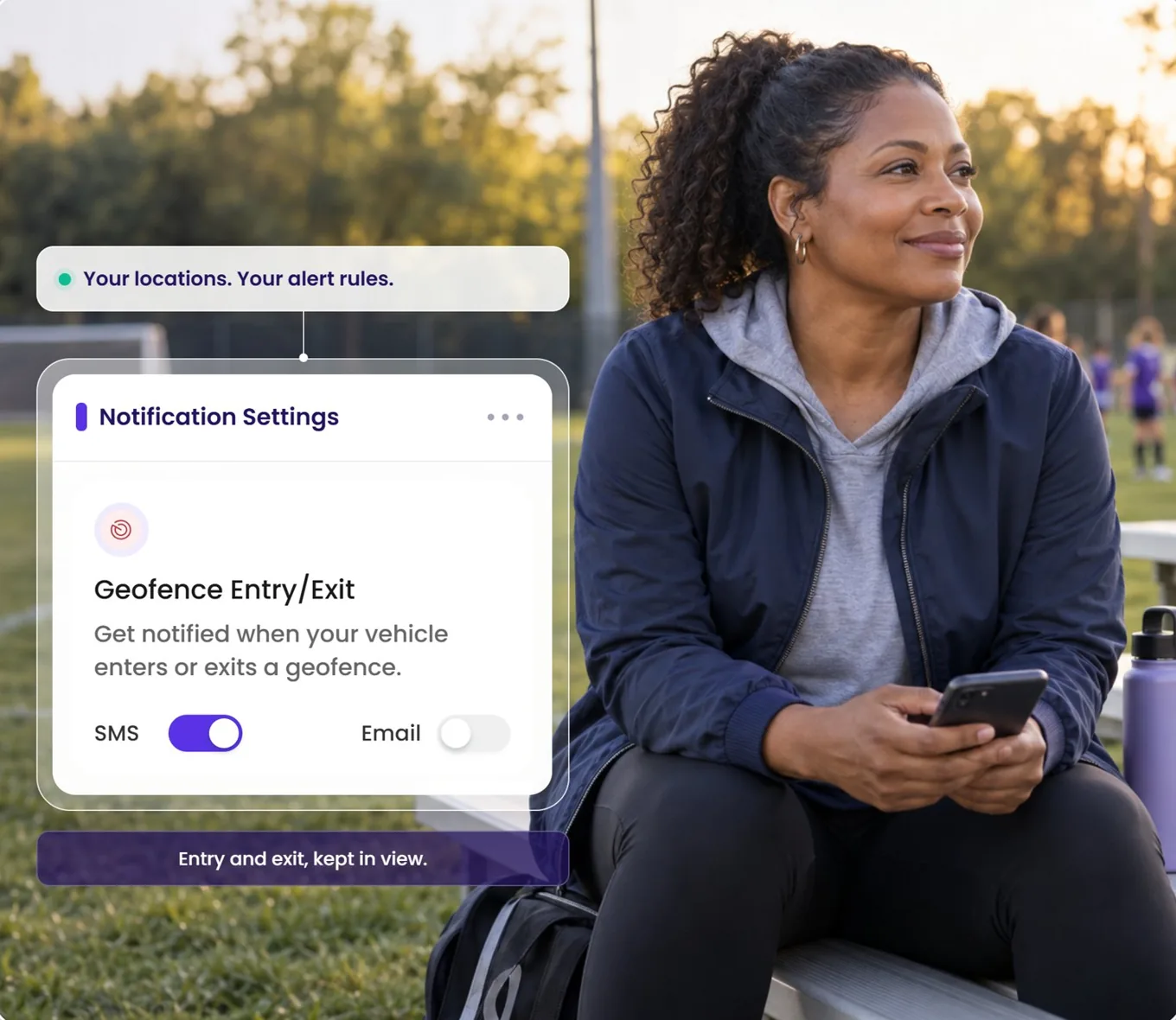
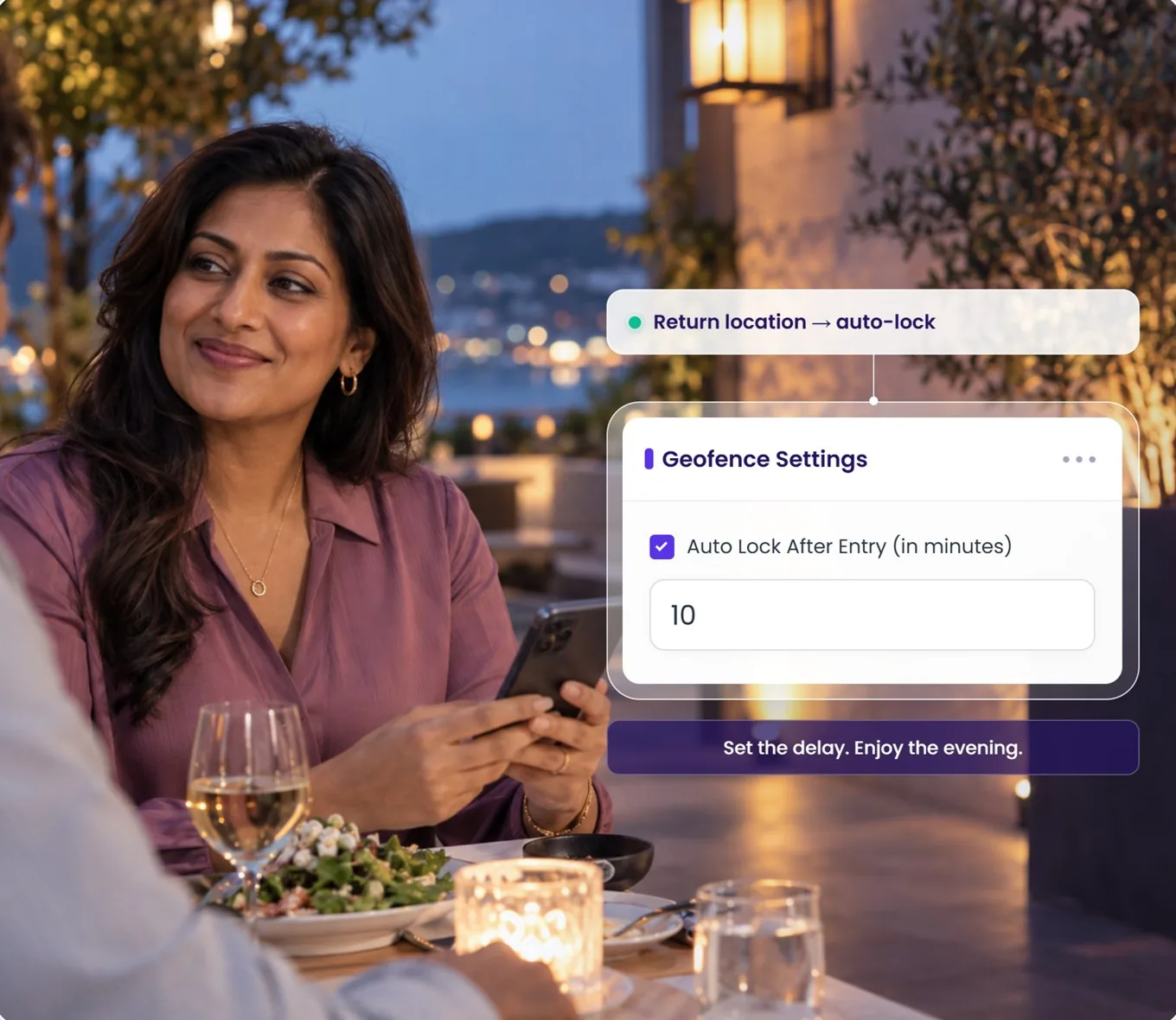
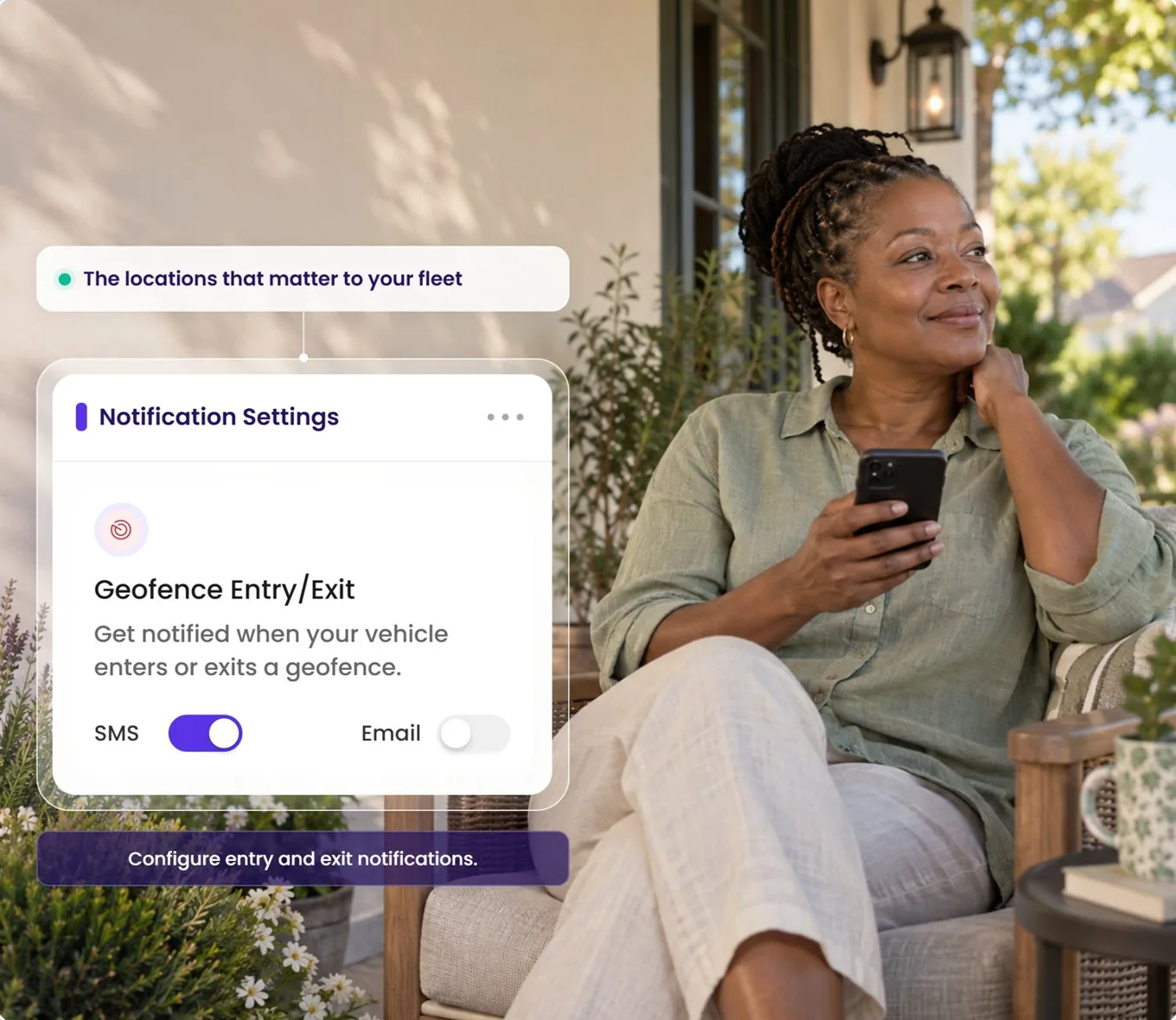
      Geofence Entry/ExitEmail · on
      Over the limitOff
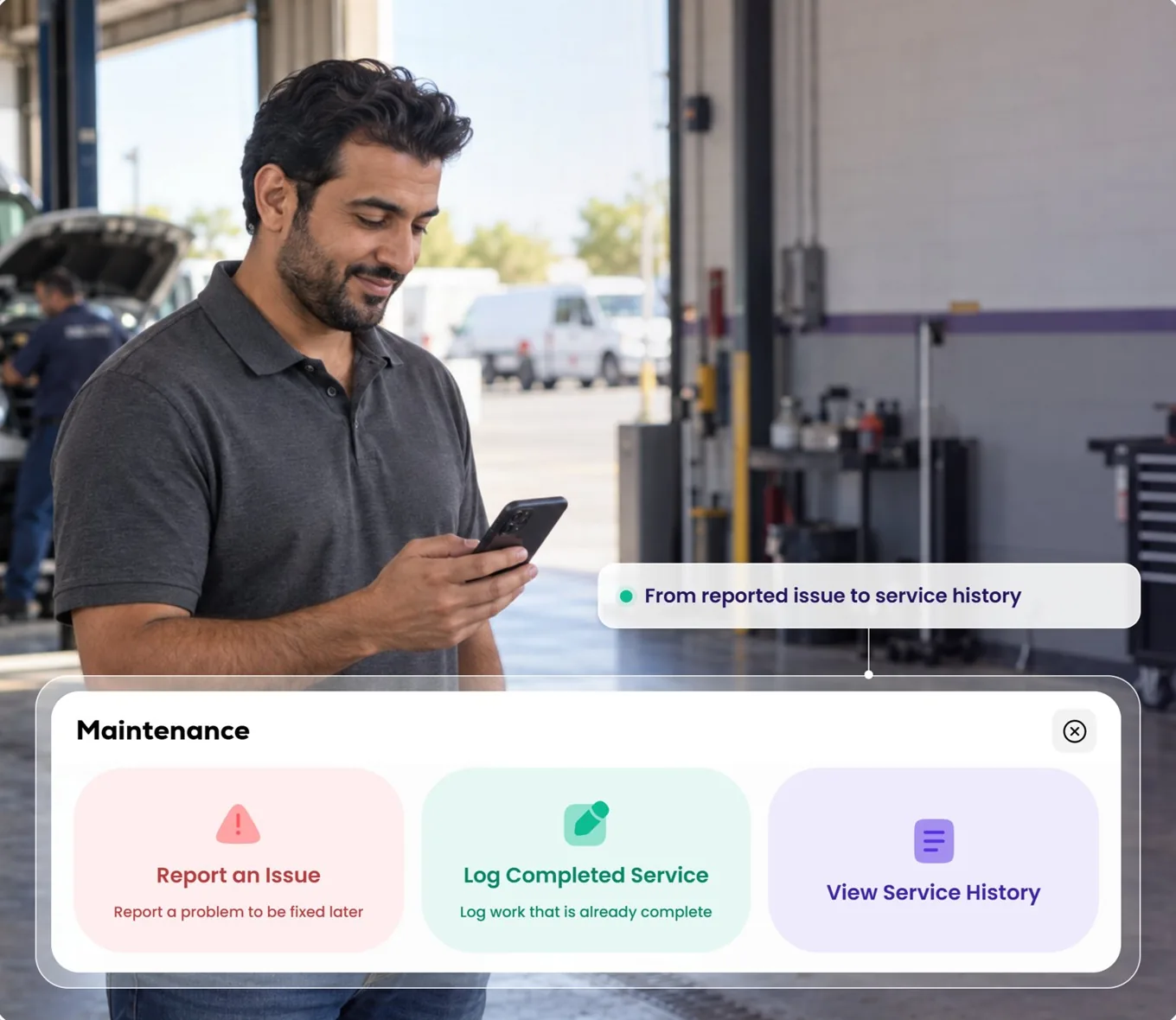
      Issue reportedBrakes · 04 Aug
      Service logged09 Aug · 61,204 mi
      Invoice attached1 file
      Oil change12 Jun · 58,930 mi
      Service historyDated entries
      Qarhami The same app that shares the car with Tint.
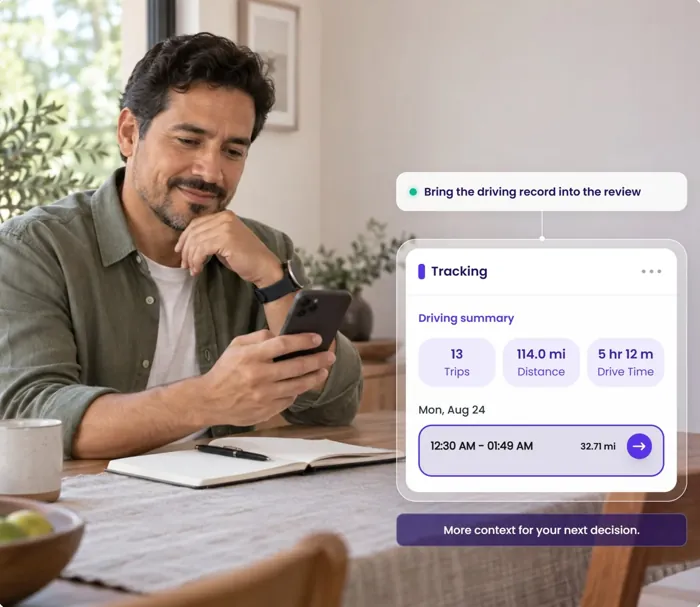
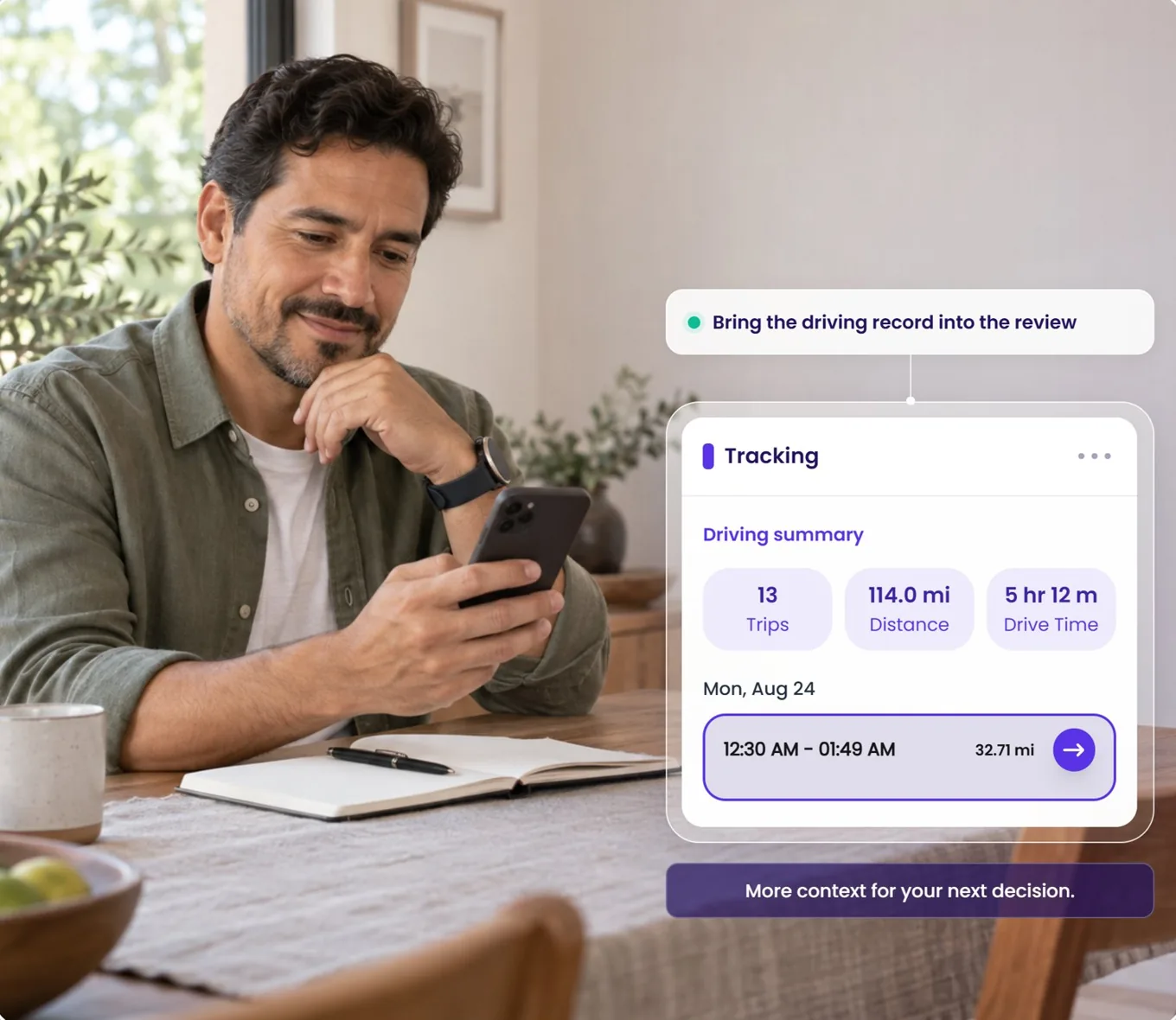
      Question 01 · Trips

      Does it know a trip from a drive?

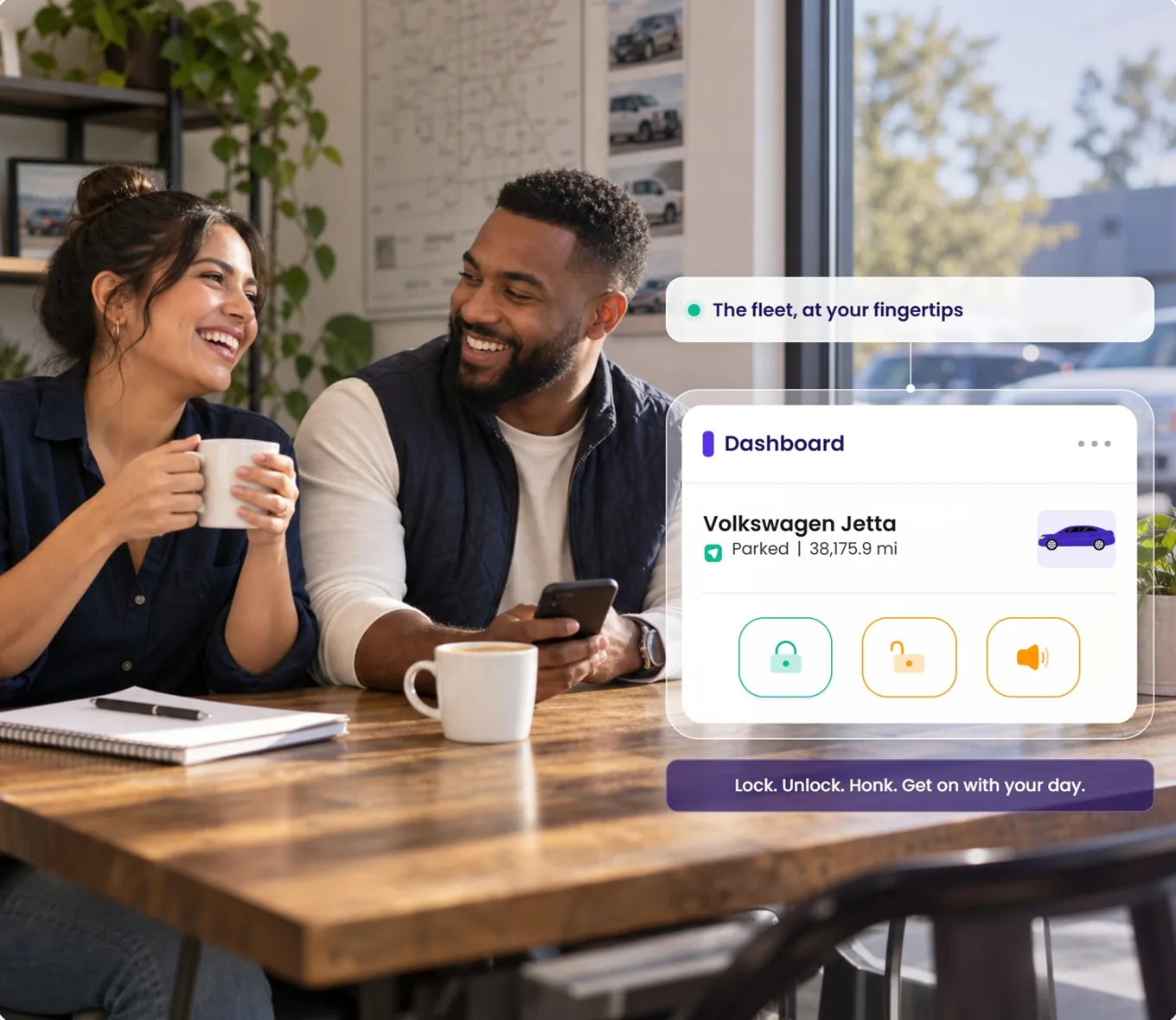
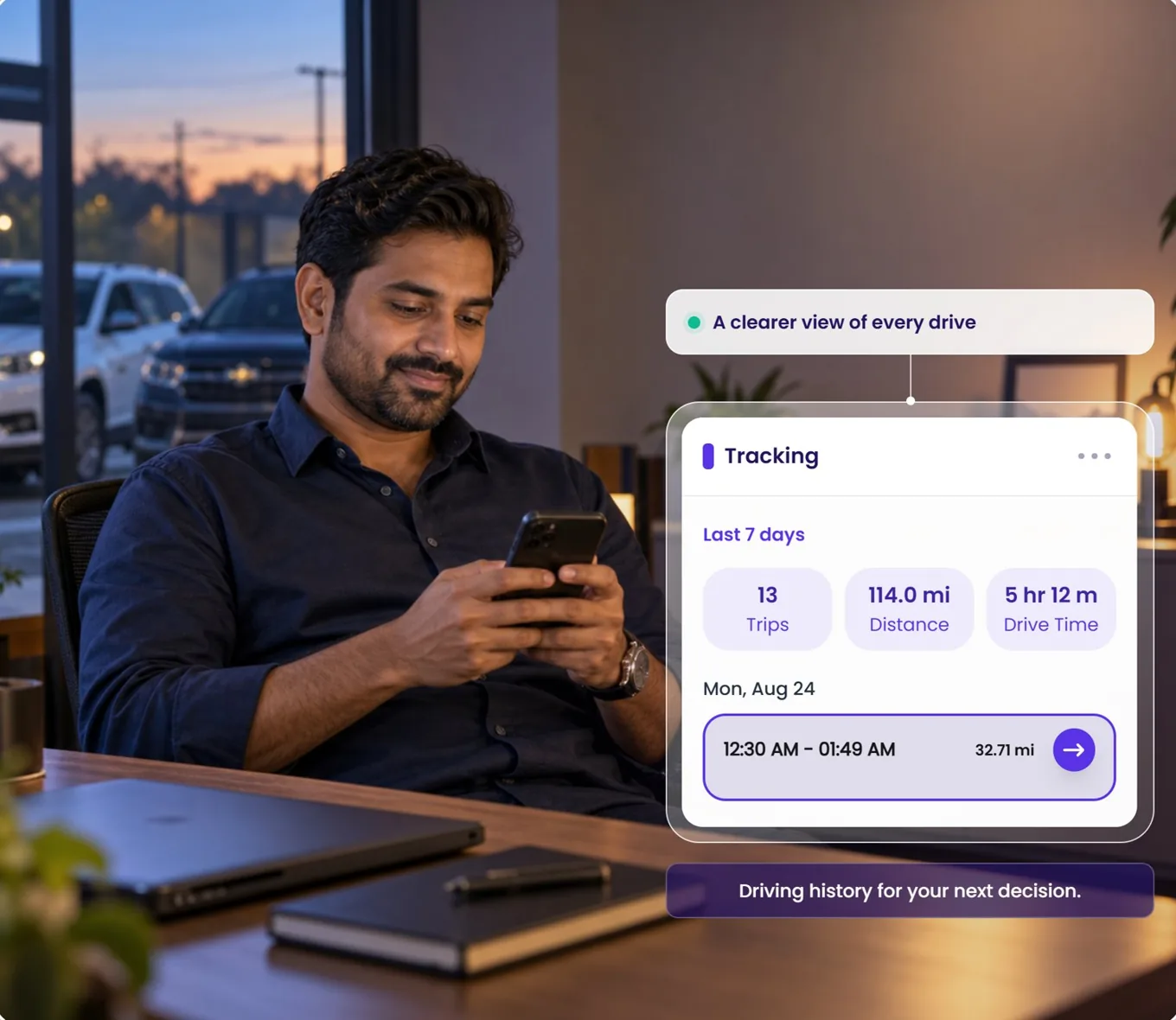
      A tracker puts a dot on a map. Running Turo cars means knowing which booking a car is on, who's out right now, and what comes back tomorrow.

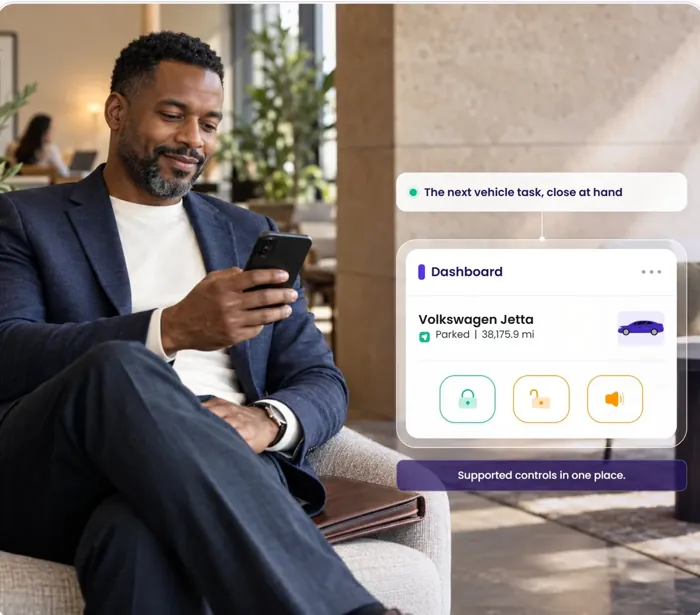
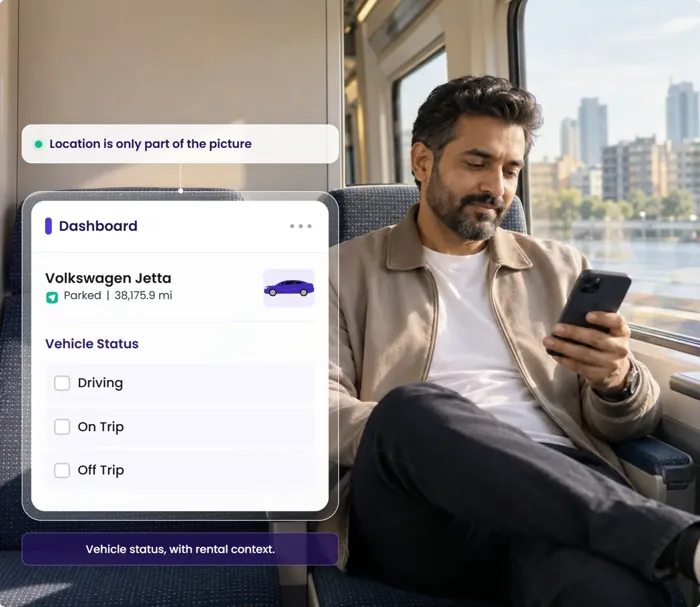
      In Qarhami: your Turo bookings arrive in Trips — upcoming, ongoing and history — from your Turo confirmation emails, each linked to its car, with miles used against what's included. The dashboard filters the fleet by Driving, On Trip and Off Trip.
      Question 02 · Guest access

      Can a guest get in without you there?

      Key runs and lockboxes are where hosting hours disappear. The question is whether access can follow the booking instead of your calendar.

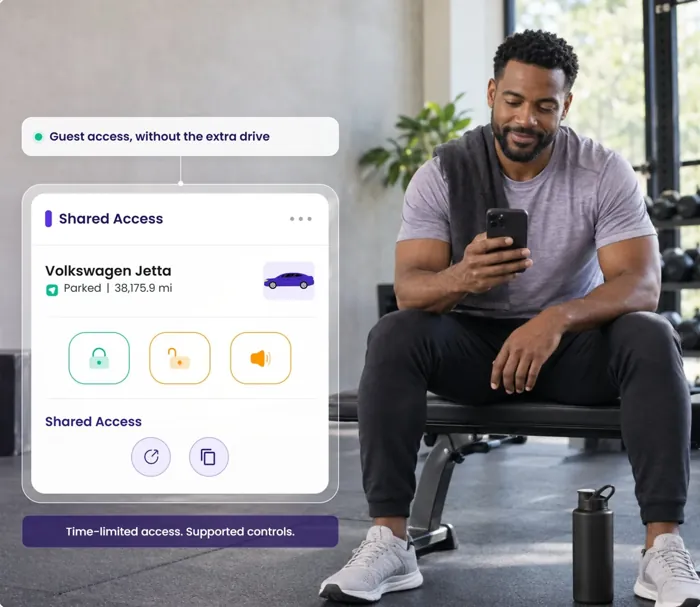
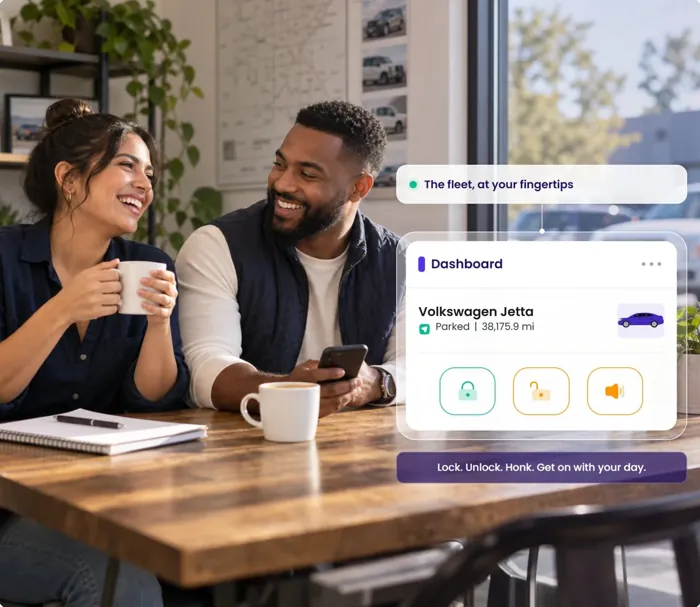
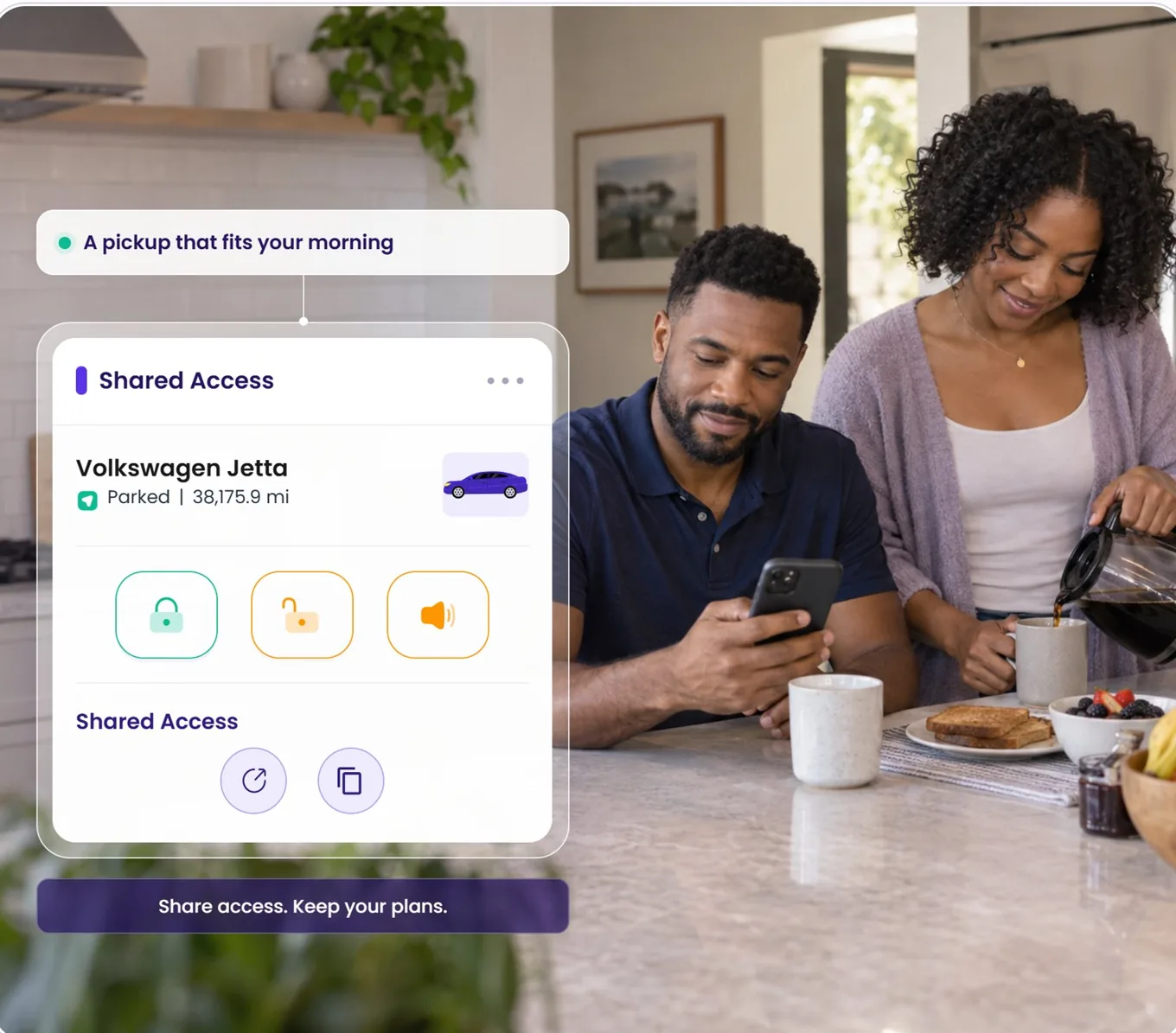
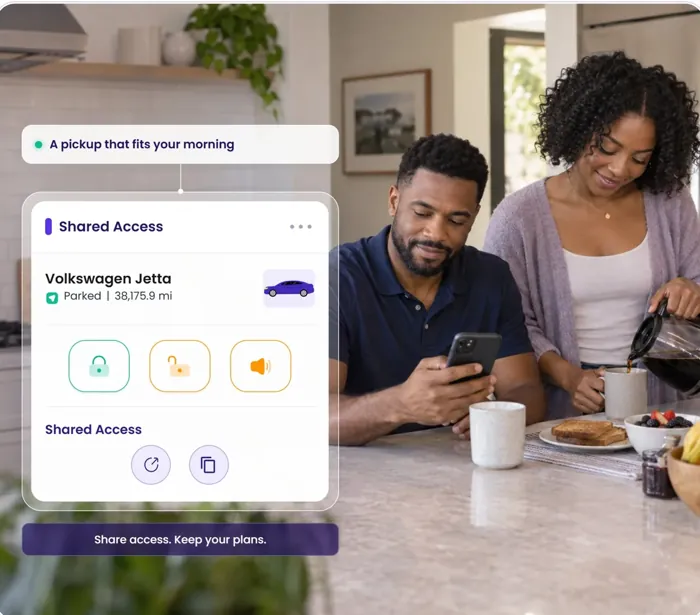
      In Qarhami: Shared Access sends a guest a link for one car, set to the start and end of their booking. They can lock, unlock and locate it inside that window, and the link expires on its own. Lock and unlock need a hardwired install.
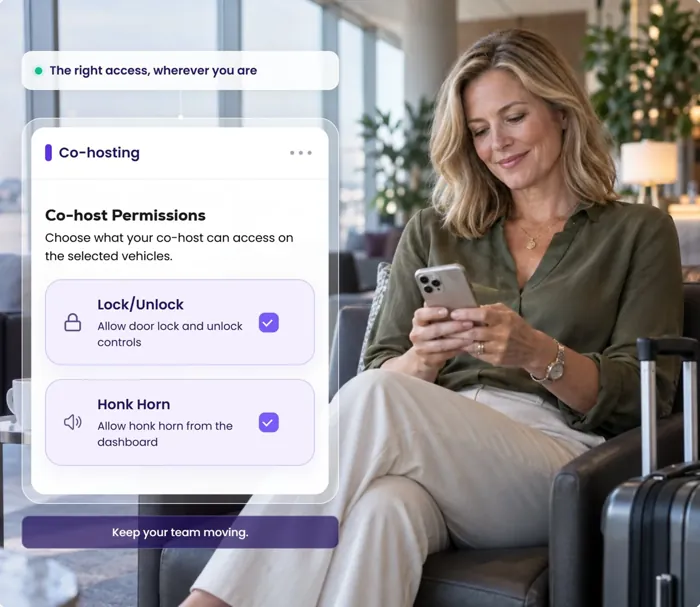
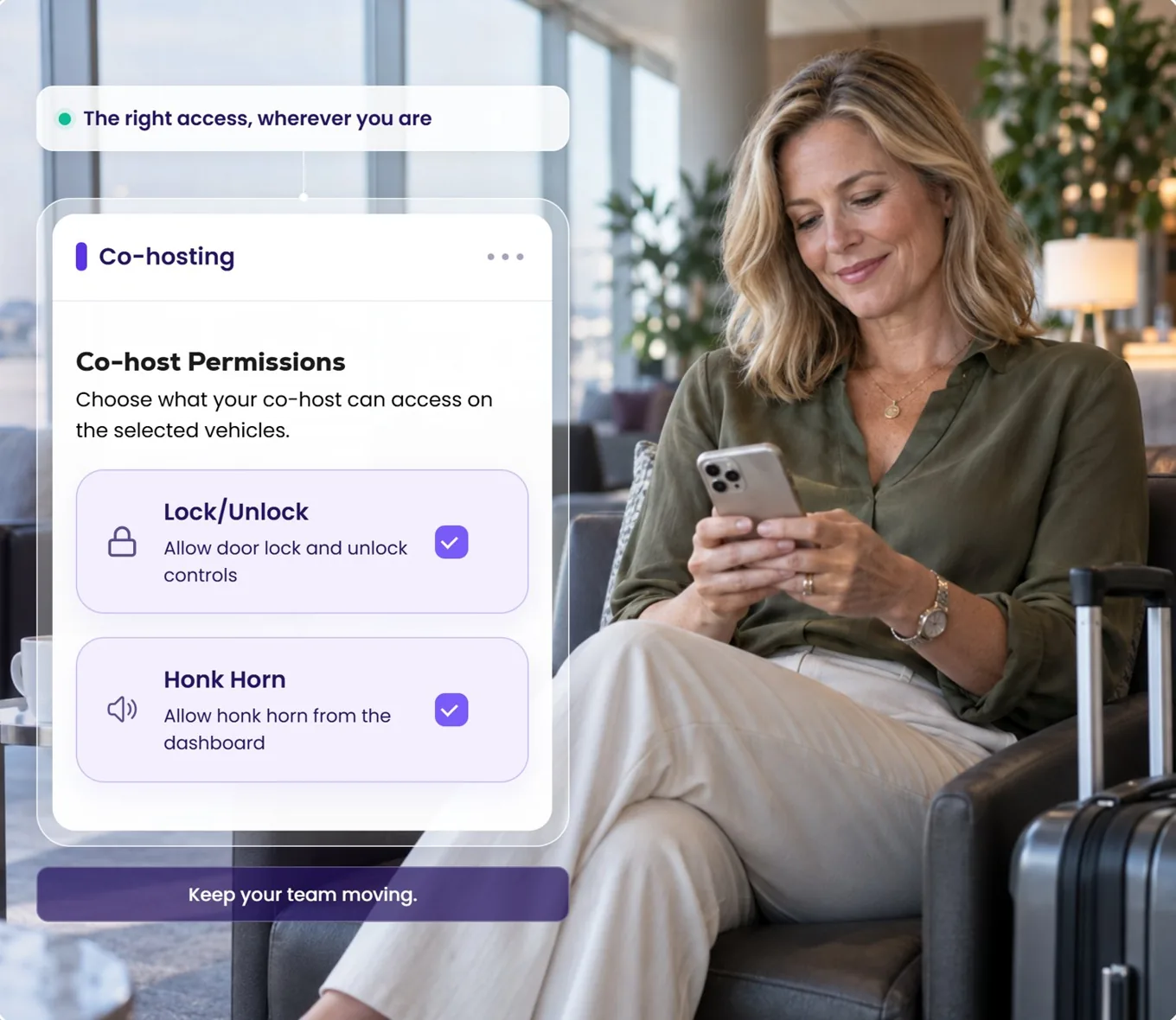
      Question 03 · Co-hosts

      Can a helper work without your login?

      Once someone else cleans, delivers or services the cars, sharing one password stops being a plan.

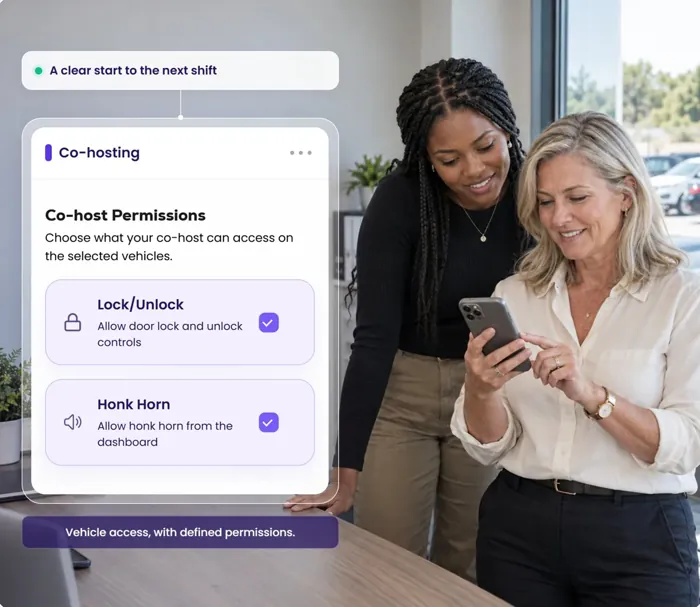
      In Qarhami: Co-Hosting gives each helper their own account, on the cars you pick, with the permissions you choose — unlock a car and report a problem, but not see what a trip earned. It lasts until you take it away.
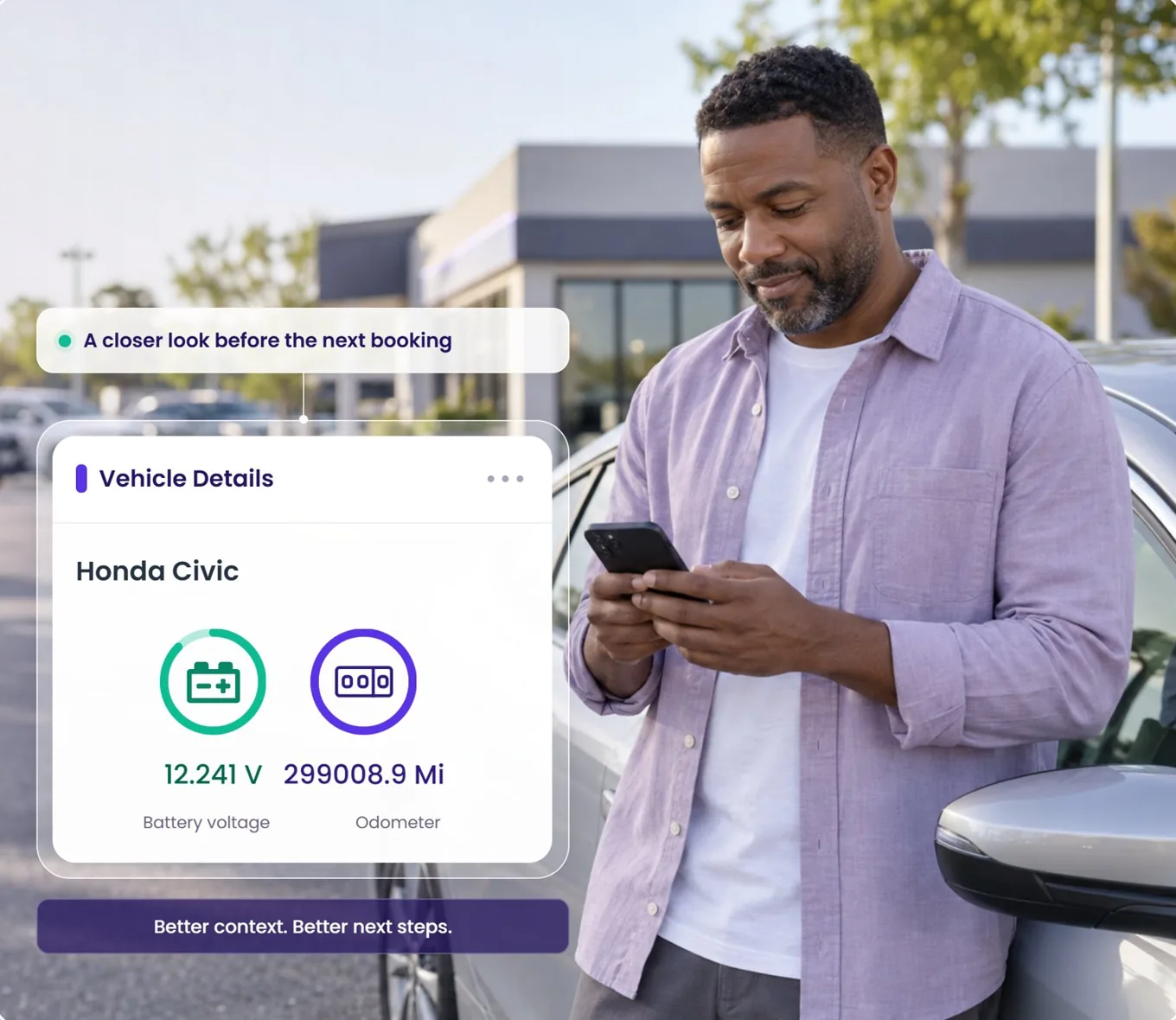
      Question 04 · Alerts

      Will you know before morning?

      A car towed with the ignition off, a device that's been tampered with, a battery running down in the lot. Finding out the next day is finding out late.

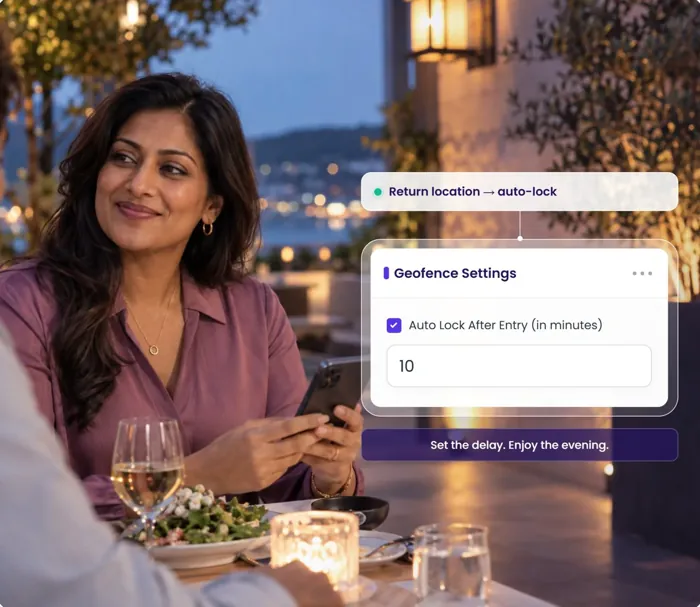
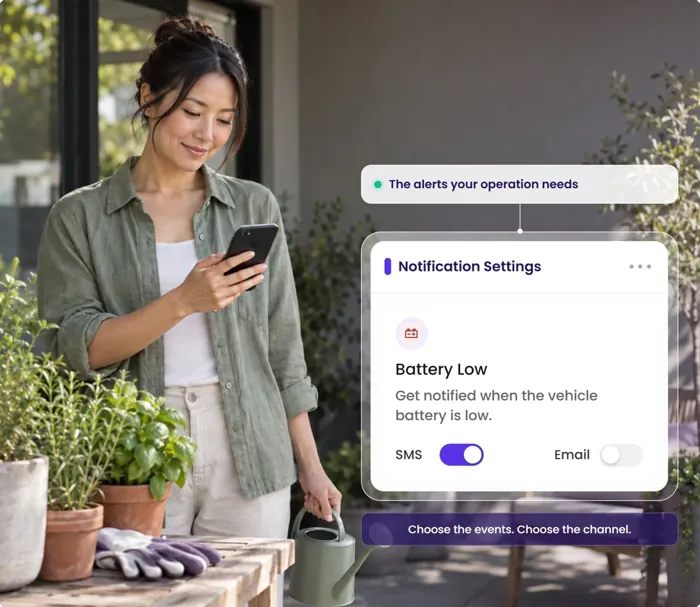
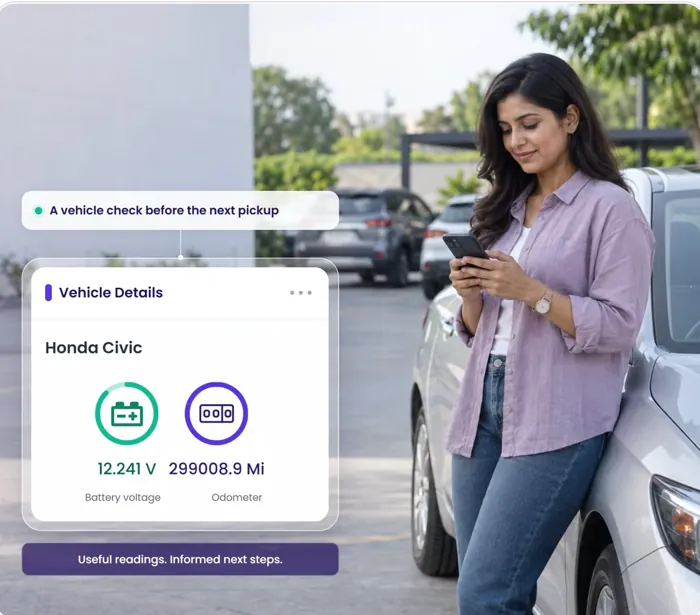
      In Qarhami: each car has its own notification settings — tow, tamper, battery low, geofence entry and exit, over-the-limit and hard-braking events, emailed to the inbox you choose, and copied to the rest of the fleet in one step.
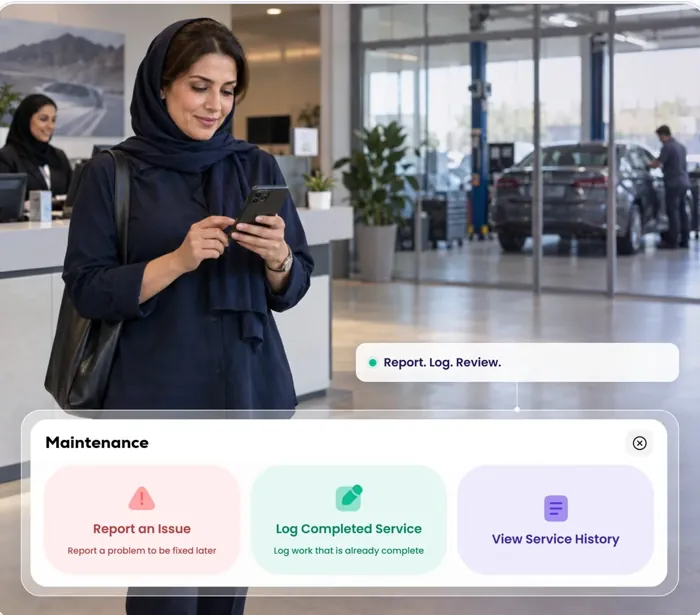
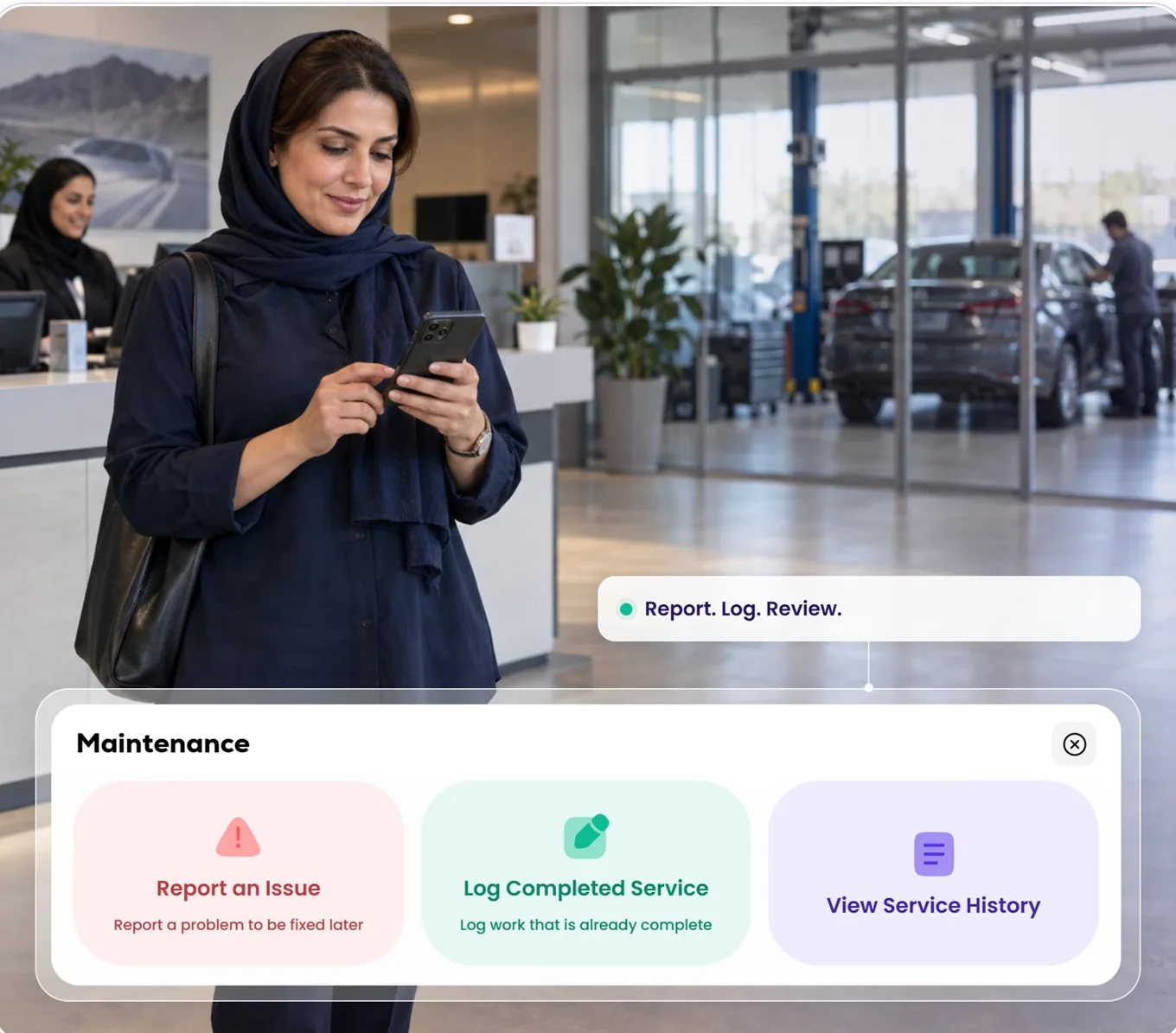
      Question 05 · Maintenance

      Does the car's history stay with the car?

      Oil, tires, brakes, and the receipt for each. A service log in a notes app leaves with whoever wrote it.
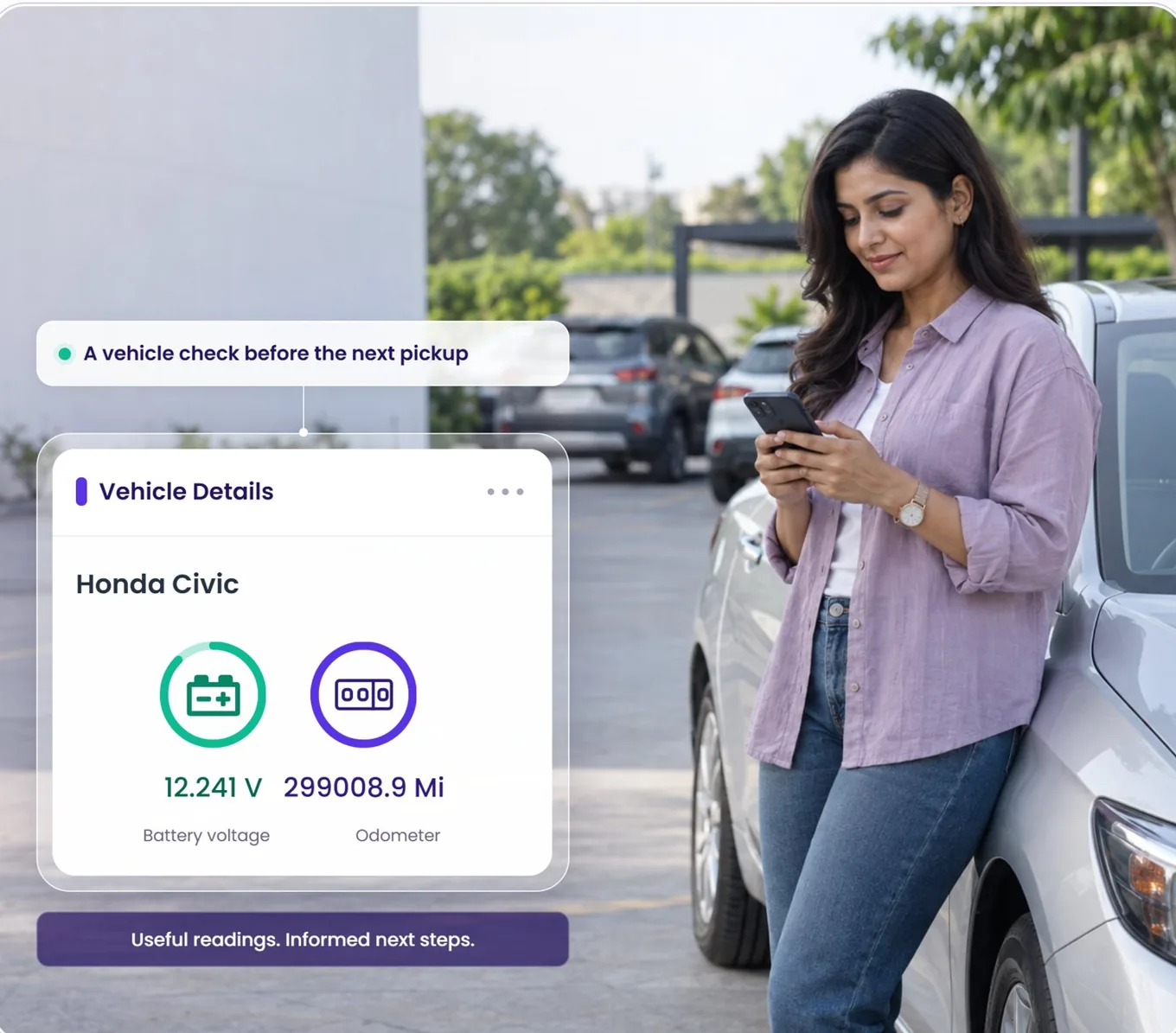
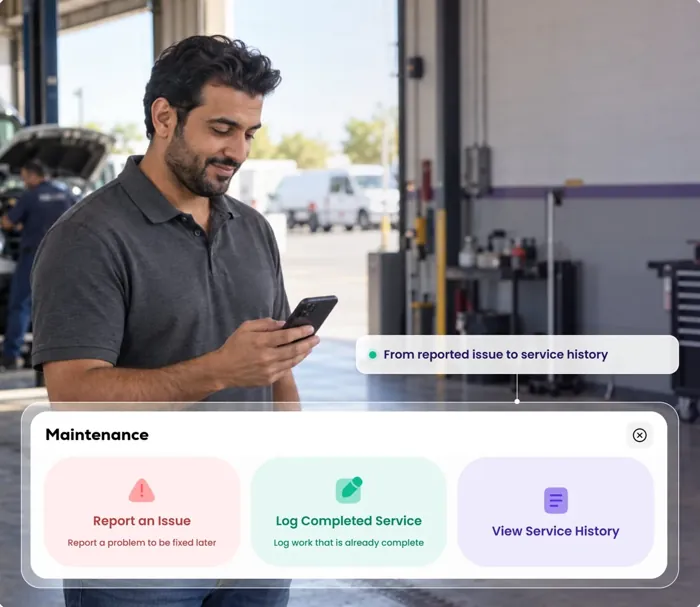
      In Qarhami: report an issue, log the completed service with date, mileage, cost and notes, attach the invoice, and keep the history on the vehicle it belongs to.

      App screens show sample data. Features depend on the vehicle and device: lock, unlock and horn need a hardwired Qarhami Track install, and the data available varies by vehicle, model year, installation, plan, permissions and connectivity. Tint publishes its approved providers at support.tint.ai; the comparison is yours to make.

      Your control

      On by default. Yours to change, car by car.

      Ticked from the start

      Cars you add to Qarhami are created with Shared with Tint Insurance already ticked, so a new car doesn't wait on you to remember a setting. Older records are worth a quick check.

      Decided one vehicle at a time

      The setting lives on the vehicle record, beside its plate and VIN. Untick it for a car that isn't on a Tint policy — a partner's car, one insured elsewhere, one you're about to sell.

      Reversible — mind Tint's rules

      Open the vehicle, tap Edit, change the box, save. If a car on Tint's telematics plan stops sharing, Tint's rules decide what happens to its plan, so check with Tint before you switch one off.

      On what is shared. The data Tint receives, and how Tint uses it, are set by Tint's programme and your agreement with Tint. Qarhami's role is to keep each vehicle's operating record and pass it on for the vehicles you've enabled — not to decide your cover or your price.

      By fleet size

      What connecting looks like at your scale.

      1–3 vehicles
      A few minutes, once
      • Check the box on each car, then connect Qarhami in Tint
      • Each car's 60 days start when it joins your Tint policy
      • Trips, guest access and alerts in the same app
      3–10 vehicles
      Cars join at different times
      • Every car you add starts with Tint sharing ticked
      • Tint's Car Management shows which cars are connected
      • Co-hosts work from their own login, not yours
      10–50 vehicles
      The fleet changes monthly
      • New, sold and partner cars, each set on its own record
      • Keep every VIN right so each car matches its policy
      • Alert settings copied across the fleet in one step
      50–100+ vehicles
      Insurance is a line item
      • Every car left unconnected moves to Tint's non-telematics plan
      • A mixed fleet, decided vehicle by vehicle
      • One operating system for every car on the books
      The operators

      Built for the people who run real fleets.

      Turo hosts and private rental operators across North America run their vehicles on Qarhami — and the ones insured with Tint connect each car from the same record.

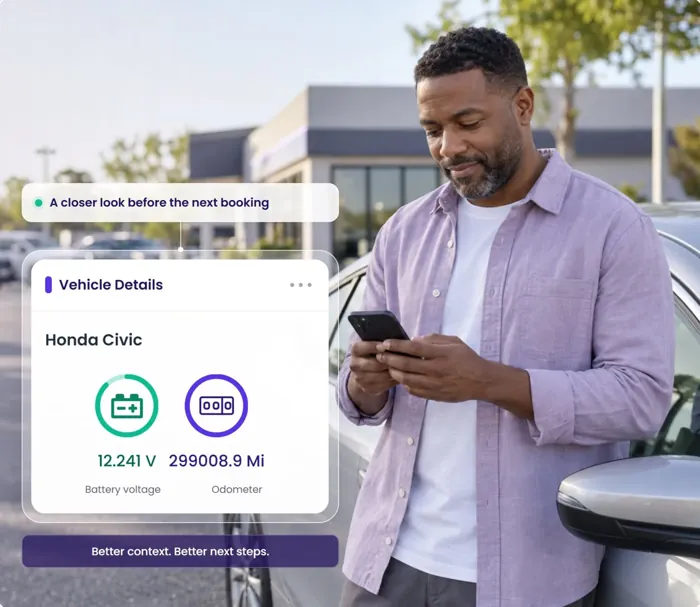
      Open any photo to see the feature in focus

      Already running Qarhami

      Check every car's Tint box.

      Open a vehicle, tap Edit and make sure Shared with Tint Insurance is ticked. Save. Then connect Qarhami in your Tint portal, and check Car Management shows the car as connected.

      • Ticked by default on cars you add
      • Per vehicle, and reversible
      • Works on Qarhami Track and Qarhami OBD
      Choosing from Tint's list

      Connect the car. Run the fleet.

      Fit the device, add the car in Qarhami (Tint sharing is already ticked), then connect it in your Tint portal before the car's 60 days are up.

      • Hardwired Qarhami Track or plug-and-play Qarhami OBD
      • On Tint's list of approved GPS providers
      • Trips, guest access, co-hosts, alerts and maintenance in one app

      Comparing insurance options? See every insurer Qarhami works with

      Questions

      What Tint customers are asking.

      Yes. Qarhami is on Tint's list of approved GPS providers for Off-Trip Insurance.

      Tint publishes the list in its help centre, under FAQ – GPS Connection. A car qualifies for the telematics plan once it's connected to an approved provider and you've consented to share its data with Tint.

      Two parts: share the car in Qarhami, then consent in your Tint portal.

      In Qarhami: Vehicles → View Vehicle → Vehicle Details → Edit. At the bottom of the form, make sure Shared with Tint Insurance is ticked, then press Save Edits. Repeat for each car.

      In Tint: log in at login.tint.ai, click Telematics in the left-hand menu, select Qarhami, click Connect and follow the prompts. Then check Car Management.

      Tint gives each vehicle a 60-day grace period, starting the day it's added to your Off-Trip Insurance policy.

      Cars that aren't connected by then move to Tint's non-telematics plan, which Tint charges at a higher rate. Tint says a car that connects later moves back to the telematics plan, with prorated credits applied. Tint's rules can change, so check Tint's article for the current terms.

      For cars you add in Qarhami, yes — Shared with Tint Insurance is ticked when the vehicle is created.

      It's still worth opening each car once to check, especially older records or any car someone has edited. And sharing in Qarhami is only half of it: Tint also needs your consent in the Tint portal.

      In your Tint portal, Car Management shows whether each vehicle is connected to an approved GPS provider.

      If a car is set up on both sides and still isn't showing as connected, Tint's article What should I do if I don't see my vehicle connected on the Portal? has the next steps. Check that the VIN on the Qarhami record matches the car on your policy, too.

      No. Each checkbox controls sharing with one insurer, independently of the other.

      For Tint, only Shared with Tint Insurance matters. Leave the other one unticked unless you've arranged cover with that insurer, and remember that Tint also needs your consent in its portal.

      The Tint setting is on the vehicle record, so it applies whichever Qarhami device the car has.

      Track is the hardwired path and OBD is the plug-and-play path. The signals each one provides depend on the vehicle, its model year, the installation, your plan, permissions and connectivity — and features like remote lock and unlock need the hardwired install.

      No. Qarhami is not an insurance agency, broker or carrier, and doesn't give insurance advice.

      Off-Trip Insurance, its plans, pricing and eligibility are Tint's. Qarhami provides the fleet operating system and the per-vehicle sharing control. For policy questions, contact Tint at support@tint.ai or (909) 505-2338.

      Yes, from the same screen: open the vehicle, tap Edit, untick Shared with Tint Insurance, save.

      That changes what Qarhami shares from then on. What it means for the car's Tint plan is set by Tint's rules, so check with Tint before switching off a car that's on the telematics plan.

      Tint® and the Tint logo belong to their owner and are used to identify Tint's programme. Off-Trip Insurance is provided by Tint, not Qarhami.