


ABI telematics integration for rental fleetsYour fleet already keeps the record. Now it can share it.
Qarhami is technically integrated with American Business Insurance Services
(ABI), one of America's largest commercial transportation insurance agencies. Turn
sharing on for a vehicle and its Qarhami telematics reach ABI, so rental activity is verified
faster and a claim is backed by what the car actually did.
Opt-in, per vehicle Reversible at any time Built into the Qarhami app ABI insures 40,000+ vehicles
Live fleet view
Vehicle data connected
Faster rental verification
Shared with ABI0 of 3 shared
Volkswagen JettaSNV7325 · Qarhami Track
Shared with ABI
22 Infiniti QX50THH7183 · Qarhami Track
Shared with ABI
2023 Nissan KicksTJF9751 · Qarhami OBD
Shared with ABI
Live vehicle data
How it works in the app
From your dashboard to a shared vehicle.
There's no separate insurance workflow to learn. It's the vehicle record you already edit, with
one extra checkbox at the bottom of the form. Here is the exact path, tap by tap.
Live in the app
Shared with ABI0 of 9
Each vehicle keeps its own setting on its record.
The integration
Where the car's record meets the people who price the risk.
A tracker tells you where a car is. A rental operating system knows which trip it belonged to, who had
access, what happened on the way and when it was last serviced. That is the difference between a
location and a record — and a record is the thing an insurer can actually use.
Qarhami Fleet OS
ABI
American Business InsuranceShared vehicle record
Sharing enabled for this vehicleIllustrative record with sample values.
What sharing changes
One switch. Faster verification. Better-evidenced claims.
One switch, on the vehicle
Sharing with ABI is a checkbox on the vehicle record — Shared with ABI Insurance — saved
with the rest of that vehicle's details. Turn it on for the cars it applies to. Leave it off for
the ones it doesn't. Nothing is fleet-wide and nothing is automatic.
In the app
Rental activity that verifies itself
Trips in Qarhami carry start and end times, route, distance and the events along the way. When ABI
needs to confirm whether a vehicle was on rental at a given moment, that answer already exists —
it doesn't have to be reconstructed from messages and memory.
Faster verification
Claims backed by what happened
Most operators lose arguments they were right about, because the evidence was a screenshot and a
timeline they wrote from memory. A connected vehicle brings dated, system-generated context to the
claim instead.
Better-evidenced claims
Qarhami provides the data-sharing control. Eligibility, underwriting, coverage terms, claim outcomes and
any commercial effect on a policy are determined by ABI and by the policy itself — not by Qarhami.
What the record proves
Four moments where the record does the arguing for you.
Operators rarely lose money because they were wrong. They lose it because they could not show they
were right, quickly, in the format the other side needed. Here is what a connected vehicle brings to
each of those conversations.
Vehicle record
Trip started09:14 · Hobby Airport
Route recorded214.6 mi
Hard brake14:41 · 38 mph
Trip closed18:02 · odometer 92,268.5
Distance on this trip214.6 mi
Trip startedThu 08:36
Location at startHandover point
Movement through the windowThu–Sat
Trip closedSat 11:20
Odometer delta+412.8 mi
Geofence exit02:47 · Metro boundary
Position at crossingLogged
Over-the-limit event03:12
Alert delivered to operator02:47
Access window on recordShared Access
Issue reportedBrakes · 04 Aug
Service logged09 Aug · 61,204 mi
Invoice attached1 file
Service historyDated entries
Mileage at service61,204
Visible to ABI only while sharing is enabled on this vehicle.
Scenario 01 · Disputed damage
“That dent was already there.”
The car comes back. Two days later a panel is damaged and nobody agrees about when it happened.
Your version of events is a photo with no timestamp and a memory of what the car looked like on
Tuesday.
The trip has a start, an end, a route and the driving events along it. The window narrows from “sometime this week” to a specific set of hours with a specific car in a specific place.
Scenario 02 · Rental verification
“The vehicle wasn't on rental then.”
Coverage often turns on whether a car was on rental at a given moment. Reconstructing that from
booking screenshots and message threads takes days, and every day is a day the claim sits still.
Trip records already carry the answer — start, end, movement and odometer change across the period in question. ABI can verify rental activity faster because the record does not have to be assembled first.
Scenario 03 · Out of bounds
The car that left the area at 2am.
A vehicle crosses a boundary it was not supposed to cross, hours before anyone would have noticed
by looking. By morning the trip has a different shape than the booking described.
The geofence event is dated and positioned the moment it happens, the alert goes out immediately, and the access window that applied at the time is on record next to it.
Scenario 04 · Maintenance liability
“When were those brakes last done?”
After an incident, the question of whether a vehicle was maintained stops being an operations
question and becomes a liability question. A shoebox of receipts is not an answer.
Report an issue, log the completed service, keep the history — with date, mileage, cost, notes and the invoice attached to the vehicle it belongs to.
Scenarios are illustrative and use Fleet OS capabilities available in the app. They describe what a
record can show; they are not a statement about how any particular claim will be assessed or settled.
Event availability varies by device, vehicle, model year, installation, plan, permissions and
connectivity.
The partner
Who ABI is, and why this integration matters to them.
American Business Insurance Services has been writing commercial transportation cover since 1984.
They work across all fifty states with fleet owners, taxi and limousine operators, NEMT providers,
TNC drivers, carshare fleets and Turo hosts — the operators whose risk does not fit a personal
auto policy.
Their position has been that connected vehicles make for better insurance: clearer visibility,
faster claims handling and safer vehicles. Qarhami is part of how that works for rental fleet
operators.
ABI's on-demand commercial transportation platform, built to be customised and scaled around how a fleet actually operates.
Period Z
ABI's on-rental cover for carshare vehicles and fleets — the period when someone else is driving your car.
1984
Writing commercial transportation cover since
40,000+
Vehicles insured
50
States served
24/7
Online policy access and account management
Figures as published by American Business Insurance Services. Qarhami is not an insurance agency,
broker or carrier and does not provide insurance advice.
Your control
Sharing is something you switch on, not something that happens to you.
Off unless you turn it on
New vehicles are created with ABI sharing off. It becomes active only when you tick the box on that
vehicle and save. There is no account-wide switch that enrols your fleet behind you.
Decided one vehicle at a time
The setting lives on the vehicle record, alongside its plate, VIN and device serial. Some of your
cars can share and others can sit outside it entirely — that is a normal, supported state.
Reversible
Open the vehicle, untick the box, save. The same three taps that switched it on switch it off, and
you do not need to contact anyone to do it.
On what is shared. The exact data set exchanged is defined by ABI's programme
requirements and by the agreement between you and ABI. Qarhami's role is to hold the vehicle's
operating record and to pass it on for the vehicles you have enabled — not to decide what your
insurer does with it.
By fleet size
What the connection is actually worth, at your scale.
1–3 vehicles
You are the record
Every incident is personal and every claim is a distraction from the day job
The trip record replaces the notes you were keeping in your head
Switch on the one or two cars that carry the most risk
3–10 vehicles
Other people touch the cars
Co-hosts and helpers create handoffs that nobody documents
Shared Access windows sit beside the events they explain
Sharing per vehicle keeps partner-owned cars separate
10–50 vehicles
Claims become a queue
More than one open matter at a time, all needing evidence
Verification that does not wait on you to assemble it
Maintenance history that answers the liability question
50–100+ vehicles
Risk is a line item
Insurance is one of your largest recurring costs
Your fleet's behaviour is documented rather than described
A different kind of conversation with an underwriter
The operators
Built for the people who run real fleets.
Turo hosts and private rental operators across North America run their vehicles on Qarhami,
and the ones who choose to can put that record to work with ABI.
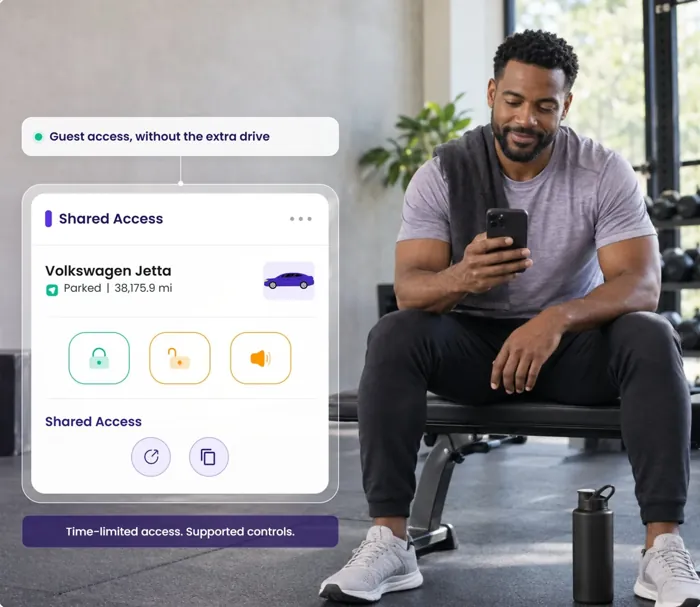
Send the guest a Shared Access link for one vehicle, set to the start and end of their booking. No account to create, no keys to hand over, no meeting at the curb.
In the appSidebar → Shared Access
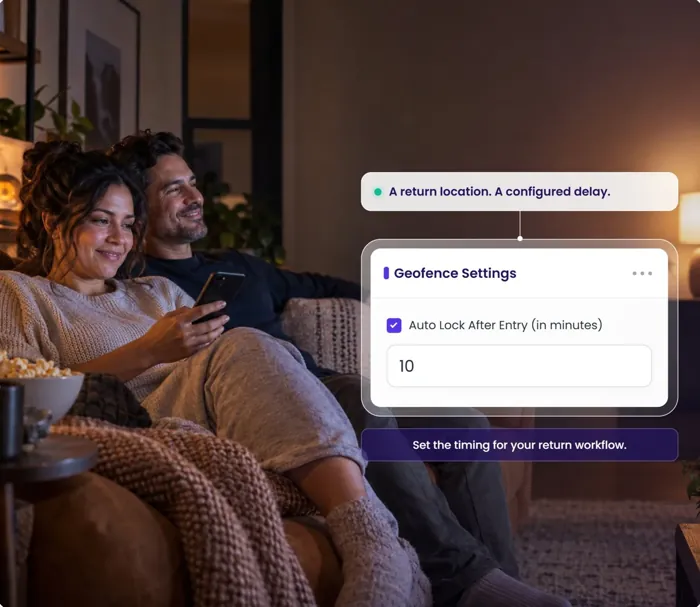
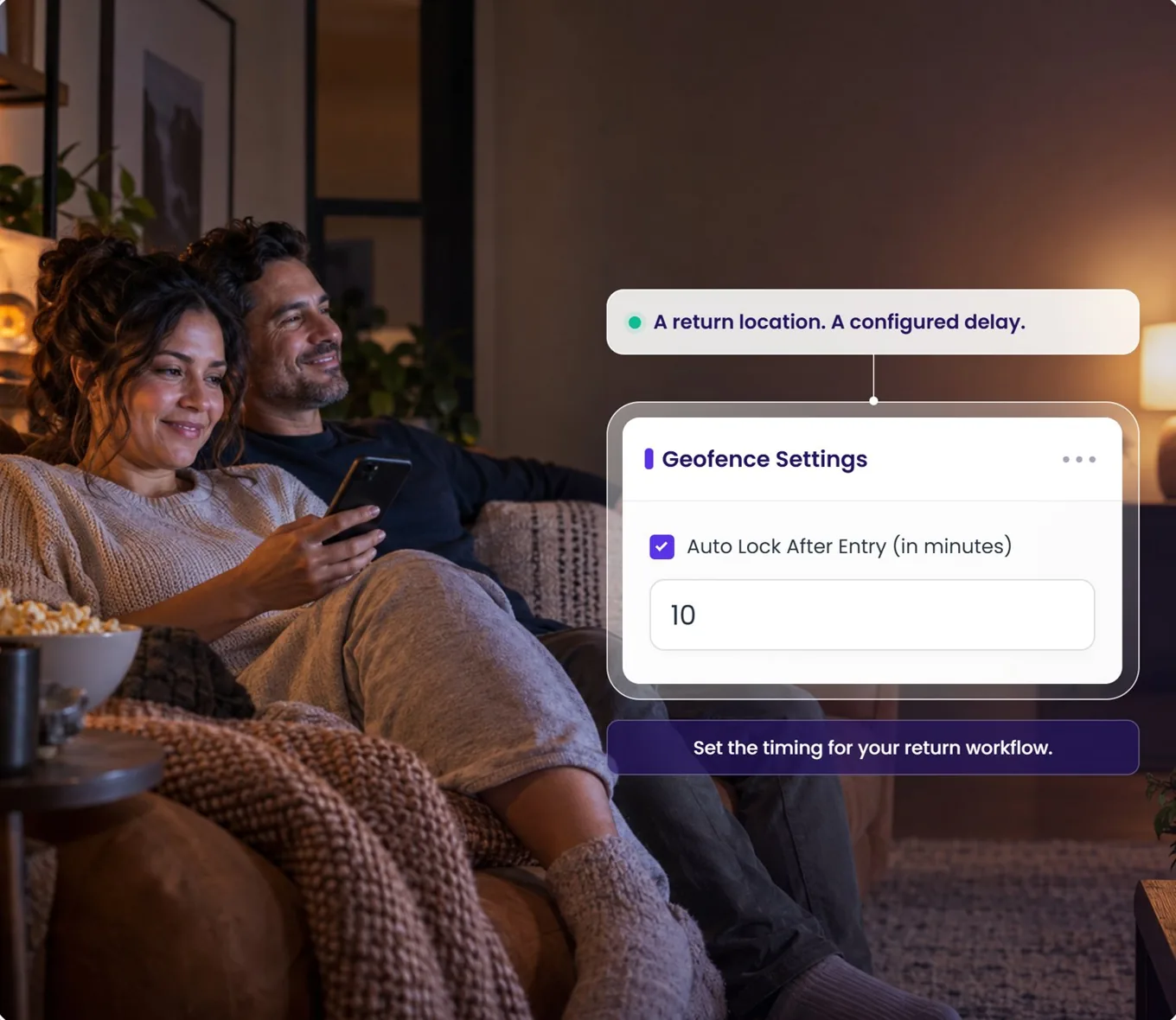
Geofence Auto Lock02 / 20
The car comes home. The routine runs itself.
Assign a return geofence to the vehicle and set Auto Lock After Entry, in minutes. The lock step at the end of a return stops depending on someone remembering to check. On supported vehicles.
In the appSidebar → Geofences → Edit
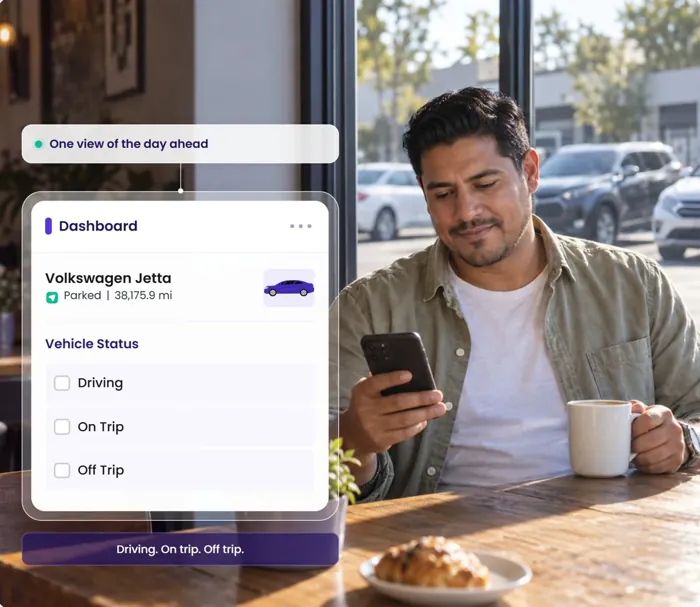
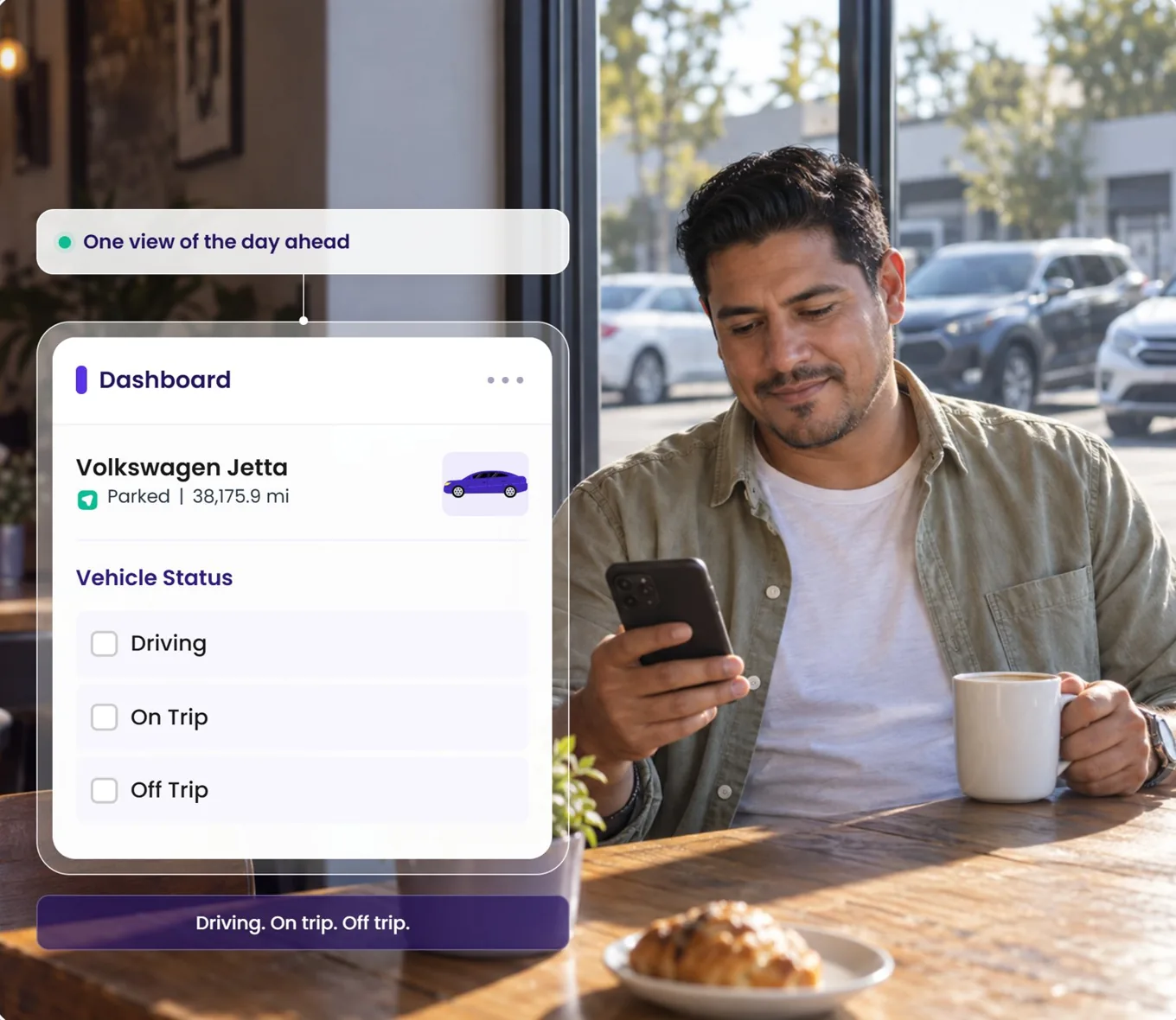
Vehicle Status03 / 20
One view of the day ahead.
Filter the fleet by Driving, On Trip and Off Trip from the dashboard, so the first look of the day tells you which cars are working and which ones need you.
In the appDashboard → status filters
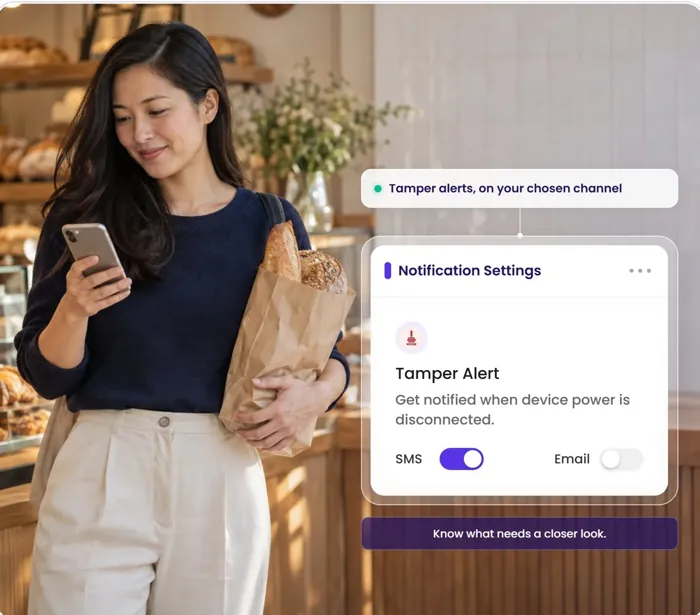
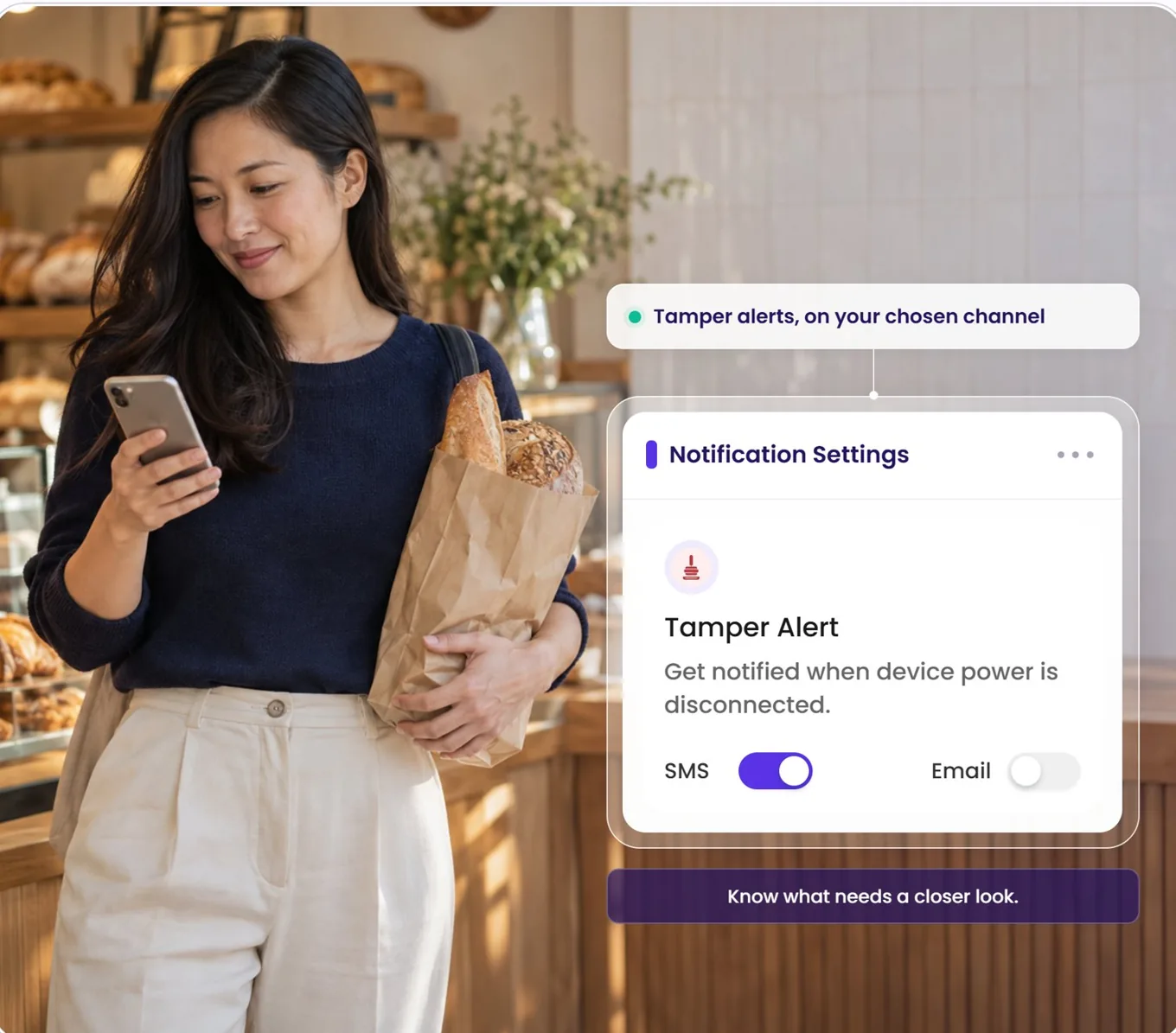
Tamper Alert04 / 20
Know when the device loses power.
Tamper Alert tells you when device power is disconnected, on the channel you choose. Treat it as a reason to look closer — check the last ping, the location and the trip before drawing conclusions.
In the appVehicles → View Vehicle → Notification Settings
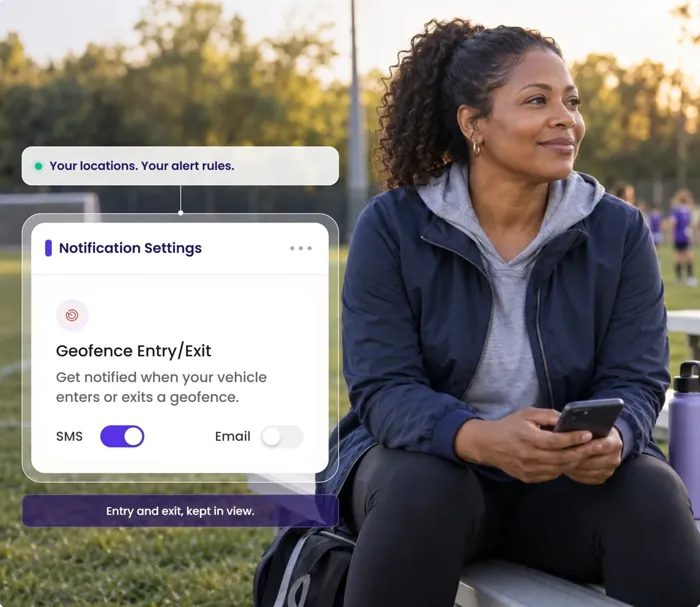
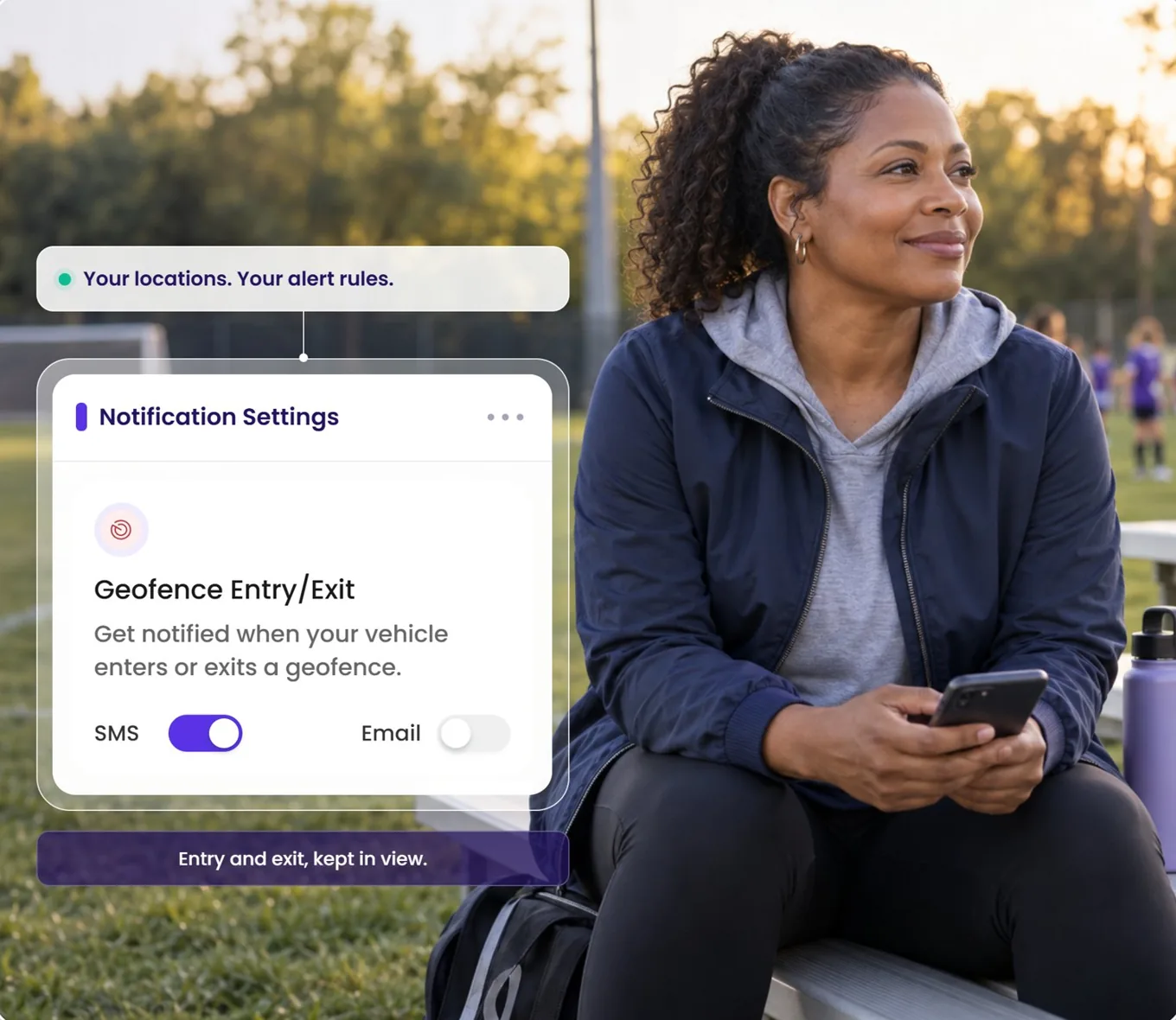
Geofence Alerts05 / 20
Your places. Your alert rules.
Turn on Geofence Entry and Exit alerts for each vehicle and pick the channel. Arrivals and departures at the lot, the airport or the service center reach you as they happen.
In the appVehicles → View Vehicle → Notification Settings
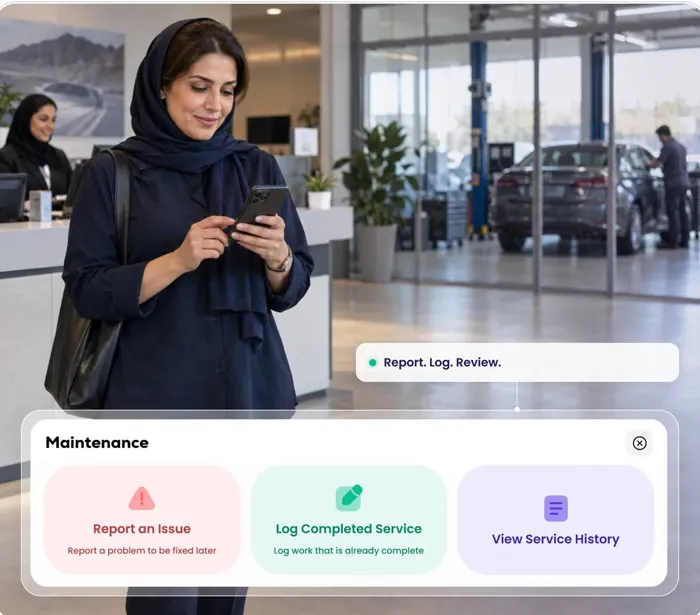
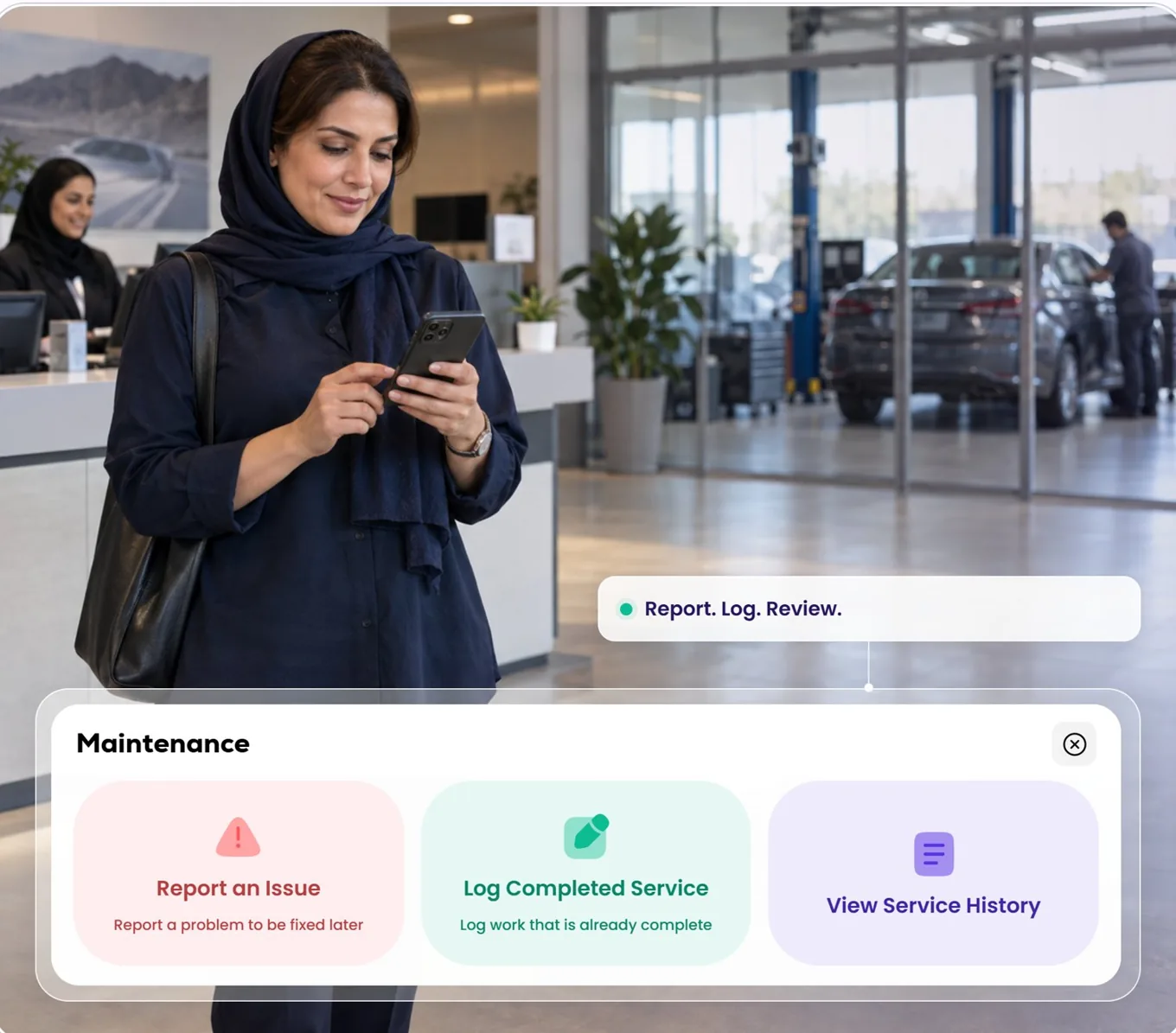
Maintenance06 / 20
Report. Log. Review.
Report an issue when you spot it, log the service when it is done, and keep the history on the vehicle it belongs to — date, mileage, cost, notes and the invoice.
In the appDashboard → vehicle card → Maintenance
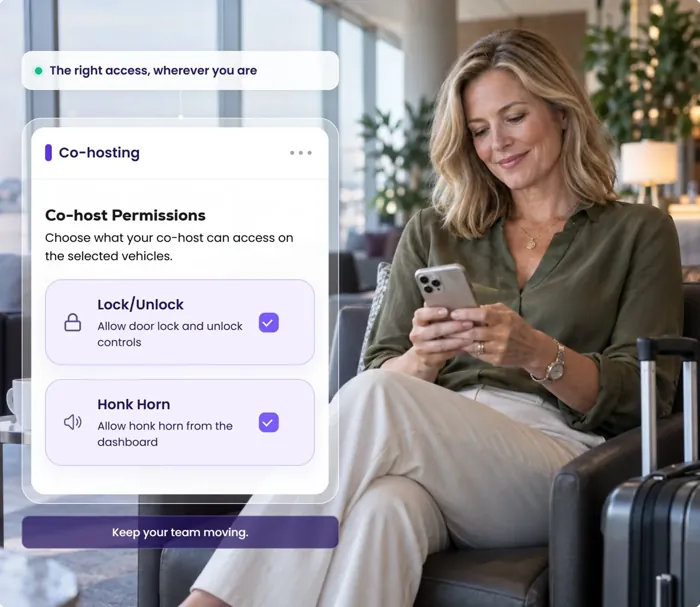
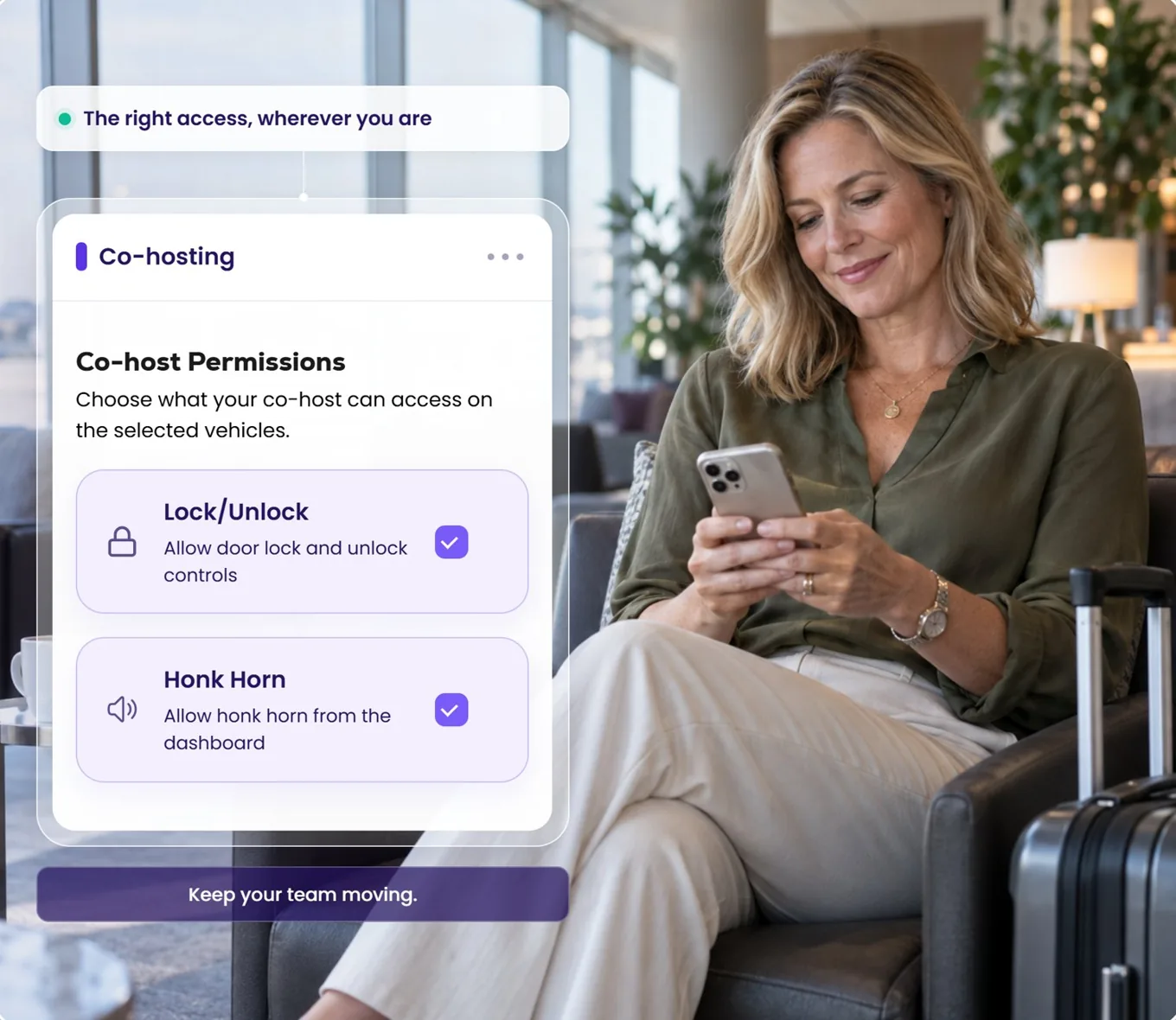
Co-Hosting07 / 20
The right access, wherever you are.
Invite a co-host by email and choose which controls they can use — lock and unlock, horn — on the vehicles you select. The team keeps moving while you are in transit.
In the appSidebar → Co Hosting
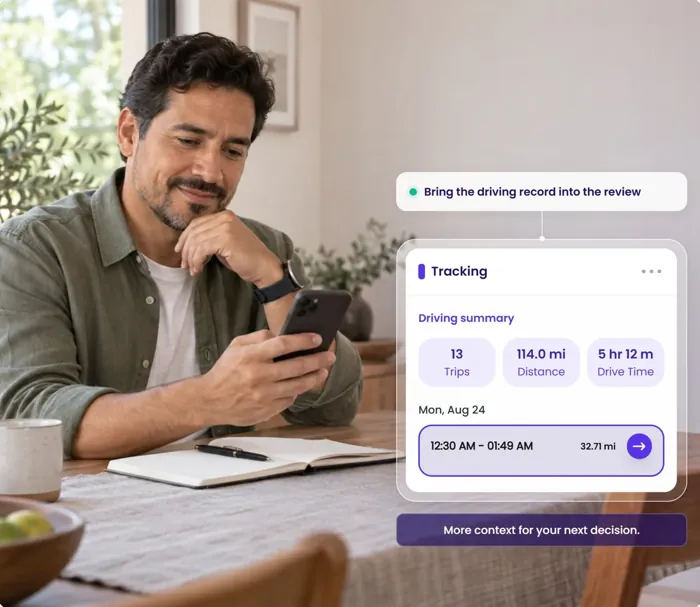
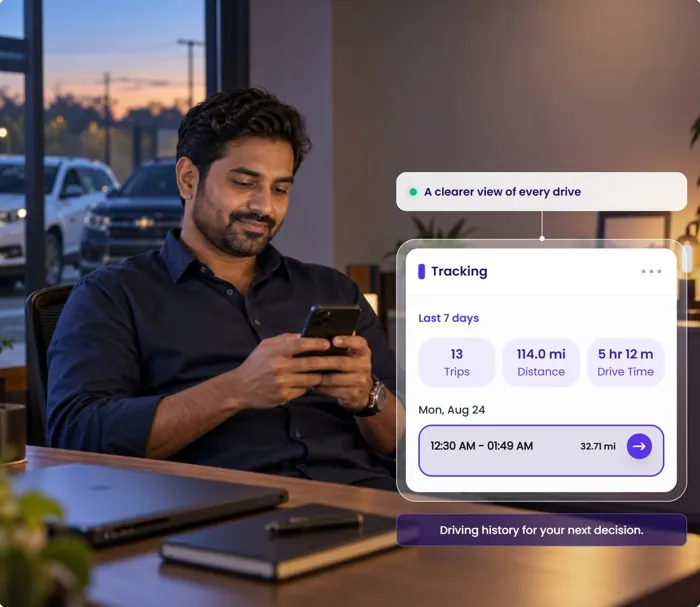
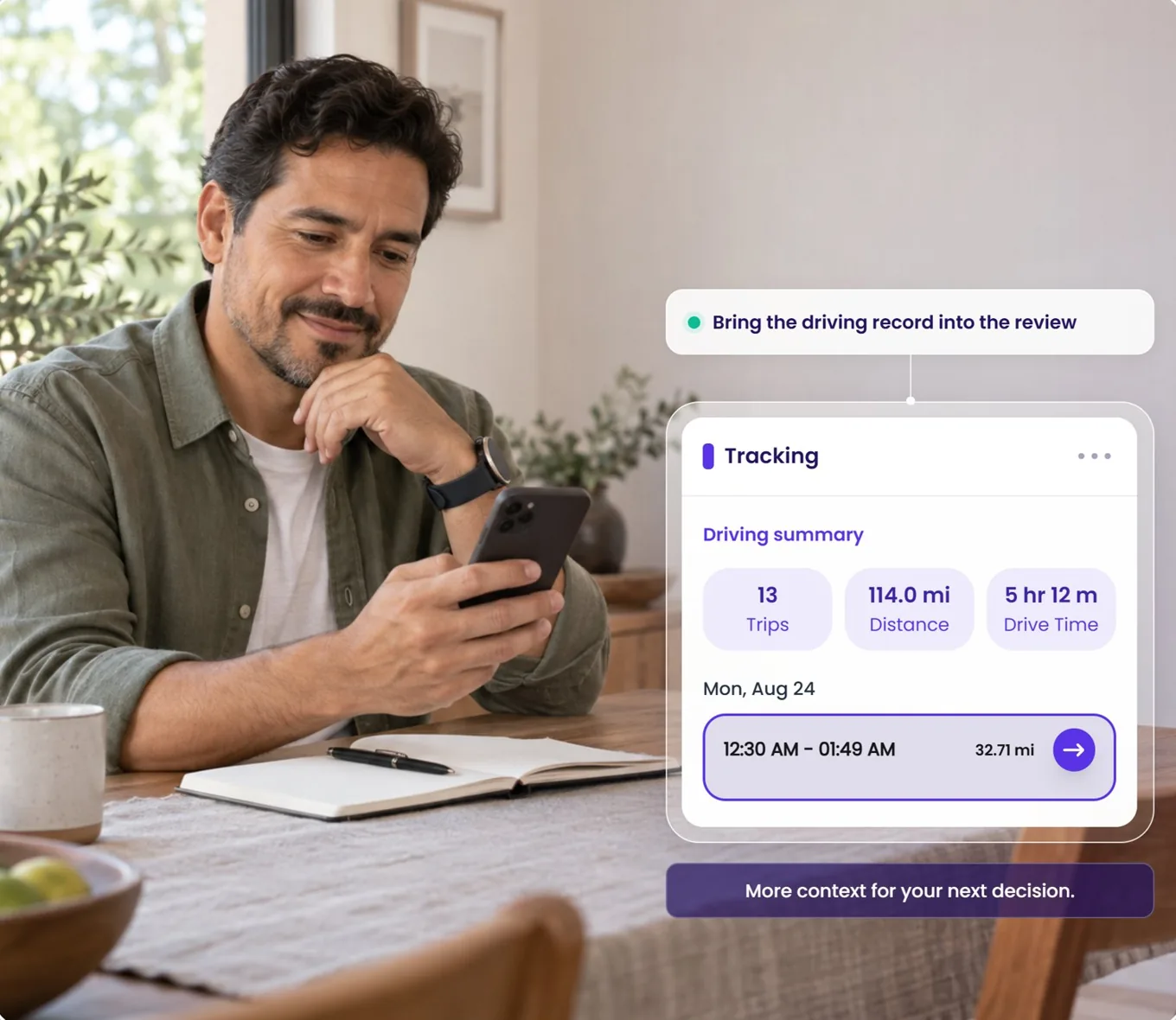
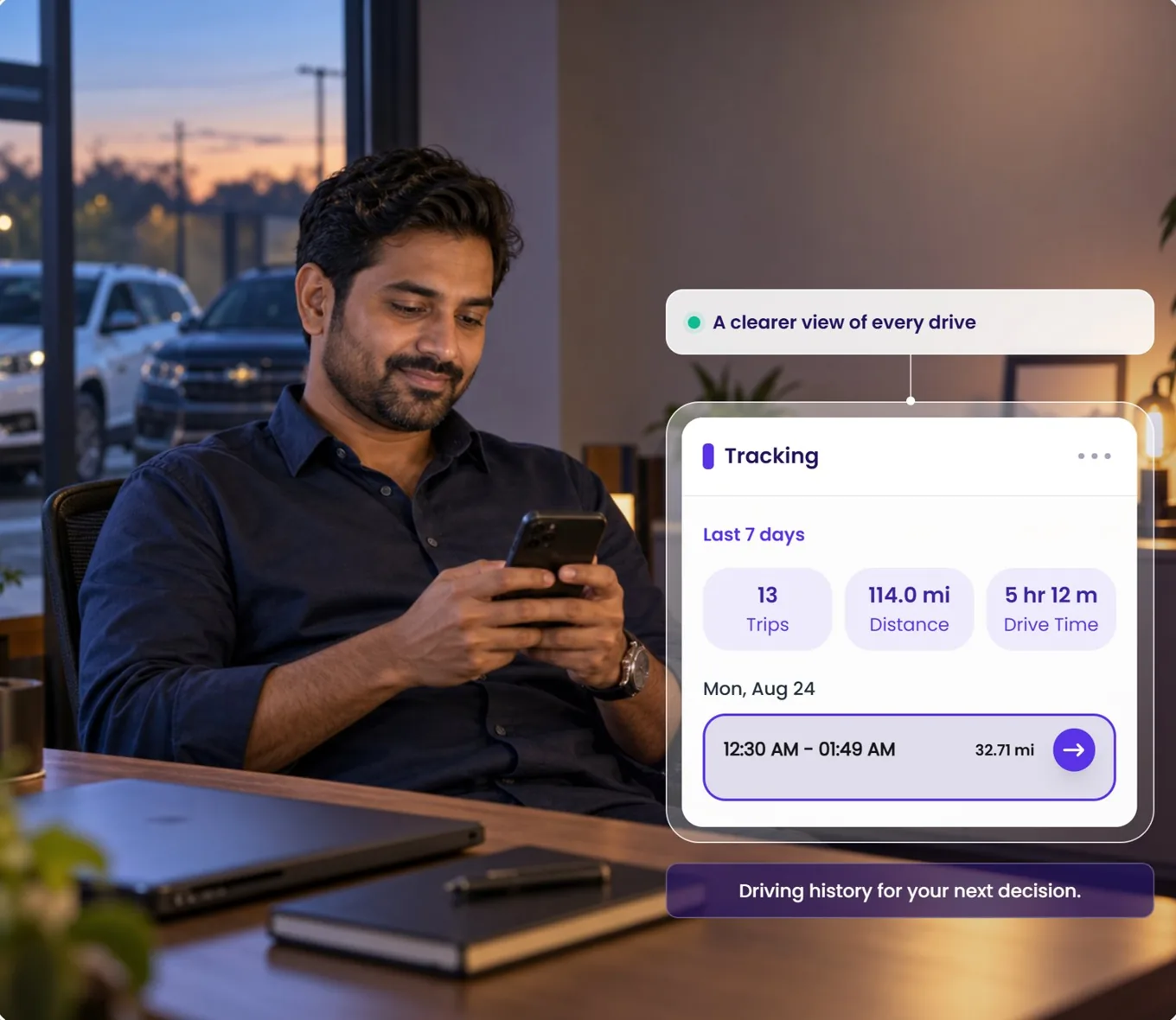
Tracking08 / 20
Bring the driving record into the review.
Tracking rolls each vehicle's week into trips, distance and drive time, with every trip listed by day. When a question comes up, you are reading a record rather than rebuilding one.
In the appSidebar → Tracking
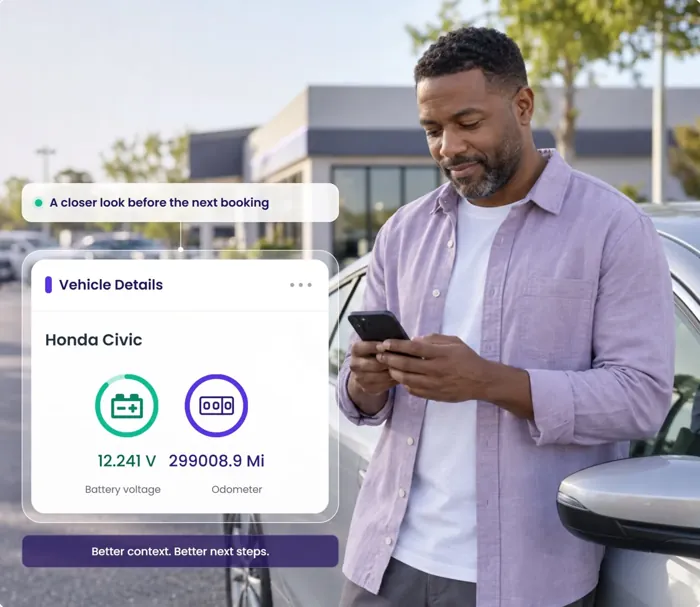
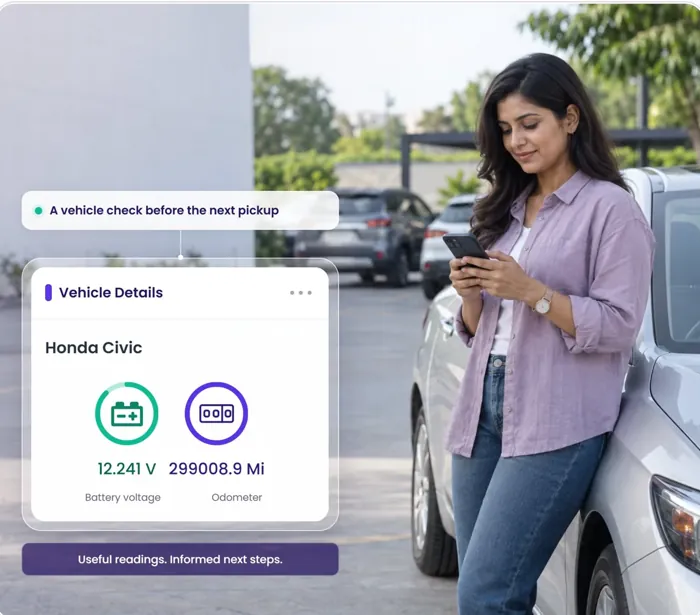
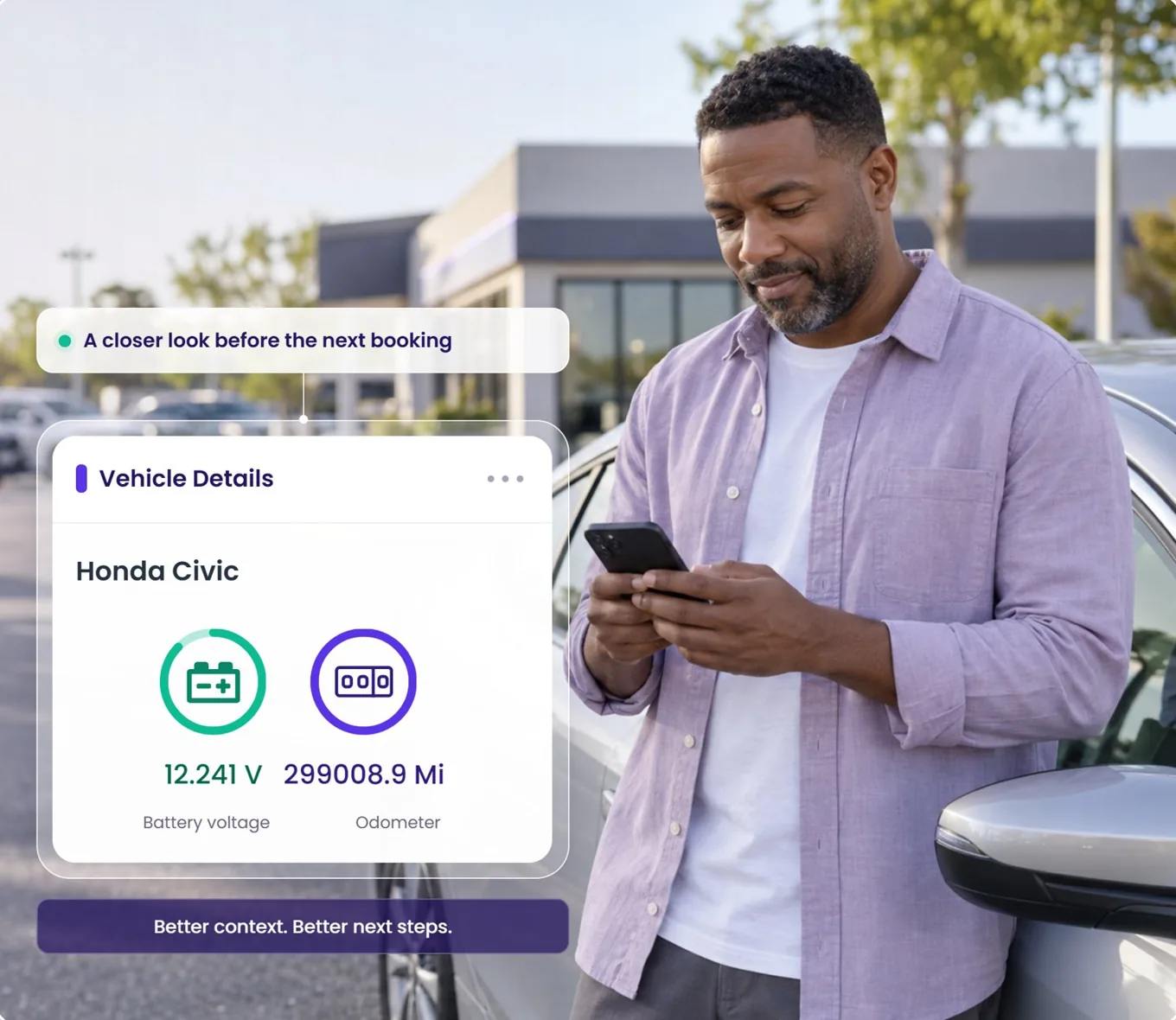
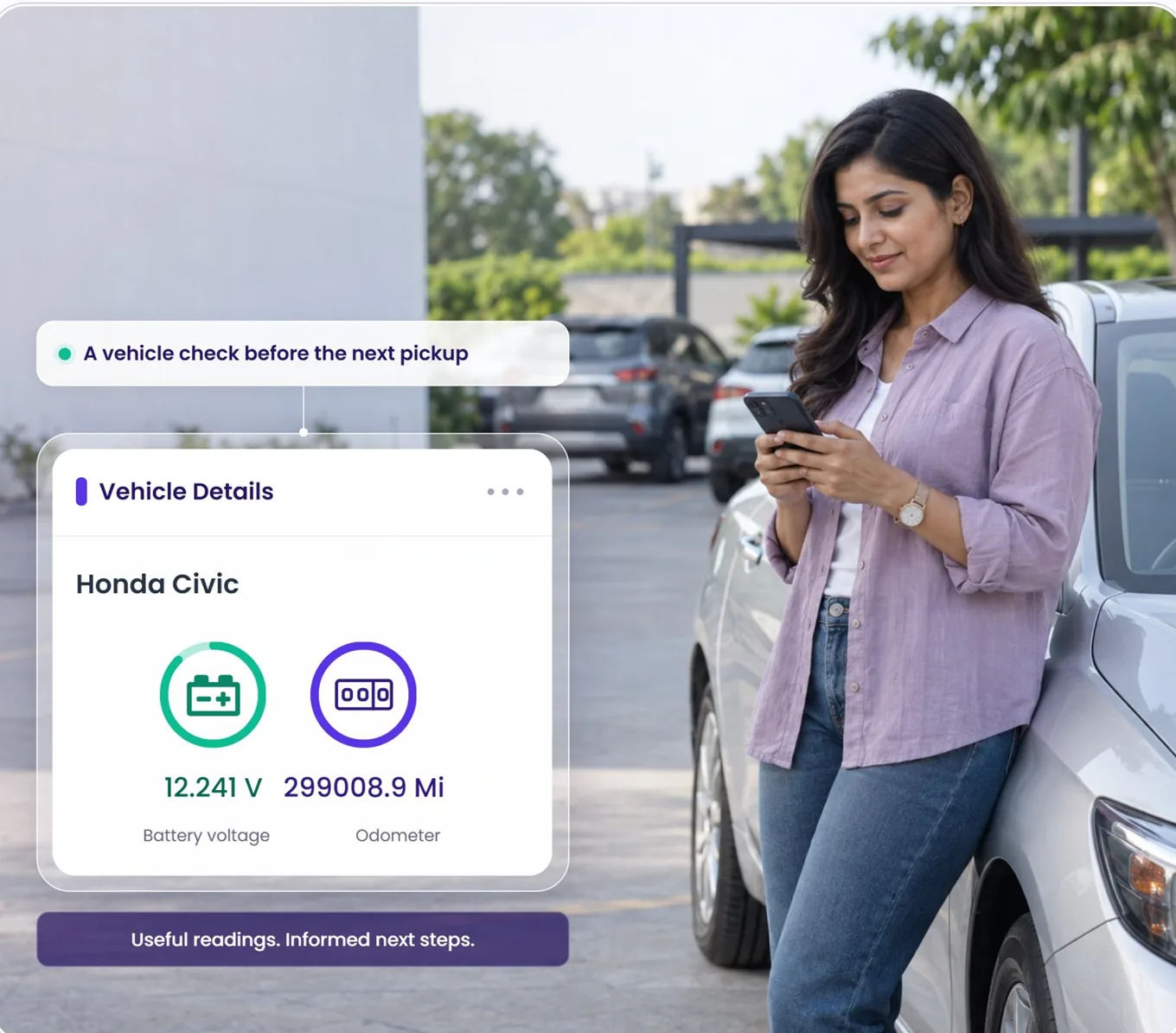
Vehicle Details09 / 20
A closer look before the next booking.
Battery voltage and odometer, read on the vehicle's own record. Low voltage is far easier to deal with before the next guest is standing beside the car.
In the appVehicles → View Vehicle
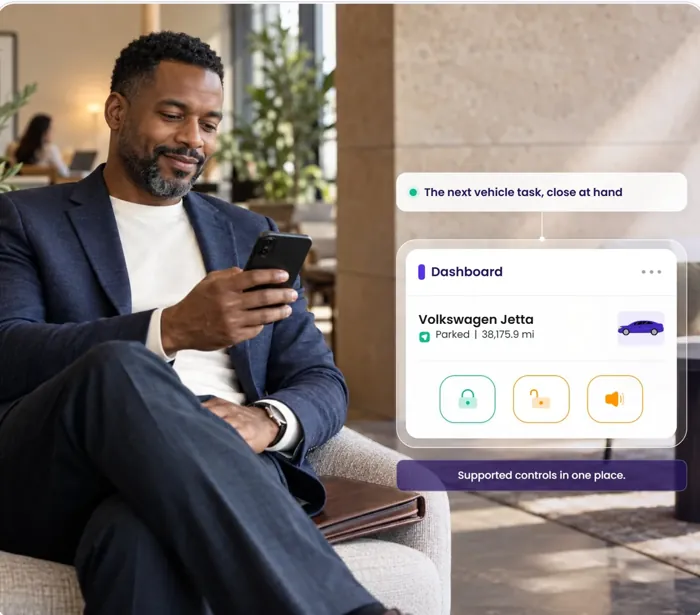
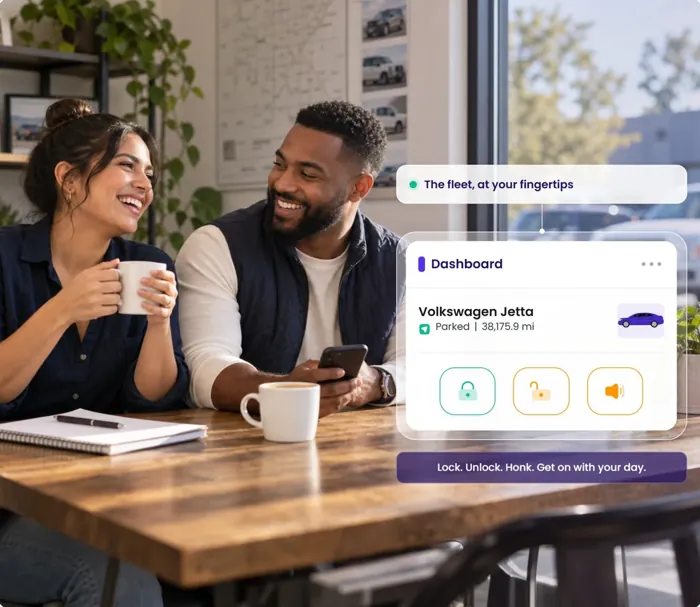
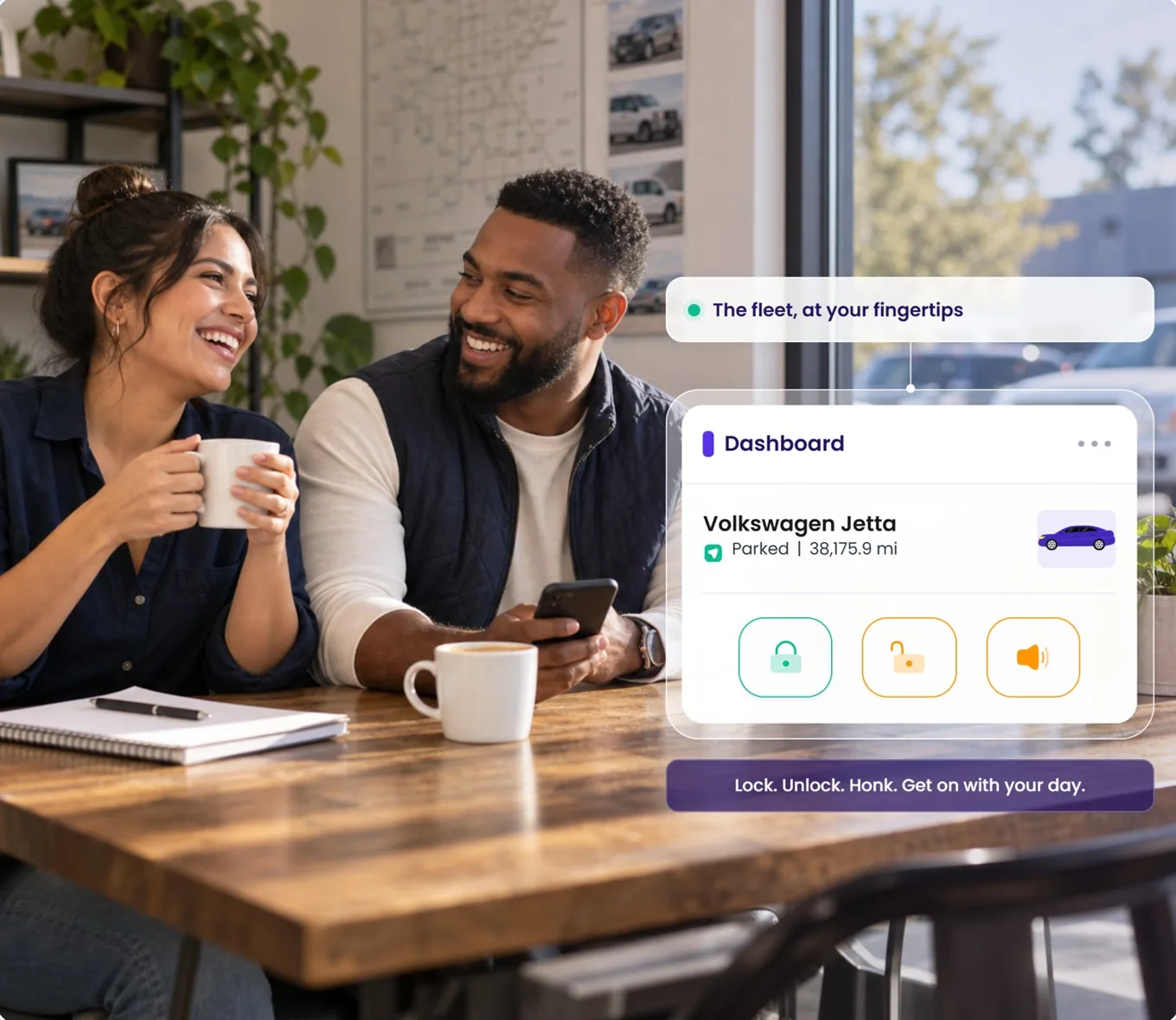
Remote Controls10 / 20
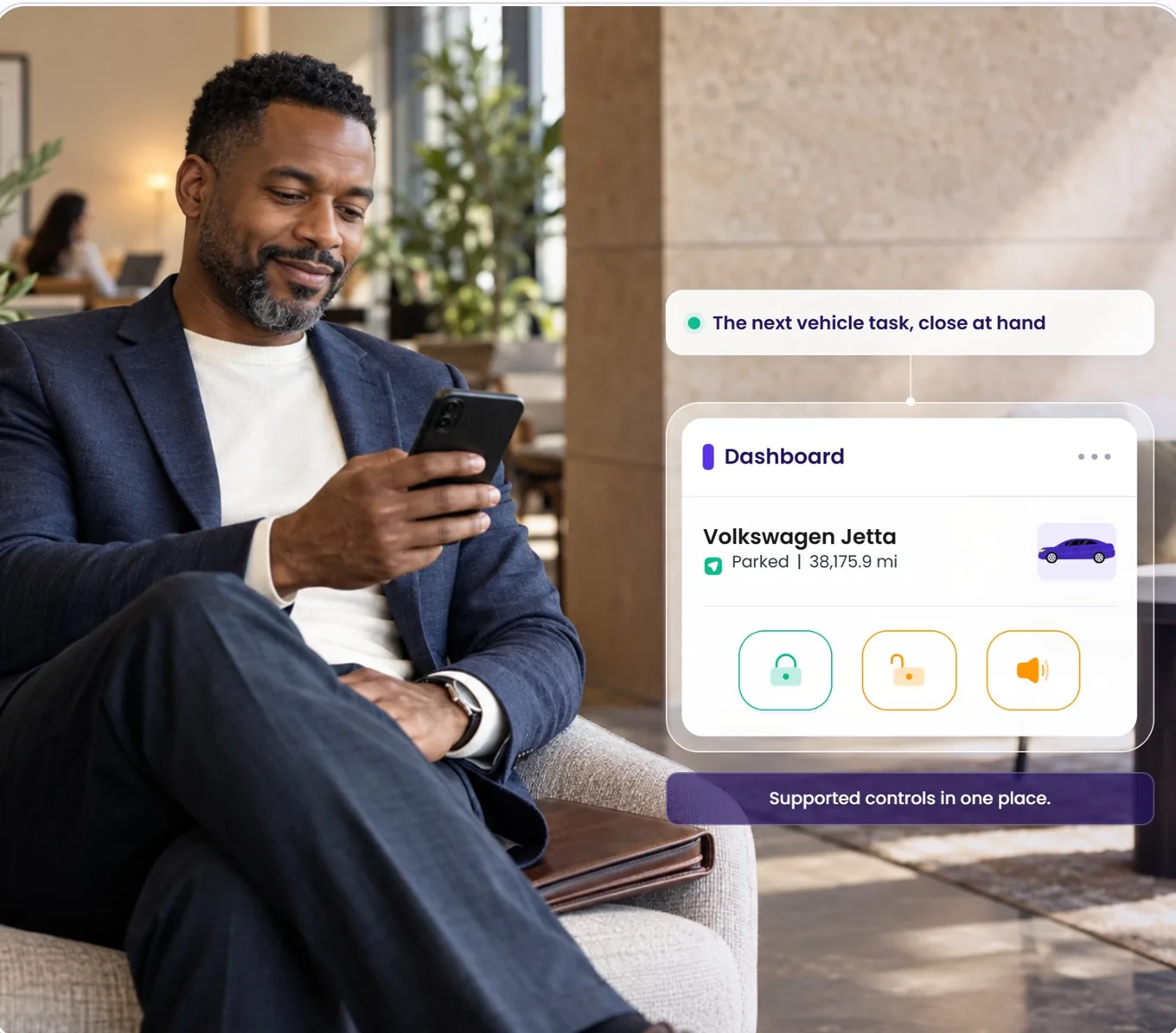
The next task, close at hand.
Lock, unlock and horn sit on every vehicle card on the dashboard. Supported controls, on supported vehicles — one tap instead of one drive.
In the appDashboard → vehicle card
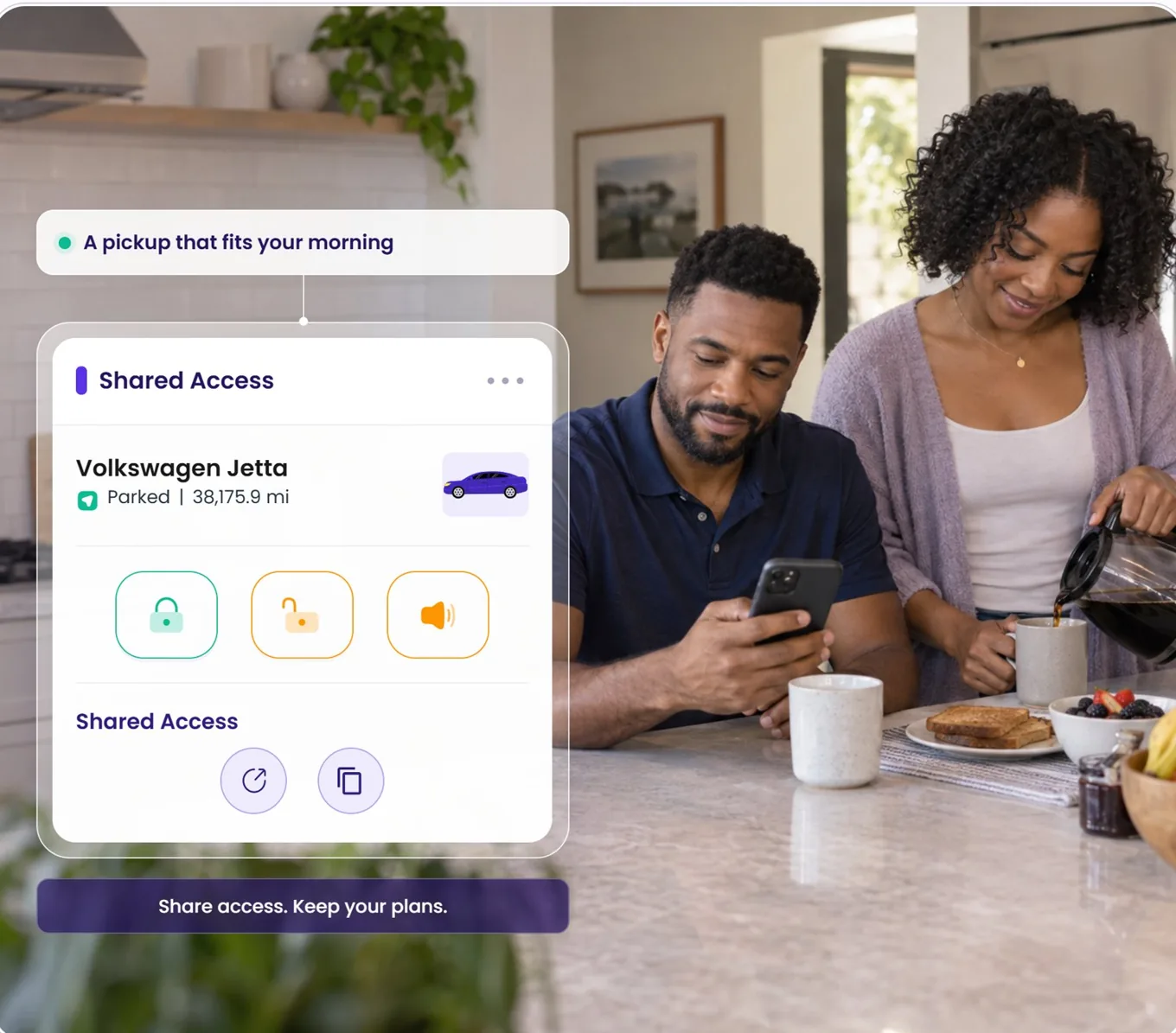
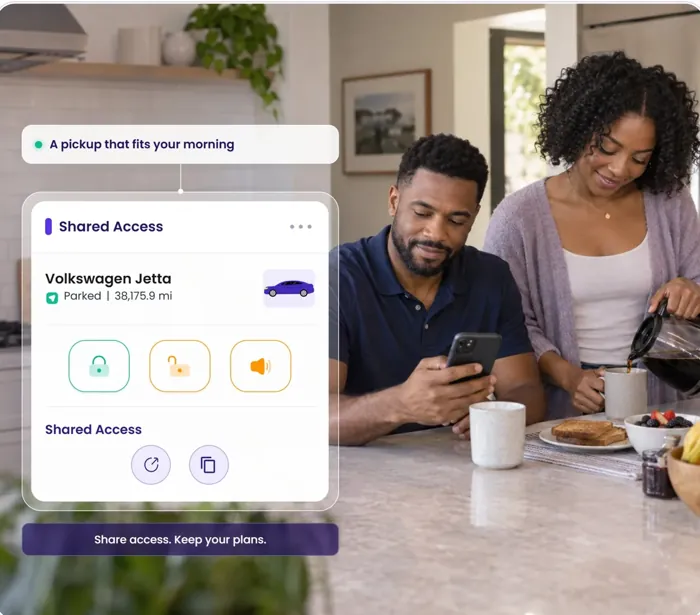
Shared Access11 / 20
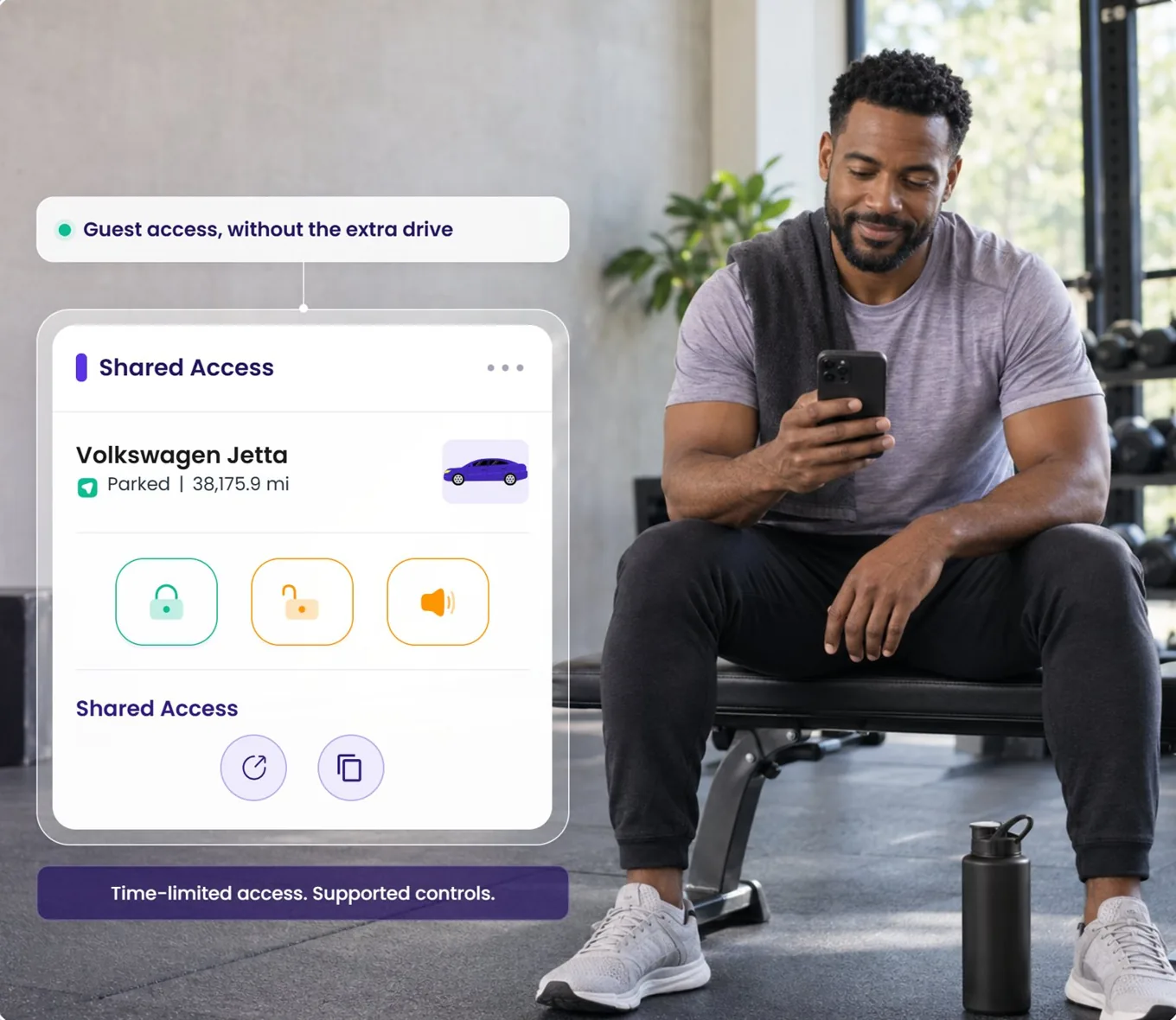
Guest access, without the extra drive.
Share a time-bound link for one car and the guest gets that car's supported controls — not your account, not the rest of the fleet. Copy it, send it, get back to your workout.
In the appSidebar → Shared Access
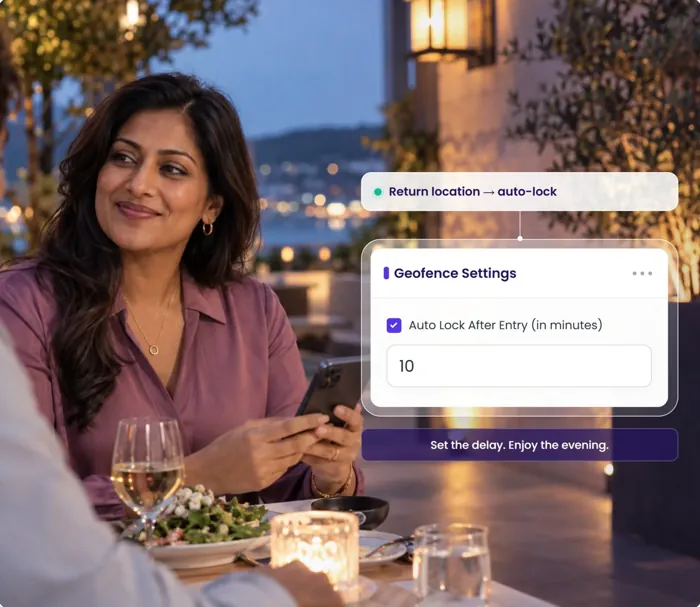
Geofence Auto Lock12 / 20
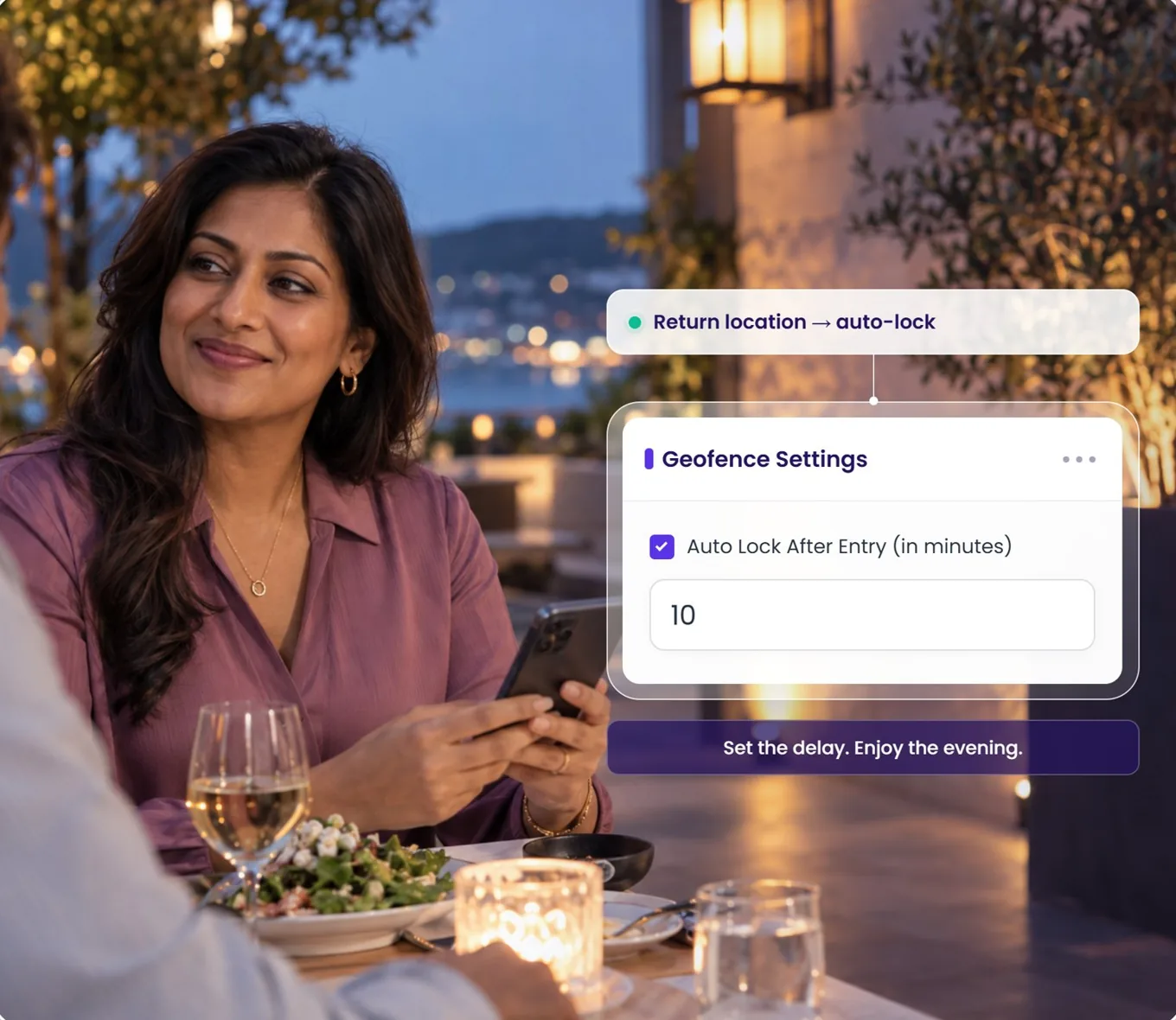
Set the delay. Enjoy the evening.
A return geofence with Auto Lock After Entry gives the handover a grace period, in minutes, before the configured lock applies. You do not have to be there to close out the return. On supported vehicles.
In the appSidebar → Geofences → Edit
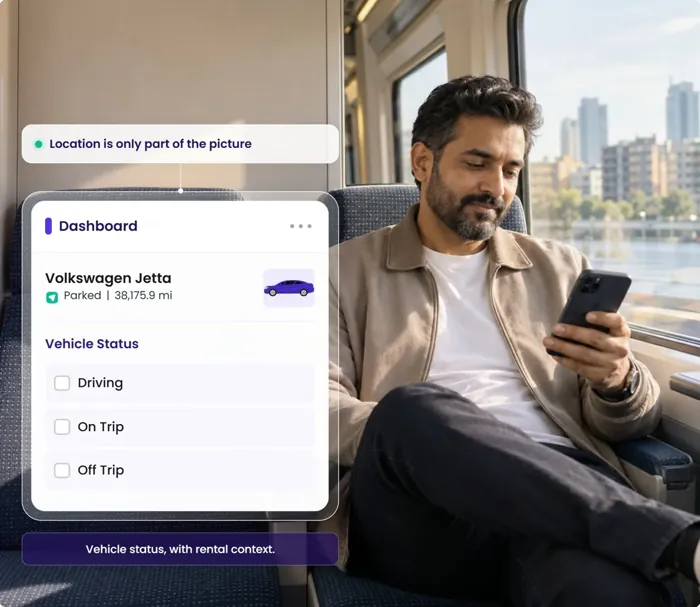
Vehicle Status13 / 20
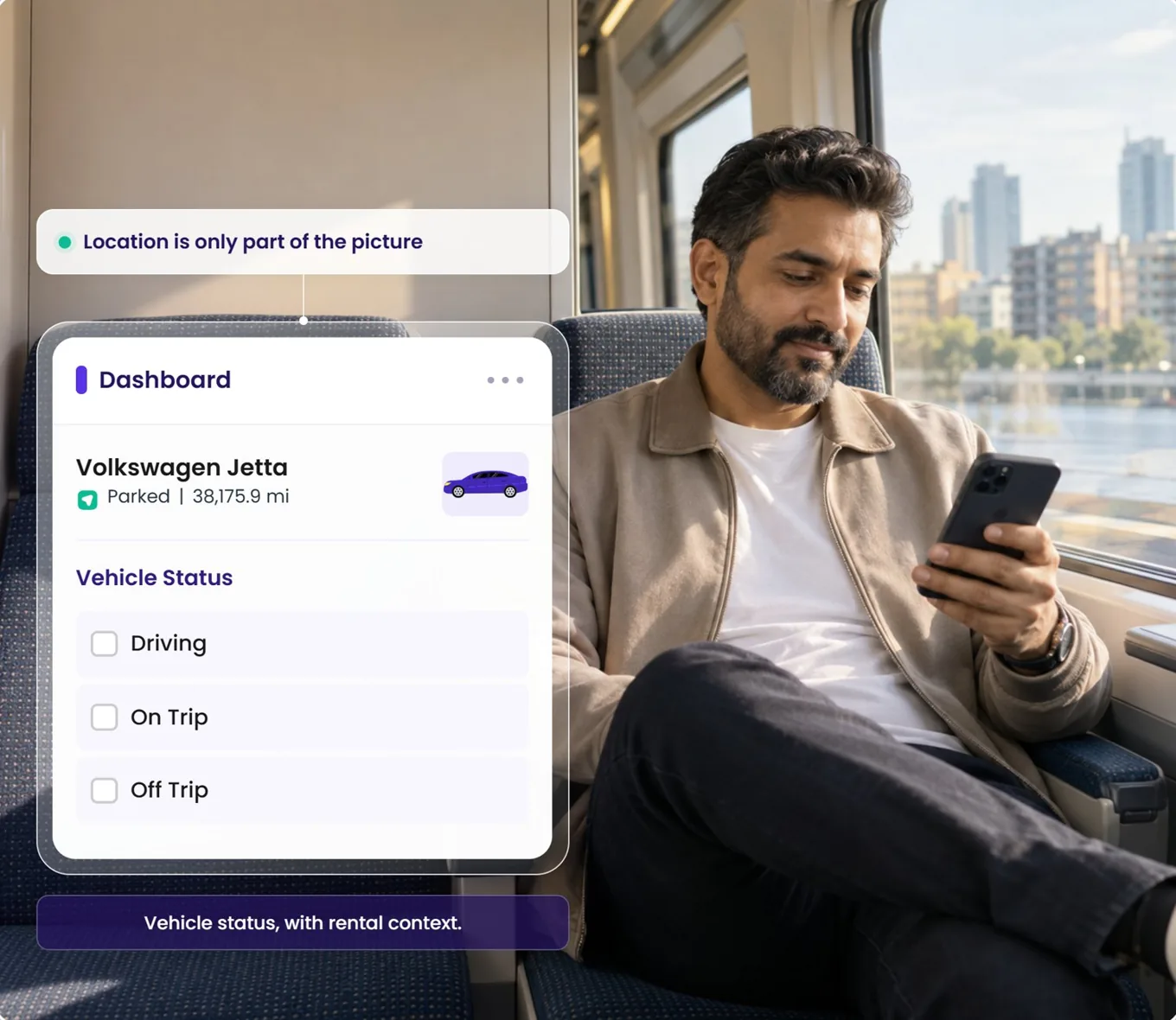
Location is only part of the picture.
A dot on a map says where. Driving, On Trip and Off Trip say what it means — whether a car is earning, parked between bookings, or on the move with no trip attached.
In the appDashboard → status filters
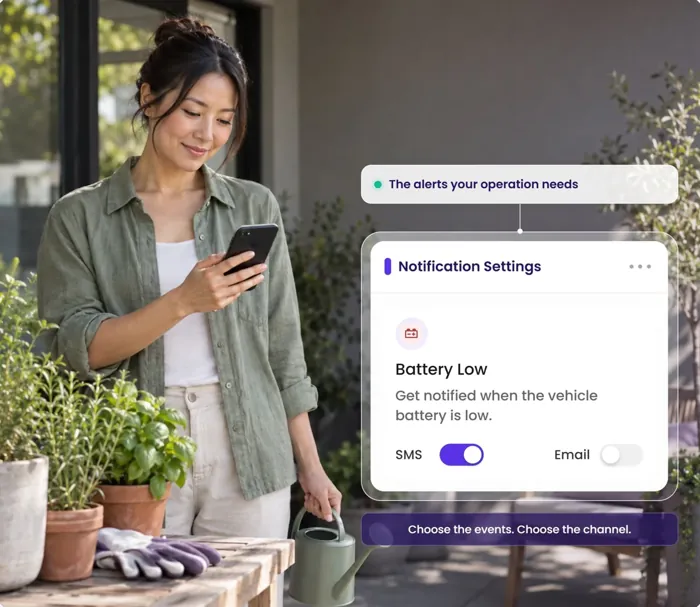
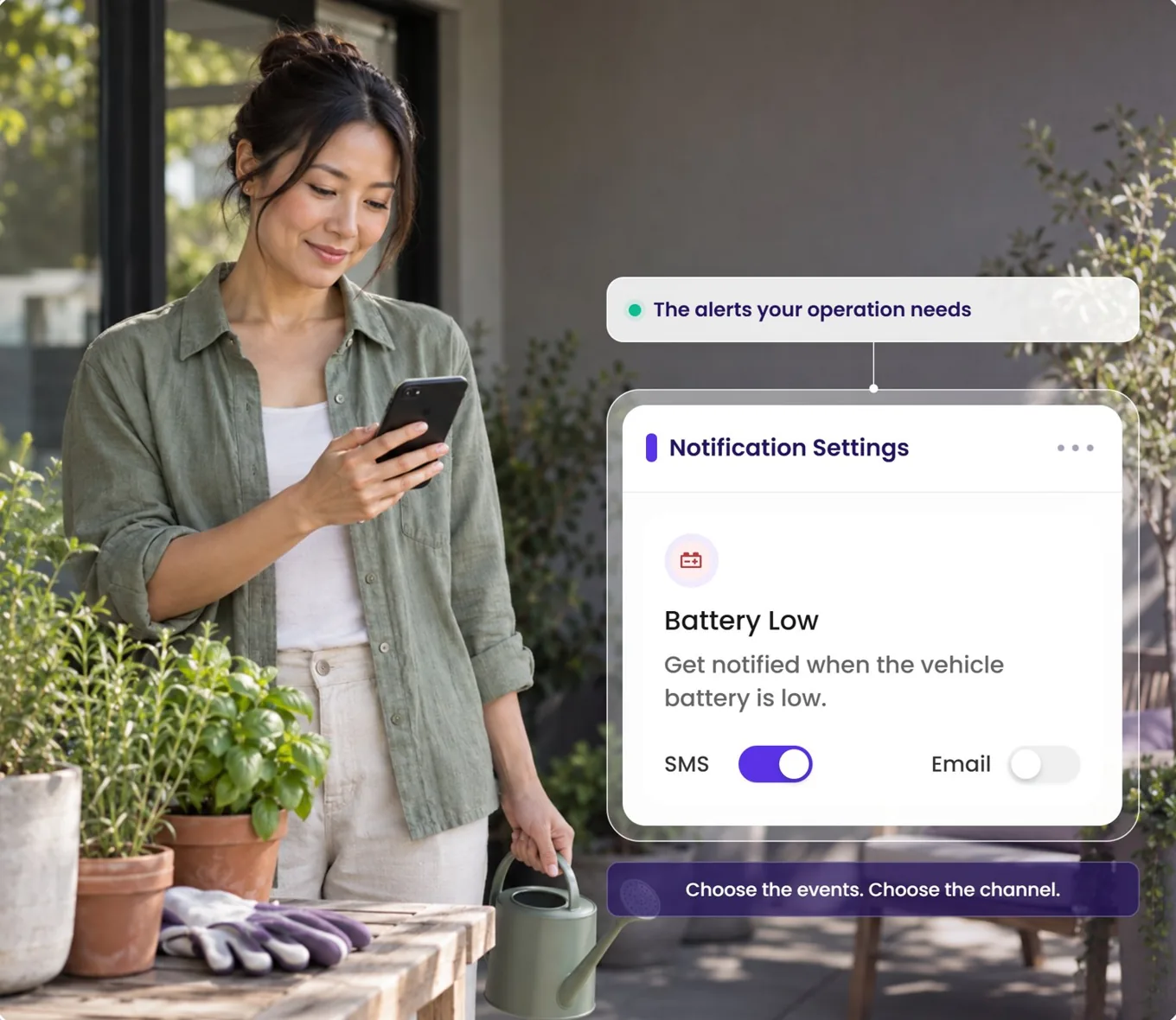
Battery Low Alert14 / 20
The alerts your operation actually needs.
Choose Battery Low — and whichever other events matter — for each vehicle, then choose the channel. A weak battery flagged on Tuesday is a car that still starts on Friday.
In the appVehicles → View Vehicle → Notification Settings
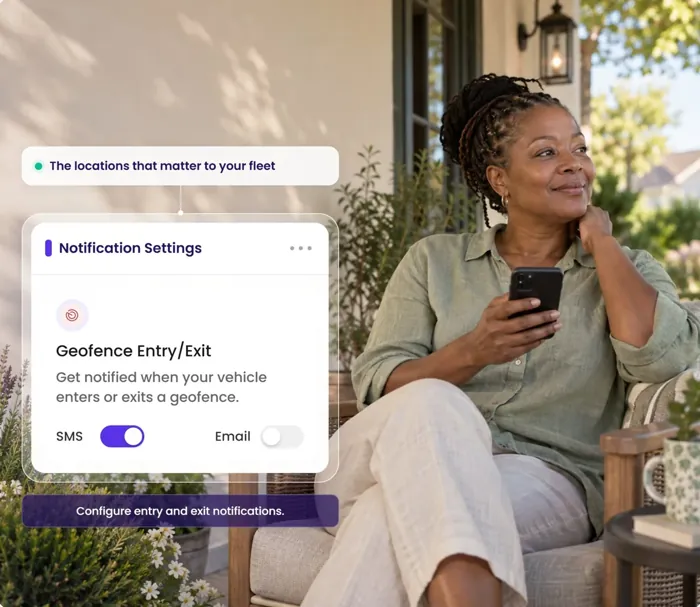
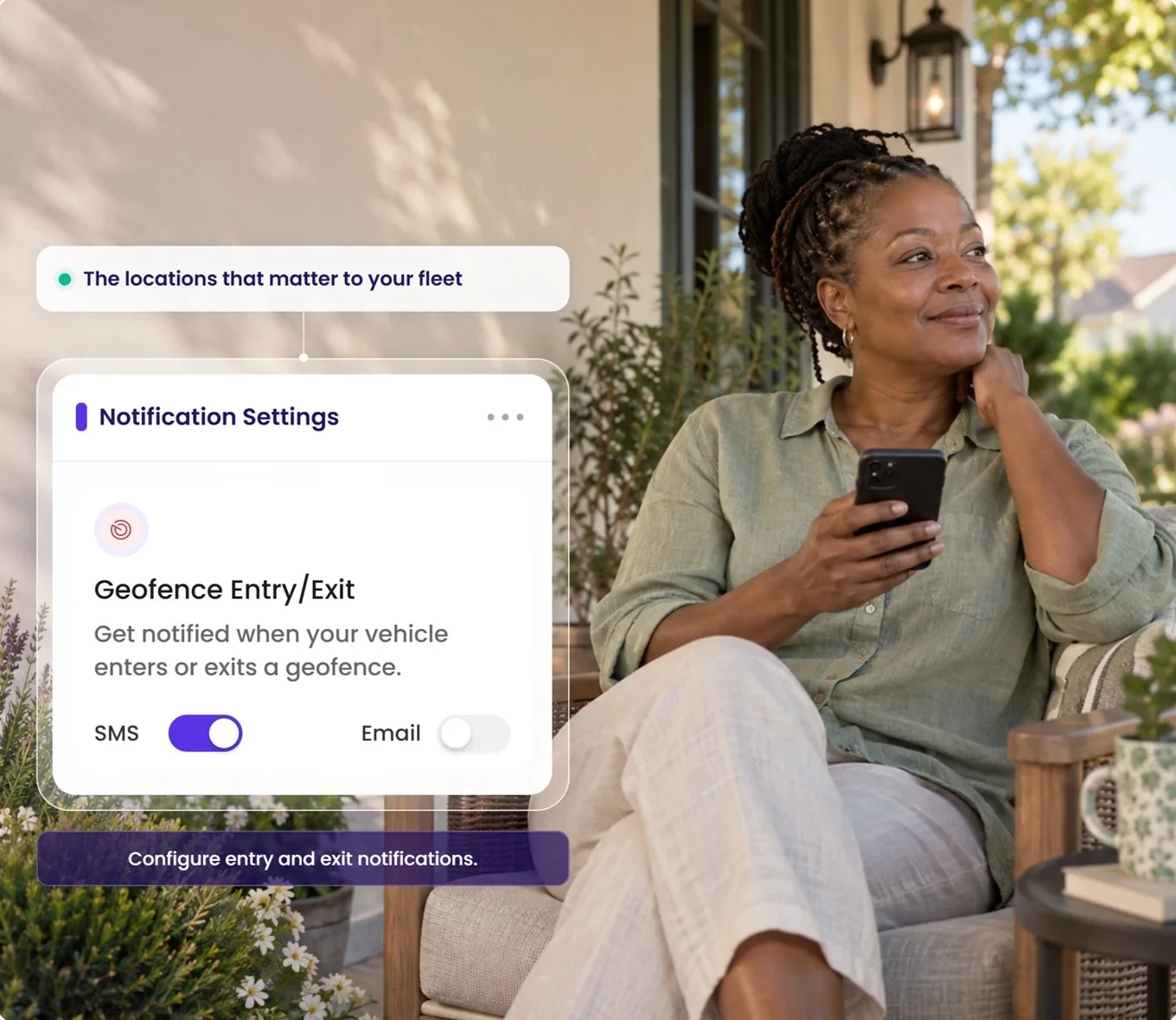
Geofence Alerts15 / 20
The locations that matter to your fleet.
Home lot, airport, service center. Draw the zones once, assign the vehicles, and configure entry and exit notifications on each car.
In the appSidebar → Geofences
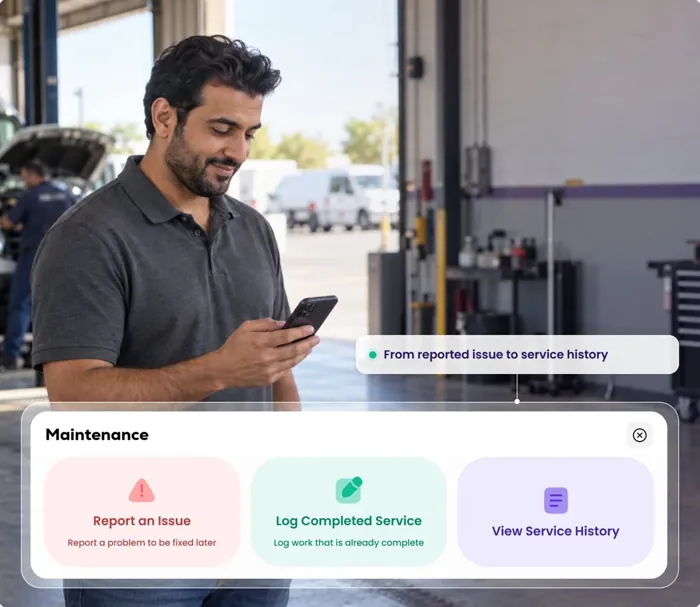
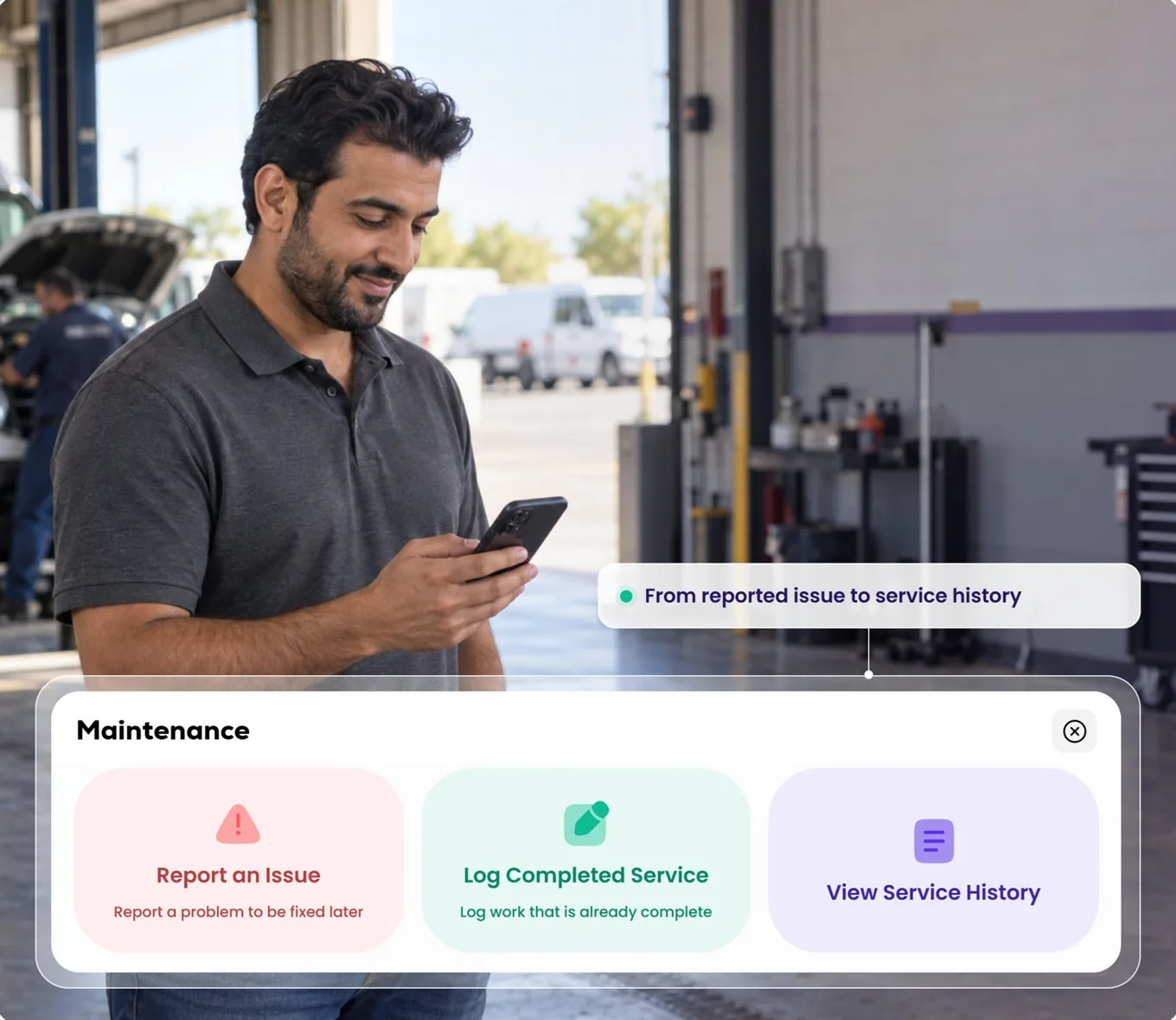
Maintenance16 / 20
From reported issue to service history.
The issue you report today becomes the service you log tomorrow, and both stay on the vehicle. When someone asks when the brakes were last done, the answer is already written down.
In the appDashboard → vehicle card → Maintenance
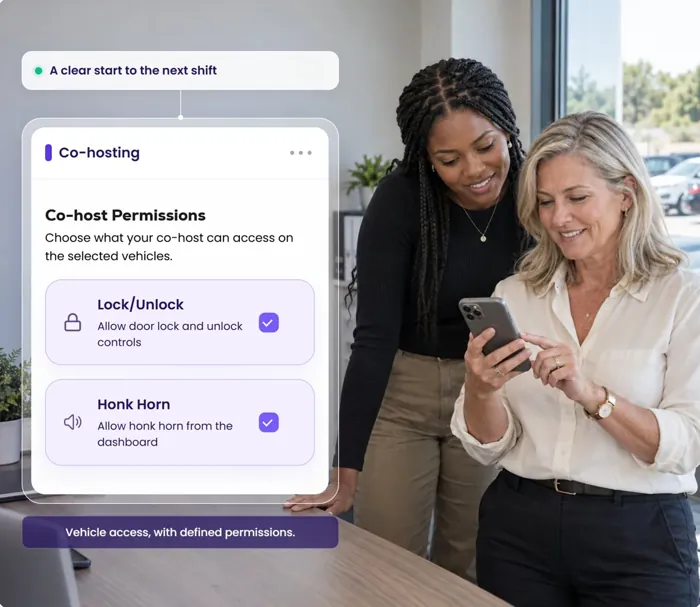
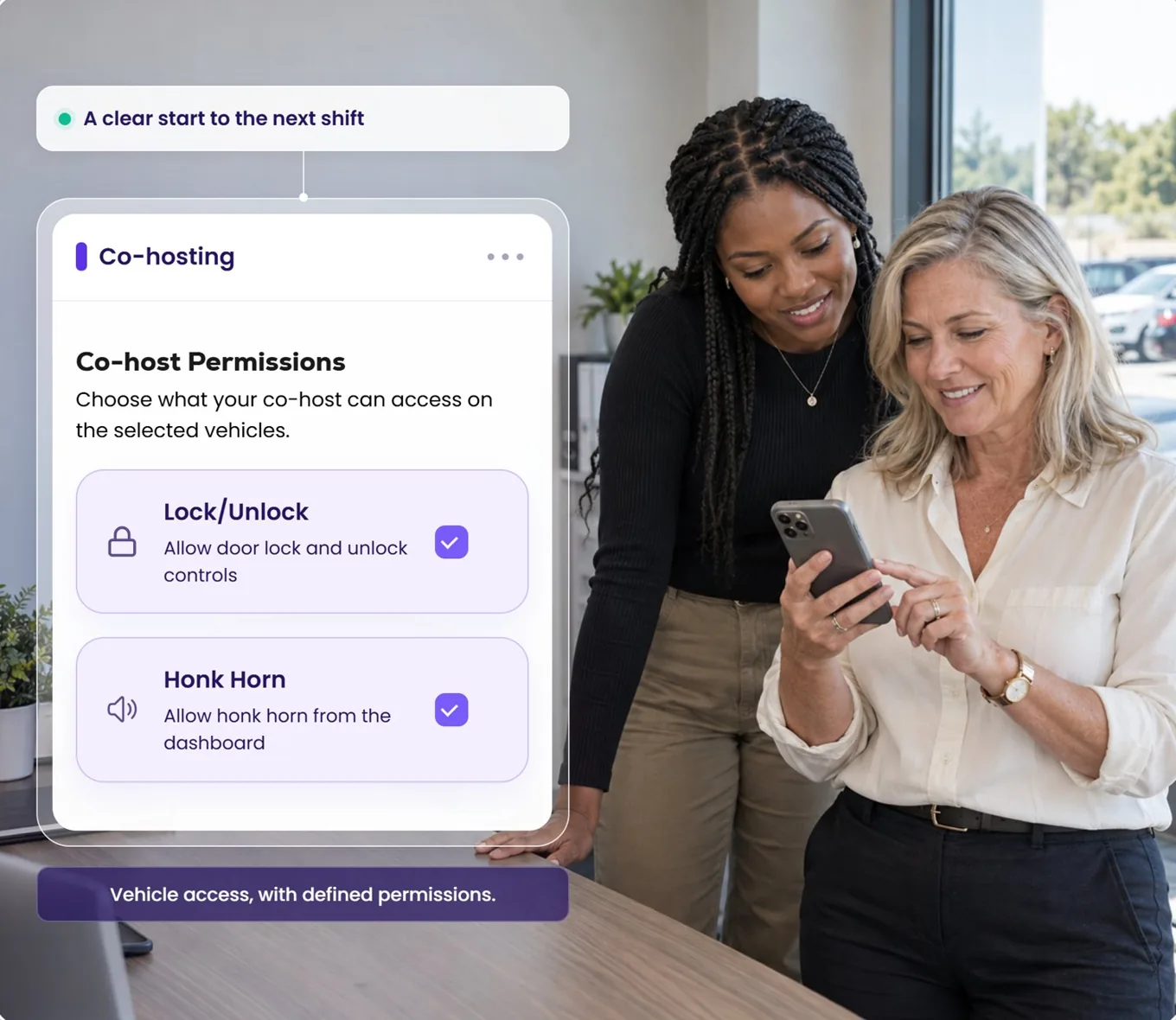
Co-Hosting17 / 20
A clear start to the next shift.
Co-hosts sign in with their own login and use only the vehicles and controls you have granted. Handovers stop living in a group chat.
In the appSidebar → Co Hosting
Tracking18 / 20
A clearer view of every drive.
Trips, distance and drive time for the week, with each trip ready to open by day — the driving history behind the decisions you make next.
In the appSidebar → Tracking
Vehicle Details19 / 20
A vehicle check before the next pickup.
Open the vehicle and the readings are there — battery voltage and odometer — before you commit the car to its next guest.
In the appVehicles → View Vehicle
Remote Controls20 / 20
Lock. Unlock. Honk. Get on with your day.
The supported controls live on the vehicle card, so the small jobs — a lock check, a guest who cannot find the car — take a tap from wherever you are sitting.
In the appDashboard → vehicle card
Already running Qarhami
Turn on ABI sharing, car by car.
It's already in your app. Open a vehicle, tap Edit, tick Shared with ABI Insurance and
save. Repeat for each vehicle you want included.
Two things: an opt-in, per-vehicle channel that shares that vehicle's Qarhami telematics with ABI, and the faster rental verification and better-evidenced claims that follow from it.
It does not, by itself, change your premium. Pricing, eligibility and coverage terms are decided by ABI and by your policy. If ABI applies any commercial benefit to connected vehicles, it comes from ABI and is confirmed by ABI, not by Qarhami.
No. The setting lives on each vehicle record and is off unless you switch it on.
Sharing two cars and leaving seven off is a normal state. This matters for mixed fleets — partner-owned vehicles, cars insured elsewhere, or a vehicle you are about to sell.
Yes, from the same screen. Open the vehicle, tap Edit, untick Shared with ABI Insurance, save.
Any obligation you have already taken on with ABI under your policy is a matter between you and ABI — switching the Qarhami setting off changes what is shared going forward, not your contract with your insurer.
No. Qarhami is a rental fleet operating system first, and works exactly the same whether or not you share with any insurer.
The Fleet OS also supports data sharing with Tint, on its own separate checkbox. The two are independent of each other.
The sharing control is on the vehicle record, so it applies to a vehicle regardless of which device is fitted.
What varies is the data itself. Track is the hardwired path and OBD is the plug-and-play path, and the signals each one exposes depend on the vehicle, its model year, the installation, your plan, permissions and connectivity.
No. Qarhami is not an insurance agency, broker or carrier, does not sell cover and does not give insurance advice.
Qarhami provides the operating system and the data-sharing control. ABI provides the insurance, so questions about cover, quotes and claims go to ABI directly.
Vehicles → View Vehicle → Vehicle Details → Edit. Scroll to the bottom of the form, under the Turo link.
You will see two checkboxes: Shared with Tint Insurance and Shared with ABI Insurance. Tick the ABI one and press Save Edits. The walkthrough above shows the whole path.